TTS
AI Listen
Tutorials
AI Tools
How to Use Text to Speech on TikTok: In-App Guide and External Voice Tools
TikTok's built-in text to speech feature is one of the most engaging ways to add audio to your videos — no voiceover recording required. This guide covers how to add it in the app, all voice options available, and external tools for more control.
Sienna Moretti
Sienna Moretti
AI Audio Consultant
June 23, 2026
7 min read
text-to-speech-tiktok-guide
In This Article
How to Add Text to Speech to a TikTok Video
All TikTok Voice Options Explained
Using External TTS Tools for TikTok Content
Why TTS Boosts TikTok Engagement
Choosing the Right TTS Approach for TikTok

TikTok's text to speech feature transformed how creators add audio to their videos. Instead of recording a voiceover, you type a caption and TikTok's AI voice reads it aloud during playback. It's become so common that the voice itself is now instantly recognizable — and certain content formats built entirely around TTS have consistently high engagement rates.

This guide walks you through the in-app steps, explains all the voice options, and covers what to do if you need more control than TikTok's built-in tools offer.

How to Add Text to Speech to a TikTok Video

TikTok's text to speech is available in the video editor after recording or uploading a clip. Here's the full process:

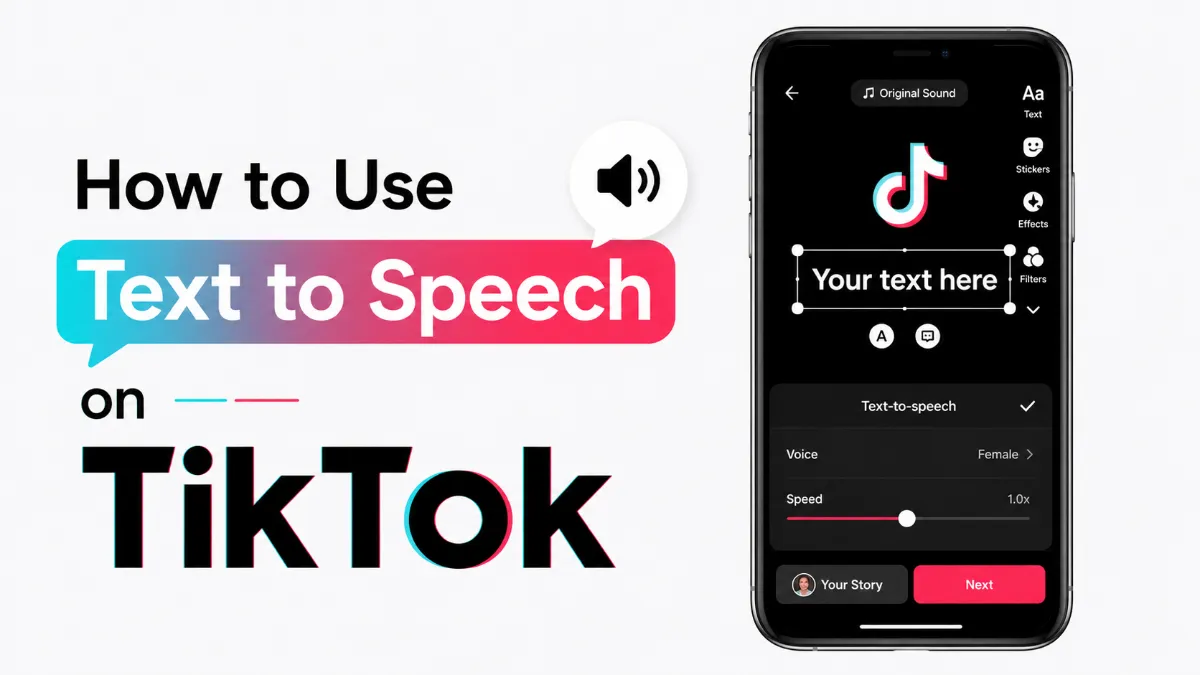
  1. Open TikTok and tap the + button to create a new post.

  2. Record a video or upload one from your camera roll.

  3. On the edit screen, tap the Text (Aa) icon at the bottom.

  4. Type your text in the text box that appears.

  5. Tap Done to apply the text overlay to your video.

  6. Tap the text box you just added to select it.

  7. From the options that appear, tap Text-to-Speech.

  8. A voice selection menu appears — browse and preview available voices.

  9. Tap a voice to apply it.

  10. The text box now has a speaker icon, indicating TTS is active.

During playback, TikTok will automatically read your text aloud when that text box appears on screen.

Quick Tip: TikTok's text to speech only supports a limited number of characters per text box. If your caption is long and gets cut off, split it across multiple text boxes added in sequence — TikTok will read each one in the order they appear during playback. This also gives you more control over timing and emphasis.

All TikTok Voice Options Explained

TikTok offers multiple TTS voices, and the available selection varies by region. Here's what you can generally expect:

Standard voices:

  • Jessie — the original TikTok TTS voice; high-pitched, robotic, widely recognized

  • Rocket — deeper, more neutral American English voice

  • Ghostface — lower pitch, slightly dramatic tone

Character and accent voices:

  • Various regional accent options (British, Australian, etc.) depending on your account region

  • Character voices tied to TikTok partnerships (these change periodically)

  • Some voices support multiple languages or bilingual switching

Expressive voices:

  • Some voices include emotional inflection (excited, calm, sad tones), available in certain regions

To browse all options available to your account: after tapping Text-to-Speech, scroll through the voice list and tap each one to hear a short preview before applying.

Using External TTS Tools for TikTok Content

TikTok's built-in TTS works only on mobile and only for text overlays in the TikTok editor. If you need more control — including working on a desktop — external tools fill the gap.

CapCut (Desktop + Mobile)

CapCut is TikTok's own editing app and integrates TTS as a first-party feature. On the desktop version:

  1. Import your video into CapCut.

  2. Add a text layer.

  3. Right-click the text and select Text-to-Speech.

  4. Choose a voice (CapCut has a larger voice library than TikTok's in-app editor).

  5. Export the video and upload to TikTok.

CapCut's voice quality is generally higher than TikTok's built-in voices, and the desktop editor gives you more precise control over timing and styling.

AnySpeech and Similar Online Tools

For creators who want to produce TTS audio separately and layer it over video in a traditional editor:

  1. Generate your TTS audio using a tool like AnySpeech, ElevenLabs, or a similar service.

  2. Download the audio file.

  3. Import both your video and the audio into a video editor.

  4. Sync the TTS audio to match your on-screen content.

  5. Export and upload to TikTok.

This approach gives you the most voice quality control and works equally well for TikTok, Instagram Reels, and YouTube Shorts. If you primarily work on iPhone and want a quick way to preview how your script sounds before recording, AI Listen offers a clean AI-powered audio reader that reads text files and articles aloud — useful for script review before you commit to a TTS voice.

ai-listen-app
Robert (Deep·Male)
48kHz
MP3
Audiobook
The
first
message
from
my
father
after
the
surgery
was
only
three
words:
"Bring
real
coffee."
My
mother
laughed
so
loudly
that
a
nurse
looked
into
the
room,
and
for
a
moment
the
machines,
the
plastic
wristbands,
and
the
pale
winter
light
all
seemed
less
serious
than
his
terrible
taste
in
jokes.
Two
hours
later,
he
asked
what
day
it
was.
I
told
him
Tuesday.
He
nodded,
then
asked
again.
The
second
time,
I
answered
more
slowly.
The
third
time,
I
felt
my
smile
break
before
I
could
stop
it.
He
noticed.
"Hey,"
he
whispered,
as
if
we
were
sharing
a
secret
instead
of
sitting
beside
a
hospital
bed.
"If
I
forget
today,
you
can
lend
it
back
to
me
tomorrow."
I
did
not
know
whether
to
laugh
or
cry,
so
I
did
both
badly.
He
closed
his
eyes,
still
smiling,
and
tapped
two
fingers
against
the
blanket,
the
way
he
used
to
tap
the
steering
wheel
when
a
song
came
on
the
radio.
That
small
rhythm
was
enough.
For
the
first
time
all
week,
I
believed
we
might
find
our
way
home.
-01:04
Speed
0.5x
0.8x
1.0x
1.2x
1.5x
2.0x

ai-listen-app
Ready to Transform Your Study Sessions?
Join 50,000+ students using AI Listen to study smarter. Free forever plan available.

Why TTS Boosts TikTok Engagement

TikTok TTS voices — especially the original Jessie voice — have become associated with specific content formats: tutorials, commentary, "things nobody told you," and comment-reaction videos. This association creates a viewer expectation that can work in your favor.

A few reasons TTS tends to perform well:

Format familiarity: Viewers who recognize the TTS voice often have a trained reflex to read the accompanying text, increasing time spent on screen.

Accessibility: TTS makes content audible when captions alone wouldn't be enough for viewers without sound — though TikTok's subtitles and TTS should be treated as separate accessibility tools.

Lower production barrier: Removing the need to record your own voice means faster publishing cadence, which matters for algorithm-driven growth.

Content type alignment: Tutorial, step-by-step, and educational formats consistently perform well with TTS narration. Comedic skits and reaction content also use it effectively. It works less well for personal storytelling or emotional content where an authentic voice is more effective.

Choosing the Right TTS Approach for TikTok

Content type

Best TTS approach

Quick tutorial or how-to

TikTok in-app TTS (Jessie or Rocket)

Comedy skit with precise timing

CapCut desktop TTS

Professional narration or voiceover

ElevenLabs + external editor

Comment reading or reaction

TikTok in-app TTS (fast to apply)

Educational series with consistent voice

CapCut or ElevenLabs for voice continuity

The in-app option is fastest for casual content. CapCut is the practical upgrade for creators who want better voices and desktop workflow. External TTS tools are worth the added steps only when voice quality or voice consistency across a content series matters.

TikTok TTS works well when it fits the content format. Start with the in-app tool for speed, then graduate to CapCut or external generators when you've outgrown the basic options.
ai-listen-app
Ready to Transform Your Study Sessions?
Join 50,000+ students using AI Listen to study smarter. Free forever plan available.

Frequently Asked Questions
How do I add text to speech to a TikTok video?
Open TikTok, create or upload a video, then tap the Text icon to add a text overlay. Type your text, tap the text box to select it, then tap 'Text-to-Speech' from the options that appear. Choose a voice and TikTok will auto-read the text during playback. Note: this feature is only available on mobile.
What voices are available for TikTok text to speech?
TikTok offers several built-in TTS voices, including the classic 'Jessie' and 'Rocket' voices, regional accent options, and character voices. The available voices vary by region. You can preview each voice before applying it to your video.
Can I use TikTok text to speech on a computer?
No. TikTok's built-in text to speech feature is only available in the mobile app (iOS and Android). For creating TikTok content with AI voiceover on a desktop, use CapCut (which has a PC version) or add a third-party TTS audio track to your video before uploading. On iPhone, AI Listen is another option for generating clean AI audio from your scripts before recording — useful for reviewing pacing and voice quality before committing.
Why does text to speech work well on TikTok?
TTS voices on TikTok are often associated with higher viewer engagement — the robotic-but-familiar voice style has become part of TikTok's audio identity, especially for tutorial and reaction content. Viewers associate the TTS voice with a certain content format, which can improve retention and completion rates.
Is there a character limit for TikTok text to speech?
Yes. Each individual text box has a character limit for TTS (approximately 150–200 characters depending on the voice). For longer content, split your message across multiple text boxes — TikTok will read each one when it appears on screen during the video.

TTS
AI Listen
Tutorials
AI Tools
Share this article:
copy

Popular Articles

Continue exploring text to speech and productivity tips
Google Translate for Chinese Language: Where It Helps, Where It Fails, and How to Use It Better
TTS
Google Translate for Chinese Language: Where It Helps, Where It Fails, and How to Use It Better
Google Translate for Chinese language can be helpful for quick understanding, but its real value depends on context, text quality, and what you are trying to do with the result.
Text to Speech: How Many Minutes Does It Take?
TTS
Text to Speech: How Many Minutes Does It Take?
If you are wondering how long text to speech takes, the answer depends on word count, playback speed, and content complexity. A simple timing estimate can save editing and production time.
Tortoise TTS v2: What It Is and When to Use It
AI Listen
Tortoise TTS v2: What It Is and When to Use It
Tortoise TTS v2 stands out for expressive, natural-sounding speech, but it is not the right fit for every text-to-speech workflow. This guide explains where it shines, what tradeoffs matter, and how to choose a practical setup.
How to Use Kindle Text to Speech Easily
AI Listen
How to Use Kindle Text to Speech Easily
If you want to use Kindle text to speech, the best method depends on your device, content type, and listening goal. This guide explains the practical options, limitations, and better alternatives for everyday listening.
9 Speechify Alternatives Worth Trying in 2026
Alternative To
9 Speechify Alternatives Worth Trying in 2026
If you want speechify alternatives that are actually usable, this guide compares 9 specific text to speech tools by name, including free options, student-friendly picks, and apps for listening on desktop, mobile, or web.
Best Free Speech-to-Text Apps for Hearing Impaired Users
AI Tools
Best Free Speech-to-Text Apps for Hearing Impaired Users
If you need a free speech-to-text app for hearing impaired users, the right choice depends on whether you need live captions, daily conversation support, meeting transcripts, or a lightweight browser-based tool.