A legal assistant prints nothing anymore. Every contract, filing, and reference document lives as a PDF, and on a heavy week she might work through thirty of them — searching clauses, flagging sections, filling forms, and occasionally sending a file to her phone to review during her commute. Her browser can open PDFs. Her phone can too. But at some point in the past year, she realized that opening a file and actually working through it are two different problems, and her browser was only solving one of them.
That gap — between displaying a document and helping you use it — is what this article is about. By the end, you will have a clear picture of what a modern PDF reader does, how to evaluate whether a basic viewer is enough for your needs, and what to look for when it is not.
PDF stands for Portable Document Format, a file type engineered to preserve text, layout, images, and formatting regardless of which device or operating system opens it. That portability is exactly why PDFs became the default format for contracts, academic papers, government documents, and anything else that needs to look the same everywhere.
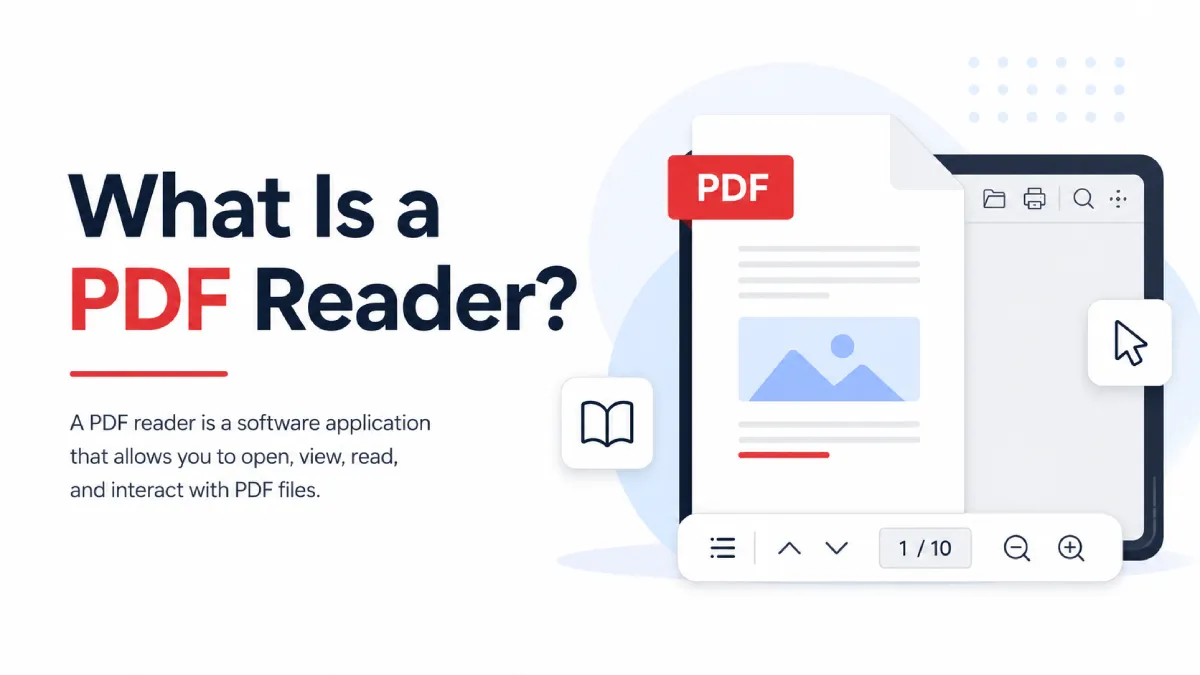
A PDF reader is the software layer that interprets and displays that format. At its most basic, it renders the file correctly — fonts, spacing, columns, embedded images, and all. But the rendering itself is just the foundation. What distinguishes a capable PDF reader from a minimal one is everything that happens after the file opens.
In practice, working with a PDF usually means more than reading it from line one to the end. You search for a specific term on page forty-seven. You highlight three paragraphs to return to later. You fill in a form field and sign at the bottom. You need the scanned appendix to be searchable, not just visible. Each of those actions requires a different layer of functionality — and a viewer that handles rendering but nothing else quietly fails at all of them.
This distinction sounds semantic but has real consequences.
A PDF viewer opens and displays a file. Most browsers function as PDF viewers — they handle the rendering layer competently, and for a quick look at a one-page receipt or a short memo, that is genuinely sufficient.
A PDF reader is designed for engagement with a document, not just display of it. That means search, navigation by bookmark or heading, annotation, form support, and in more capable tools, OCR processing for scanned content and text-to-speech for audio-first or accessibility workflows.
A PDF editor goes further still — it lets you modify the document itself, changing text, replacing images, or rearranging pages. Most users do not need editing capability on a daily basis, but conflating it with reading capability leads people to either overpay for features they will never use or underinvest in a viewer that cannot do what their workflow actually requires.
The practical rule is straightforward: if you need to open a file once and glance at it, a viewer is fine. If you need to work through documents regularly — studying, reviewing, annotating, signing, or listening — a reader built for that purpose makes a measurable difference.
There is a version of PDF reading that works well with clean, digitally created files, and a version that has to handle scanned documents — and these are genuinely different technical problems.
A text-based PDF embeds actual character data in the file. The reader extracts that data directly, which makes search, copy, highlight, and read-aloud functions all work cleanly and quickly. A scanned PDF is fundamentally different: it is an image of a page — a photograph stored inside a PDF container. The characters you see on screen are pixels arranged to look like letters, not machine-readable text.
Without OCR — optical character recognition — a PDF reader cannot do anything meaningful with a scanned file beyond displaying it. Search returns nothing. Highlighting is impossible. Text-to-speech has no text to speak. The file is visible but locked.
OCR solves this by analyzing the pixel patterns in the image and reconstructing the underlying text. But OCR quality varies significantly between tools, and that quality gap becomes consequential at scale. A tool that achieves high character accuracy on a clean black-and-white scan may produce meaningfully worse results on a photograph taken under uneven lighting, a document with two-column layout, or older records with degraded print quality.
In practice, many people do not discover they have scanned PDFs until a feature fails. They try to search a document, get zero results, and assume the tool is broken. The diagnosis is usually simpler: the file is image-based and the tool does not include OCR. If scanned documents are any part of your regular workflow — older academic papers, photographed textbook pages, legal records, anything converted from physical originals — OCR support should be one of the first things you verify, not an afterthought.
Product pages for PDF readers tend to list features in equal weight, which obscures the fact that some capabilities matter constantly and others almost never. Here is how to think about each one in terms of daily utility.
For anyone working with long documents — research papers, legal files, manuals, multi-chapter reports — search and navigation are the features that determine whether the tool is practical. Being able to jump to a specific term, move between bookmarks, or navigate a table of contents directly saves significant time over scrolling through a hundred-page document manually.
A graduate student cross-referencing sources across a dissertation chapter, or a compliance officer hunting for a specific clause in a lengthy contract, will use search dozens of times per session. In those workflows, a reader without strong search is not a minor inconvenience — it is a genuine obstacle.
Highlights, comments, and bookmarks matter most for studying and document review. The relevant question is not whether the tool has annotation features, but whether annotations are easy enough to create and retrieve that you will actually use them.
If adding a highlight requires three taps and a menu, you will stop using highlights within a week. If they appear on tap-and-hold and are visible in a sidebar you can access without scrolling back through the document, you will use them consistently. Evaluate the friction of the annotation workflow, not just its existence.
For legal assistants, HR professionals, and anyone handling administrative paperwork, the ability to fill fields and sign directly inside the reader removes a significant amount of workflow friction. Without it, the alternative is printing the document, signing physically, and scanning it back — a process that erodes any efficiency gain from working digitally.
This is the feature category where the gap between tools is widest and where the difference matters most to the people who need it.
For users dealing with visual fatigue, dyslexia, or reading challenges, text to read aloud is not a convenience feature — it is what makes the document accessible at all. For commuters or people in physically active work who want to convert their reading time into listening time, read aloud text to speech is the primary workflow. For students who absorb material better through audio, or professionals who need to get through a long report without staring at a screen for ninety minutes, it changes how they relate to dense material.
The complication is that read-aloud quality is not uniform. A tool that technically converts text to audio may still deliver a poor experience if it mishandles document structure — reading page numbers mid-sentence, misinterpreting multi-column layout, or failing to sequence headings and body text correctly. Voice quality matters for longer sessions in a way it does not for short samples: a synthesized voice that sounds fine for two minutes can become distracting over forty. And OCR quality, as discussed earlier, determines everything about the audio output quality for scanned documents before the voice engine ever receives the text.
Evaluating read-aloud features requires testing with documents you actually intend to listen to — not sample content provided by the app — and for long enough to assess whether the experience holds up.
The best PDF reader is not the one with the longest feature list. It is the one that removes the most friction from the type of reading you actually do.
For students and researchers working through dense academic material, the priorities are strong search, annotation, bookmark navigation, and support for long documents without performance degradation. If course materials include scanned readings — which is common at most institutions — OCR becomes essential rather than optional.
For professionals handling contracts, forms, and compliance documents, form fill and signature support matter most, alongside reliable rendering of complex layouts. A tool that works well on clean formatted documents but struggles with multi-column layouts or embedded tables will surface that weakness precisely when it is most costly.
For mobile readers who primarily work on a phone and want text to audio conversion as part of their daily routine, the workflow priorities are different: fast import from wherever files live, background playback, lock-screen controls, and the ability to resume a long document from exactly the right position. Features that work well on desktop often work poorly on mobile — not because the feature is absent, but because the interface was not designed for the constraints of a phone.
For users with accessibility needs, or anyone whose primary goal is converting reading time into listening time, the relevant evaluation is not whether the tool has text-to-speech but whether it is practical for extended daily use. That means voice endurance, navigation during playback, OCR reliability for scanned content, and multi-format support for a mixed reading queue.
AI Listen is designed for the mobile, audio-first end of this spectrum — users who want to listen to documents rather than read them silently on screen, and who work with a mix of file types that does not fit neatly into a single format category.
The practical distinction is that AI Listen is built around document listening as the primary workflow, not as an added feature. OCR processing happens before playback, which means scanned files — photographed lecture pages, older academic papers, image-heavy records — become listenable rather than silent. Multi-format support covers PDFs, Word documents, EPUBs, web pages, TXT files, and images, which reflects how most people's reading queues actually look rather than how they are supposed to look.
For a student working through a clinical guide on a commute, or a professional trying to get through saved reports without more screen time, that combination — OCR, multi-format, mobile-first listening — addresses the real workflow rather than an idealized one.
Most people choose a PDF reader by asking whether it can open their files. That answers a much simpler question than the one that eventually matters.
The first common mistake is discovering OCR limitations after the fact. Users often do not realize a file is scanned until search returns nothing or text selection fails. By then they have already committed to a tool that cannot solve the problem. Checking OCR capability before choosing — and testing it with a real scanned file, not a clean demo document — avoids this.
The second is evaluating read-aloud features on a short sample. A two-minute listen tells you almost nothing about whether a voice is usable for a forty-minute session, whether the app handles complex document layouts correctly, or whether playback resumes reliably after an interruption. Testing with a document you would actually listen to, for long enough to encounter real conditions, is the only evaluation that reflects daily use.
The third is optimizing for the feature list rather than the workflow fit. A tool with many capabilities that are difficult to access or poorly implemented on mobile is less useful in practice than a simpler tool that does the specific things you need with low friction. The habit of using a tool depends on how easy it is to use, not on what it is theoretically capable of.
A PDF reader is the layer between a document and the person trying to use it — and how much that layer does determines whether your workflow runs smoothly or constantly runs into walls. For light, occasional use, a browser viewer is often enough. For regular work with long documents, scanned files, forms, annotations, or audio-first workflows, it stops being enough fairly quickly.
The decision comes down to honest assessment of how you actually use documents: what types of files you work with, what you need to do with them, and which friction points slow you down most. If listening is a significant part of that picture — whether for accessibility, commute use, or cognitive preference — AI Listen is worth testing against your real reading queue rather than a sample file. That test will answer the question more accurately than any feature comparison.