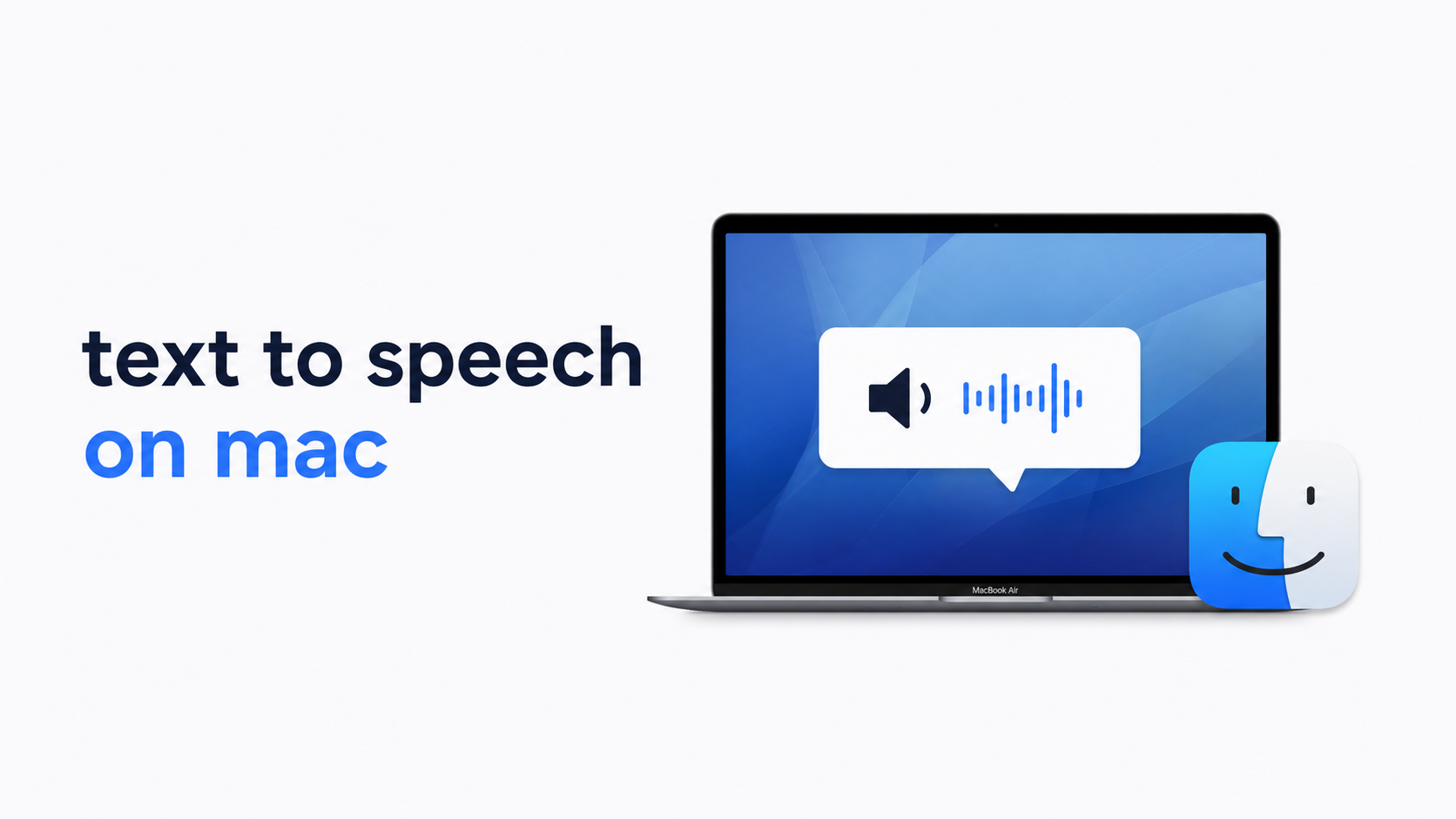
Text to speech on Mac sounds simple until you actually try to use it every day. Reading a paragraph aloud is easy. Building a smooth setup for articles, PDFs, emails, notes, or long study material is where the real differences show up.
Some Mac users only need an occasional read-aloud feature. Others need a more dependable workflow for accessibility, proofreading, language learning, research, or reducing screen fatigue. Those use cases all fall under the same keyword, but they do not need the same solution.
If you are trying to choose the best text to speech on Mac, the right question is not just “How do I turn it on?” It is “What kind of reading experience do I need, and where will the built-in tools stop being enough?”
The phrase “text to speech on Mac” covers several related tasks. Treating them as the same thing is one of the main reasons people pick the wrong tool.
Mac has native speech features that can read selected text aloud. For quick tasks, that is often enough. You highlight text, trigger speech, and listen back without installing anything complicated.
This works well for short passages, quick proofreading, and basic accessibility support. It is less ideal when you need better voice quality, smoother document handling, or a more organized listening workflow.
Many users are not just turning text into sound once. They are trying to listen to:
long articles,
PDFs,
saved notes,
study materials,
web content,
or documents they revisit regularly.
That is a different need. Once you move from one-off reading to repeat listening, the quality of navigation, import, organization, and playback matters as much as the voice itself.
This is a common point of confusion. Text to speech means written content is read aloud to you. Dictation does the opposite: it turns your voice into text.
If your goal is listening to documents, emails, or articles, you need text to speech. If your goal is speaking into your Mac to write, you need dictation instead.
macOS includes native speech tools, and for some users that is the right place to start.
The native setup is usually a good fit if you:
want to hear selected text occasionally,
need a lightweight accessibility feature,
want to proofread a paragraph or email,
or do not want to install another app yet.
For these scenarios, convenience wins. The feature is already there, and the learning curve is minimal.
The limitations show up when your listening becomes more routine or more demanding. Common friction points include:
inconsistent handling of long-form content,
less flexible organization across documents,
a less polished experience for repeated listening,
and limited workflow support if you regularly move between formats.
In other words, the built-in option is fine for quick utility. It is not always the best environment for people who use text to speech as part of how they learn, read, or work every day.
If you want to start with the native Mac tools, the process is usually straightforward.
On your Mac, go to accessibility or speech-related settings and enable the read-aloud feature available in your version of macOS. Depending on your setup, you may be able to choose a voice, speaking rate, and shortcut.
The exact menu names can vary by macOS version, but the general idea stays the same: enable speech playback, choose your preferred voice, and decide how you want to trigger it.
Once the feature is enabled, highlight the text you want to hear and use the assigned shortcut or contextual command to start speech. This works well for paragraphs, notes, email sections, and many web pages.
If your experience feels clunky here, that is usually a signal that your use case is moving beyond occasional read-aloud.
Many people stop after turning the feature on, but the voice and playback speed make a major difference. A speed that feels efficient for proofreading may feel exhausting for long reading sessions. A voice that is acceptable for system prompts may feel tiring over a 40-minute document.
If you plan to use text to speech regularly, spend a few minutes tuning those settings. That small adjustment often matters more than users expect.
Using an iPhone instead of a Mac? The TTS setup differs — see our iPhone TTS guide .
Instead of comparing tools in the abstract, compare them by content type and listening behavior.
If you mostly want to listen to articles while working, the main requirement is low friction. You need something that can move from text to playback quickly and consistently.
Built-in speech can cover some of this, but users who do frequent article listening often end up wanting a cleaner reading flow and better continuity across sessions.
This is where many basic text-to-speech setups become frustrating. PDFs often contain dense formatting, and study material usually requires repeat listening, note review, and more control over pacing.
For students and researchers, the best tool is not just the one that can speak. It is the one that makes it easier to return to difficult sections without turning every session into manual cleanup.
If your main goal is hearing your own writing read back, clarity matters more than advanced library features. You want speech that helps you notice awkward phrasing, missing words, and rhythm issues.
This is one of the strongest use cases for Mac text to speech because listening exposes errors your eyes skip over.
If you regularly save things to listen to later, you need more than a shortcut. You need a workflow. That includes organizing content, resuming where you left off, and keeping your listening queue manageable.
This is the point where dedicated reading apps usually outperform general system features.
The right option depends less on feature lists and more on how often text to speech is part of your day.
Use these questions to narrow your choice:
Occasional use usually means the built-in Mac feature is enough. Daily use usually means usability matters more than setup simplicity.
Short text favors convenience. Long-form reading favors better navigation, playback continuity, and content management.
These overlap, but they are not identical. Accessibility users may prioritize ease and consistency. Students may need retention-friendly listening. Professionals may care more about document flow and focus. Writers may care about natural pacing that reveals sentence issues.
A system feature reads highlighted text. A reading environment supports an ongoing habit. That distinction matters more than most comparisons admit.
Before choosing a tool for text to speech on Mac, check whether it handles the parts that actually matter to you:
natural enough voice quality for long listening,
smooth playback on articles or documents you use often,
support for the file types you actually read,
easy resuming and replay,
practical speed controls,
and a workflow that reduces friction instead of adding steps.
If a tool sounds impressive but still makes your daily reading awkward, it is probably the wrong fit.
Best for: quick read-aloud, short text, light accessibility use
Strengths:
already available on Mac,
easy to test,
no extra setup beyond settings.
Tradeoffs:
less suited to heavy daily listening,
weaker as a long-form reading system,
and not always ideal for users who want a more structured audio-reading workflow.
Best for: users focused mainly on web content
These can be convenient when most of your reading happens online. They often reduce the effort needed to get an article into playback.
Tradeoffs:
they may be less reliable across formats,
they are often narrower in scope,
and they are not always the best answer for users who also read PDFs, saved documents, or structured study material.
Best for: users who want text to speech as a repeatable habit rather than a one-click feature
This is where AI Listen fits naturally. For users who regularly turn written content into audio, a dedicated listening app can be more practical than relying only on Mac’s built-in speech tools. The value is not just that text is read aloud. The value is that the listening experience becomes easier to maintain over time.
Where this approach performs well:
long-form reading,
repeat listening,
saved reading workflows,
and users who want to consume content with less screen strain.
Where it may be less ideal:
users who only need occasional selected-text playback,
or people who want a Mac-only system setting and nothing more.
Voice quality matters, but it is not the whole experience. A pleasant voice inside a clumsy workflow can still make daily use frustrating.
A lot of users focus on playback and forget about intake. If getting articles, documents, or reading material into the tool is annoying, they stop using it. The best setup is the one you will actually keep using.
One setup rarely handles all needs equally well. The best option for proofreading an email is not always the best option for listening to research material or saved articles during the day.
Start with the built-in text to speech feature. It is fast to enable and usually sufficient for short passages, quick accessibility support, and occasional listening.
Choose a solution built around repeat listening, longer material, and lower friction across sessions. AI Listen is a reasonable fit here for users who want reading to become a smoother audio habit rather than a stop-start workaround.
Use whichever setup gives you the clearest, least distracting playback of your drafts. The goal is to hear structure, repetition, and awkward rhythm, not just convert text into sound.
Look for the option that reduces switching costs. If your work involves moving between articles, documents, and notes, a more organized reading workflow often matters more than a purely built-in setup.

If you only need text to speech on Mac once in a while, start with the native tools and see whether they cover your needs. That is the fastest and lowest-friction entry point.
If you read longer content often, revisit material across sessions, or want a better audio-reading routine, move to a dedicated solution. In that context, AI Listen makes sense for users who want a more sustainable way to turn reading into listening without overcomplicating the process.
Text to speech on Mac is easy to start but worth choosing carefully if it becomes part of your routine. The built-in feature is a solid first step for short, occasional tasks. But for longer content, recurring listening, and more structured reading habits, a dedicated workflow usually performs better.
The best setup is the one that matches how you actually read: quick selection, deep study, proofreading, or ongoing audio consumption. Start with the simplest option that fits your use case, and upgrade when your listening needs outgrow the basics.