Windows Text to Speech: Every Built-in Option and When to Use Each
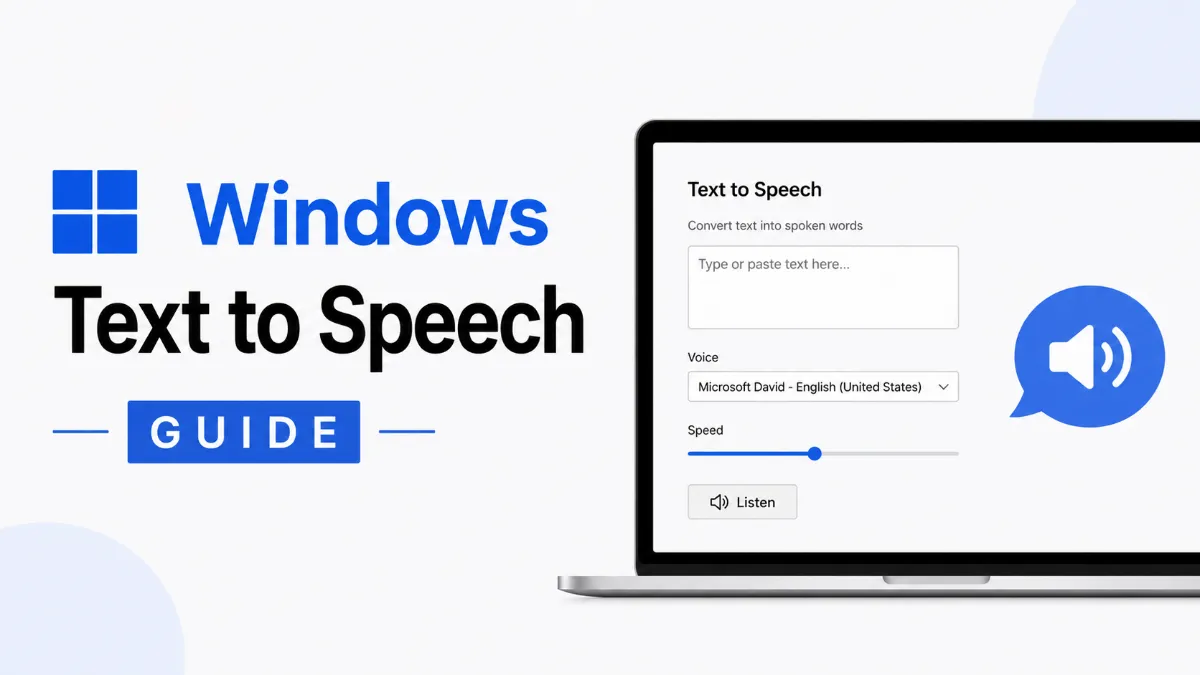
Windows has multiple built-in text to speech tools, and each one does something different. This guide explains Narrator, Voice Typing, Edge Read Aloud, and Office Read Aloud — and which one to use for listening to content, dictating text, or accessibility.
Chloe Whittaker
AI Voice Specialist
June 24, 2026
8 min read
In This Article
The Windows TTS Landscape: A Quick Map
How to Use Windows Voice Typing (Win+H)
How to Enable Narrator on Windows
Read Aloud in Microsoft Edge and Office
Best Free TTS Software for Windows
Comparing Windows TTS Options Side by Side
The Bottom Line
Windows has had text to speech tools for years, but they're scattered across different settings menus and apps — and they do very different things. Narrator reads your screen for accessibility. Voice Typing converts your voice to text. Edge Read Aloud speaks webpages aloud. Office has its own separate Read Aloud button. Balabolka is a third-party option for more control.
Knowing which tool to use comes down to what you're actually trying to accomplish. This guide maps each option to the scenario it fits best.
The Windows TTS Landscape: A Quick Map
Before diving into individual tools, here's how the major options fit together:
Scenario
Best Tool
Hear a webpage read aloud
Edge Read Aloud (Ctrl+Shift+U)
Hear a Word document read
Office Read Aloud
Hear your entire screen read
Narrator
Dictate text by speaking
Voice Typing (Win+H)
Convert text to audio file
Balabolka or NaturalReader
Listen to articles and saved content
AI Listen (app) or Edge Read Aloud
The most common confusion is between text-to-speech (device reads to you) and speech-to-text (you speak, device types). Voice Typing (Win+H) is the latter — it's for dictating, not for listening.
Quick Tip: If you want to listen to web articles and saved content on Windows without installing anything, Microsoft Edge's Read Aloud feature is underutilized. Open any webpage in Edge, right-click, and select 'Read Aloud' — or press Ctrl+Shift+U. It also reads PDFs opened in Edge, making it a quick way to listen to downloaded documents without needing a separate app.
Despite being called "Voice Typing," this is actually a speech-to-text tool — you speak and Windows types. It's the opposite of text-to-speech listening.
Click any text field (a document, an email, a search bar).
PressWin+Hto open the Voice Typing panel.
Click the microphone icon or wait for it to activate automatically.
Speak at a natural pace. Words appear in the text field in real time.
Say "period," "comma," or "new paragraph" to add punctuation and formatting.
Press Win+H again or click the X to close the panel.
On Windows 11, Voice Typing also supportsauto-punctuation— it inserts periods and commas automatically without voice commands. Enable this in the Voice Typing settings panel.
How to Enable Narrator on Windows
Narrator is a screen reading tool designed for accessibility. It reads everything on the screen — menu items, buttons, typed characters, and document text — using text-to-speech.
To toggle Narrator on or off:
PressWin+Ctrl+Enter(the quickest method)
Or go toSettings > Accessibility > Narratorand use the toggle
To configure Narrator:
OpenSettings > Accessibility > Narrator.
Adjust the voice, speaking rate, and verbosity level.
Use the "Narrator Home" window for keyboard shortcut references.
Narrator is best suited for users who need full screen access without vision, or who want to have complex interfaces read aloud systematically. For simply hearing a webpage or document, Edge Read Aloud is significantly more convenient.
Windows 10 vs. Windows 11 Narrator Differences
In Windows 10, Narrator is found underSettings > Ease of Access > Narrator. In Windows 11, it moved toSettings > Accessibility > Narrator. The functionality is nearly identical, but Windows 11's version includes improved natural voice options (including a voice called "Microsoft Aria" that sounds noticeably more natural than older defaults).
Read Aloud in Microsoft Edge and Office
Edge Read Aloud
Open any webpage in Microsoft Edge.
PressCtrl+Shift+Uor right-click and chooseRead Aloud.
A playback toolbar appears at the top with voice and speed controls.
Edge highlights each word as it reads — useful for following along.
Edge Read Aloud also works on PDFs opened in Edge, making it a quick way to have downloaded documents read aloud without extra software.
Office Read Aloud (Word, Outlook, OneNote)
Open a document in Word (or an email in Outlook).
Go toReviewtab in the ribbon.
ClickRead Aloud.
The document reads from the cursor position with a highlighted word indicator.
In Outlook, Read Aloud appears in the reading pane toolbar for received emails. This feature works with Microsoft 365 and also with Office 2021.
Best Free TTS Software for Windows
If you need more control than the built-in options provide — or if you want to save text as audio files — these free tools are worth considering.
Balabolkais the most feature-complete free TTS desktop app for Windows. It lets you:
Paste text or open documents and hear them read aloud
Adjust voice, speed, and pitch
Export audio as MP3, WAV, or OGG files
Install additional Microsoft SAPI voices for more variety
NaturalReader Online(free tier) lets you paste text and hear it in a browser without any install. Useful for one-off conversions and checking how text sounds.
eSpeakis an open-source TTS engine more suited to developers and command-line users who want scriptable TTS on Windows.
For listening to web articles and building a reading queue — rather than just one-off playback —AI Listenlets you save content from any source and listen across sessions, which none of the above tools support.
Comparing Windows TTS Options Side by Side
Tool
Built-in
Use case
Saves audio?
Cost
Edge Read Aloud
Yes
Webpages, PDFs
No
Free
Office Read Aloud
Yes (M365/2021)
Word, Outlook
No
Free
Narrator
Yes
Accessibility/full screen
No
Free
Balabolka
No
Text conversion, audio export
Yes
Free
AI Listen
No
Article queues, cross-session
No
App
The Bottom Line
Windows has enough built-in TTS to cover everyday use cases without installing anything. For webpages, Edge Read Aloud is the quickest option. For Word documents, the Review > Read Aloud button is already there. For dictation, Win+H handles most scenarios well. Narrator is there for accessibility but can feel overkill for casual listening.
If you find yourself regularly wanting to hear content you've saved for later — articles, PDFs, newsletters — that's the gap where a dedicated reading app fills in what the built-in tools don't.
The quickest option is Edge Read Aloud for web content (Ctrl+Shift+U in Edge) or Voice Typing for dictation (Win+H anywhere in Windows). For full screen-reading accessibility, press Win+Ctrl+Enter to open Narrator. Each tool serves a different purpose.
What is the difference between Narrator and Voice Typing on Windows?
Narrator reads what's on the screen to you — it's a text-to-speech accessibility tool. Voice Typing (Win+H) converts your speech into text — it's a speech-to-text dictation tool. Despite the naming overlap in some contexts, they do opposite things.
Does Windows 11 have text to speech built in?
Yes. Windows 11 includes Narrator (screen reading), Voice Typing (Win+H), Edge Read Aloud, and Office Read Aloud as built-in options. The settings locations changed slightly from Windows 10 — Narrator is now under Settings > Accessibility > Narrator, and Voice Typing has improved punctuation support.
Is there a free text to speech program for Windows?
Yes, several. Balabolka is a free desktop app that converts text to speech and can save audio as MP3 or WAV files. NaturalReader's web version offers free TTS for pasting text. For basic use, Windows Edge Read Aloud and Office Read Aloud are built in and free with no additional software.
How do I use Read Aloud in Windows?
In Microsoft Edge, press Ctrl+Shift+U or right-click and select Read Aloud to hear any webpage or PDF read aloud. In Microsoft Word or other Office apps, go to Review > Read Aloud to hear a document read. Both work on Windows 10 and 11.
TTS
Tutorials
Tips & Tricks
Share this article:
Table of Contents
The Windows TTS Landscape: A Quick Map
How to Use Windows Voice Typing (Win+H)
How to Enable Narrator on Windows
Read Aloud in Microsoft Edge and Office
Best Free TTS Software for Windows
Comparing Windows TTS Options Side by Side
The Bottom Line
Ready to Transform Your Study Sessions?
Join 50,000+ students using AI Listen to study smarter. Free forever plan available.
AI story generators turn prompts into structured drafts for fiction, marketing, and education. In this guide, we cover how AI story generators work, their core features, benefits, limitations, and how to choose the right AI Story Generator.
Want AO3 offline listening on iPhone? Follow this step-by-step guide to import from the web, switch chapters smoothly, and listen on the subway or in Airplane Mode.
Struggling with ADHD reading drift? This guide shows fast environment fixes, chunked reading, recall questions, and a review step that improves retention.
In this guide, we explore the top alternatives to Character AI, including tools for roleplay, storytelling, and AI chat. You’ll find quick picks, detailed comparisons, and tips to choose the right platform based on your needs.
AI sound generators create audio from text or prompts, from voiceovers to sound effects. They are widely used across content, apps, and media. In this article, you will learn how they work, where they fit, and how to choose one. Let’s dive in.