How to Use Text to Speech in Microsoft Word (All Versions)
Microsoft Word has built-in text-to-speech features, but they work differently depending on your version. This guide covers Read Aloud in Microsoft 365, the Speak command in Word 2016/2019, keyboard shortcuts, and what Word's TTS can and cannot do.
Julian Sterling
AI Content Strategist
July 4, 2026
7 min read
In This Article
What Word's TTS Can and Can't Do
Enable Read Aloud in Microsoft 365
Add Speak to Quick Access Toolbar (Word 2016/2019)
Keyboard Shortcut for Speak
Can You Save Word TTS as Audio?
A Smarter Alternative for Long Documents
What Word's TTS Can and Can't Do
Before diving into the steps, it helps to know what you are working with.
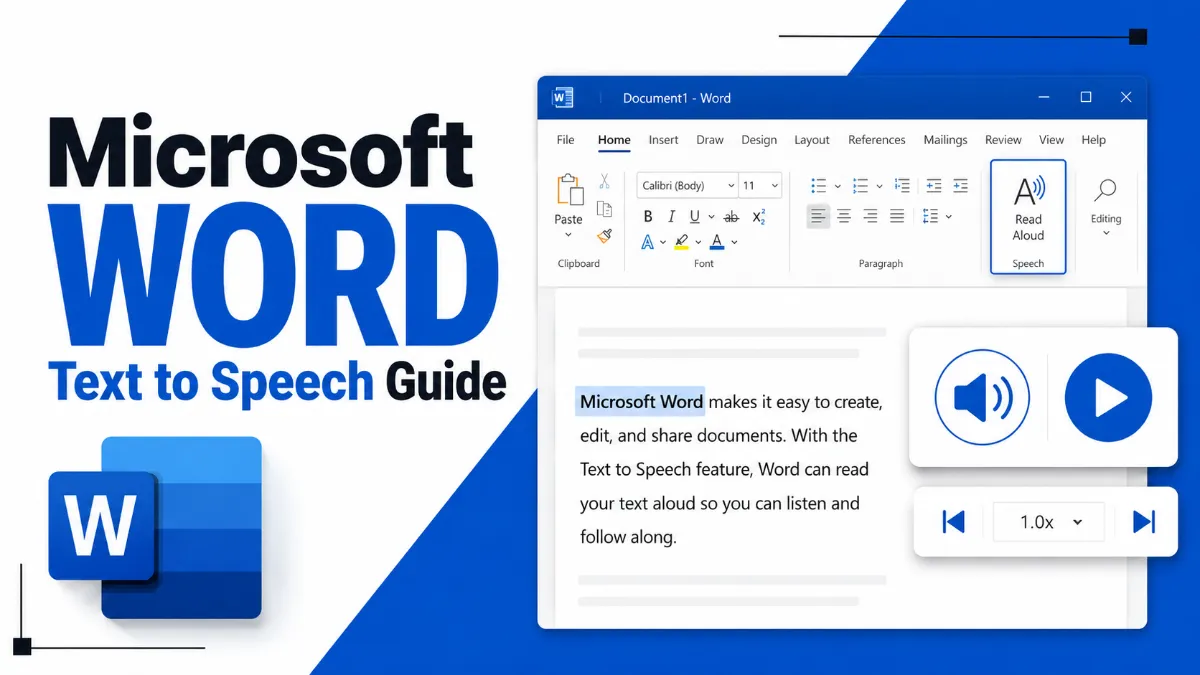
Microsoft Word includes two text-to-speech features:Read AloudandSpeak. Read Aloud is the newer, more polished option available in Microsoft 365. Speak is an older command that still works in Word 2016, 2019, and 365, but it must be manually added to the Quick Access Toolbar.
What Word's TTS can do:
Read selected text or an entire document aloud
Adjust reading speed and choose from a small set of voices (Read Aloud only)
Resume reading from your cursor position
Work across Windows and Mac (with some differences)
What Word's TTS cannot do:
Export or save audio as an MP3, WAV, or any other audio file
Read documents on mobile (Word mobile apps do not support TTS playback)
Handle very long documents smoothly — performance can degrade with large files
Provide high-quality, natural-sounding voices for extended listening
Feature
Read Aloud (Word 365)
Speak (Word 2016/2019/365)
Location
Review tab
Quick Access Toolbar (manual add)
Playback controls
Yes (pause, skip, speed)
No
Voice selection
Yes
No
Keyboard shortcut
No built-in shortcut
Alt+Ctrl+Space (after QAT setup)
Reads full document
Yes (from cursor)
Selected text only
Export as audio
No
No
Enable Read Aloud in Microsoft 365
Read Aloud is the easiest way to use text to speech in Microsoft Word if you have a Microsoft 365 subscription. It lives in theReviewtab and requires no setup.
Steps to use Read Aloud in Word 365:
Open the document you want to read.
Click inside the document where you want reading to start, or select a specific passage.
Go to theReviewtab in the ribbon.
ClickRead Aloud(it appears near the left side of the ribbon).
Word will start reading from your cursor position.
A small playback toolbar appears in the upper-right corner of the document. From there you can:
Pause or resumereading
Skip forward or backby paragraph
Adjust speed(from 0.5x to 3x)
Switch voices— Word 365 offers a handful of system voices
To stop, click the X on the playback toolbar or clickRead Aloudagain in the Review tab.
Note for Mac users:Read Aloud is available on Word for Mac (Microsoft 365), but voice options depend on the voices installed in your macOS system preferences under Accessibility.
Quick Tip: You can add the Speak command to your Quick Access Toolbar once and it stays there permanently — no need to re-add it each session. Just right-click any QAT button and choose Customize Quick Access Toolbar to adjust its position.
Add Speak to Quick Access Toolbar (Word 2016/2019)
Older versions of Word — 2016 and 2019 — do not have Read Aloud in the Review tab. Instead, they use a command calledSpeak, which must be added to the Quick Access Toolbar (QAT) manually. Once added, it works in Word 365 as well.
Steps to add Speak to the Quick Access Toolbar:
Click the small dropdown arrow at the far right of the Quick Access Toolbar (the row of icons above the ribbon).
SelectMore Commands.
In the "Choose commands from" dropdown, selectAll Commands.
Scroll down the list until you findSpeak.
ClickSpeakto select it, then clickAdd.
ClickOKto save.
The Speak button (a small speaker icon) will now appear in your Quick Access Toolbar.
To use Speak:
Select the text you want Word to read aloud.
Click theSpeakbutton in the Quick Access Toolbar.
Word will begin reading your selection immediately.
Unlike Read Aloud, Speak has no playback controls. It reads the selection once and stops. To stop it mid-reading, click the Speak button again.
Keyboard Shortcut for Speak
Once you have added Speak to the Quick Access Toolbar, you can trigger it without clicking:
PressAlt + Ctrl + Spacewith text selected.
Important:This shortcut only works after Speak has been added to the QAT. It is not available by default in Word.
A secondary approach: when you add a command to the QAT, it is assigned a number based on its position (1st icon =Alt+1, 2nd =Alt+2, etc.). If Speak is the 4th item in your QAT, pressingAlt+4will trigger it. Check your QAT order to find the right number.
For Read Aloud in Word 365, there is no built-in keyboard shortcut. You can assign one throughFile → Options → Customize Ribbon → Keyboard Shortcuts, but most users find the Review tab click fast enough.
Can You Save Word TTS as Audio?
No — Microsoft Word cannot export text to speech as an audio file.
This is one of the most commonly asked follow-up questions, and the answer is straightforward: Word's TTS features are for in-app playback only. There is no "Save as MP3" or "Export audio" option anywhere in Word.
If you need an audio file from your Word document, your options include:
Record withAudacity(free): Audacity is a free, open-source audio editor that can capture system audio while Word reads your document aloud. On Windows, set the input to WASAPI loopback in Audacity's device settings, press Record, then start Read Aloud in Word. When done, export as MP3 or WAV. It requires a few setup steps but produces clean audio output.
Dedicated TTS software: Apps and services designed specifically for TTS can import your document text and export clean audio files.
Paste into a web-based TTS tool: Copy sections of text into a browser-based TTS service that offers audio download.
For most people who want tolistento a document rather than archive the audio, a dedicated reading app is a more practical path.
A Smarter Alternative for Long Documents
Word's built-in TTS works well for quick proofreading or reading a few paragraphs while you work. But it has real limitations when you want to listen to a full document, commute with your content, or process research material over time.
AI Listenis built specifically for this use case. You can import documents, articles, and PDFs and listen with natural-sounding voices on your phone — without needing Word open. It handles long-form content comfortably and lets you pick up where you left off across sessions.
If you find yourself regularly using Word's Read Aloud just to keep up with reading, AI Listen is worth a look. It turns your document backlog into a listen queue you can work through anywhere.
Word's TTS is a convenience feature. For serious listening, a dedicated tool gives you better voices, mobile flexibility, and a listening experience that does not depend on keeping a desktop app open.
Yes. Word includes two TTS features: Read Aloud (available in the Review tab in Microsoft 365) and the Speak command (available in Word 2016, 2019, and 365 after you add it to the Quick Access Toolbar).
How do I turn on Read Aloud in Word?
Open your document, go to the Review tab, and click Read Aloud. Word will start reading from your cursor position. You can pause, skip forward, or adjust speed using the playback controls that appear.
What is the keyboard shortcut for text to speech in Word?
After you add the Speak command to your Quick Access Toolbar, you can press Alt+Ctrl+Space to read selected text aloud. This shortcut only works once Speak has been added to the QAT — it does not work by default.
Can I export Word's text to speech as an audio file?
No. Microsoft Word does not have a built-in option to save or export TTS audio as an MP3 or WAV file. If you need an audio version of your document, you will need a dedicated TTS app or service.
What is the difference between Read Aloud and Speak in Word?
Read Aloud (Word 365) offers a full reading experience with playback controls, voice selection, and speed adjustment. Speak is an older command that reads selected text aloud without a playback UI — it is simpler and must be manually added to the toolbar in older versions.
Is there a better alternative to Word's text to speech for long documents?
For long-form documents or on-the-go listening, a dedicated app like AI Listen gives you more control — including natural-sounding voices, mobile access, and the ability to import documents and PDFs. Word's built-in TTS is fine for quick checks, but it is not designed for extended listening sessions.
TTS
Tutorials
Tips & Tricks
Share this article:
Table of Contents
What Word's TTS Can and Can't Do
Enable Read Aloud in Microsoft 365
Add Speak to Quick Access Toolbar (Word 2016/2019)
Keyboard Shortcut for Speak
Can You Save Word TTS as Audio?
A Smarter Alternative for Long Documents
Ready to Transform Your Study Sessions?
Join 50,000+ students using AI Listen to study smarter. Free forever plan available.
Speech synthesis is the technology that generates spoken audio from text or linguistic representations. In this guide, you’ll learn what speech synthesis means, how modern systems produce natural-sounding voices, key methods, real-world use cases, and how to evaluate solutions.
A PDF reader is a tool that opens and displays PDF files, but modern readers can also search, annotate, sign, and support more accessible ways to work through documents.
If you want speechify alternatives that are actually usable, this guide compares 9 specific text to speech tools by name, including free options, student-friendly picks, and apps for listening on desktop, mobile, or web.
If you need a free speech-to-text app for hearing impaired users, the right choice depends on whether you need live captions, daily conversation support, meeting transcripts, or a lightweight browser-based tool.