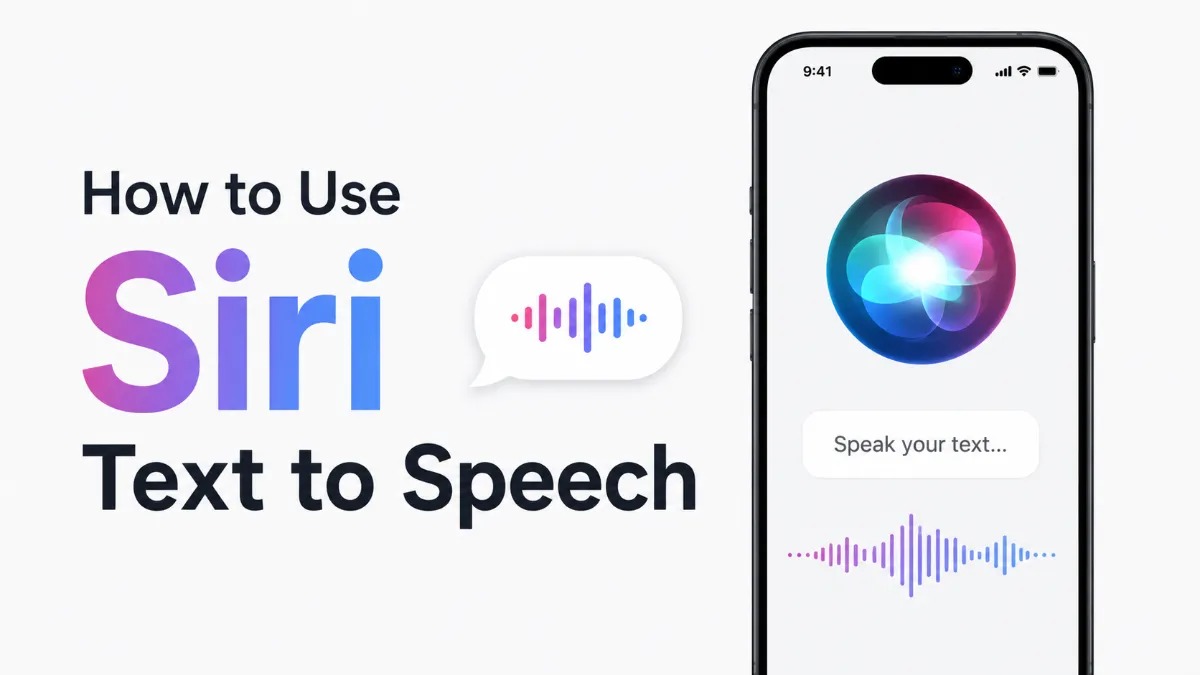
If you searched "Siri text to speech," you likely want one of two things: either you want your iPhone or Mac to read text out loud to you using Siri's voice, or you want to generate a Siri-style AI voice for your own audio content. These are different features requiring different tools — and which one you need determines everything about where to start.
This guide separates both use cases clearly, covers what changed with Siri AI in 2026, and points you toward the right approach for your situation.
The phrase gets used in two distinct ways:
Use case A — Apple reading text to you (most common): You want your iPhone, Mac, or iPad to read a webpage, article, document, or selected text aloud. This uses Apple's Spoken Content feature (also called Speak Selection or Speak Screen), not Siri directly. The voice you hear is a system TTS voice, which on modern Apple devices sounds nearly identical to Siri's default voice.
Use case B — Generating a Siri-style AI voice for content: You want to produce audio that sounds like the Siri voice — for videos, voiceovers, TTS tools, or creative projects. Siri's actual voice is not licensed for external use, so this means using third-party AI voice generators that mimic its tone.
Start with whichever use case matches your actual goal.
Speak Selection lets you select any text and have it read aloud:
Go to Settings > Accessibility > Spoken Content.
Toggle on Speak Selection.
Select text in any app — a "Speak" button appears in the context menu.
Tap Speak to begin playback.
Speak Screen reads everything visible on the current page:
In the same Spoken Content settings, toggle on Speak Screen.
Open any page, webpage, or document.
Swipe down with two fingers from the top of the screen.
A floating playback bar appears with pause, speed, and skip controls.
You can adjust the reading voice and speed in Spoken Content settings. Voices marked "Enhanced" or "Premium" sound noticeably more natural and are worth downloading if you use this feature regularly.
Go to System Settings > Accessibility > Spoken Content.
Toggle on Speak Selection.
Select any text in any app.
Press Option+Esc to hear it read aloud.
You can also configure a custom keyboard shortcut in the same settings panel. Choose a high-quality voice from the voice picker — Apple's Siri voices and the "Premium" third-party voices in the list offer significantly better audio than the basic defaults.
Apple announced a meaningful Siri upgrade in June 2026 as part of its expanded Apple Intelligence initiative. Key changes relevant to speech and voice:
Improved on-device processing: Siri can now handle more queries entirely on-device across iPhone, Mac, and iPad, reducing latency and improving performance in low-connectivity environments.
Better cross-app context awareness: Siri can now reference information across your messages, calendar, and documents to give more contextual answers — meaning voice-based workflows feel more connected.
Dictation accuracy improvement: As part of the update, iPhone and Mac Dictation accuracy improved for a wider range of accents and speaking styles, making speech-to-text more reliable for everyday use.
Personalized voice options: Users can create a Personal Voice — a synthesized version of their own voice — for use across accessibility features and Spoken Content.
For most users, the practical impact is better Dictation accuracy and a more capable Siri assistant. The Spoken Content features (Speak Selection and Speak Screen) remain largely unchanged but benefit from the improved underlying voice model.
If your goal is creating content that sounds like Siri rather than having Siri read to you, here's what you need to know.
Apple's Siri voice is not available for licensing. You can't export or commercially use Siri's actual voice. However, several AI voice generators produce voices that are stylistically similar — professional American English, clean and neutral — which is likely what you're actually looking for.
Tools worth considering:
ElevenLabs: Offers a wide range of AI voices with configurable tone, pacing, and naturalness. Their "professional" voice presets are close to Siri's register. Best for voiceovers, narration, and longer content.
AI Listen: Includes natural-sounding TTS with support for articles, PDFs, and web content. Good for personal listening rather than content production, but the voice quality is comparable to Siri.
Apple's own Text-to-Speech API (for developers): If you're building an app and want the actual Siri voice quality, Apple's AVSpeechSynthesizer on iOS/macOS uses the same voice engine as Siri, and it's available to developers without a separate license for on-device use.

Goal | Best Tool |
|---|---|
Read a webpage aloud on iPhone | Speak Screen (swipe 2 fingers from top) |
Read selected text on Mac | Speak Selection (Option+Esc) |
Listen to saved articles with a queue | AI Listen |
Generate voiceover audio in Siri-like voice | ElevenLabs or similar AI TTS |
Control your Mac entirely by voice | Voice Control (System Settings > Accessibility) |
Dictate text while writing | Mac Dictation (Fn key shortcut) |
For personal use and listening to content on your own devices, Apple's built-in tools are free, private, and work offline on M-series hardware. For producing audio content for others to hear, third-party AI voice tools give you more output control and format options.
Siri text to speech is a surprisingly useful feature once you know where to find it. Enable Speak Selection or Speak Screen in Settings > Accessibility > Spoken Content and you'll have Apple's best-quality TTS voice available in any app without installing anything. If you're producing audio content and want a similar voice quality, third-party tools like AI Listen and ElevenLabs cover different points on the quality-vs-control spectrum. And if you're catching up on what Siri can do in 2026, the improvements to Dictation accuracy and on-device processing make it worth revisiting even if you tried it a couple of years ago and moved on.