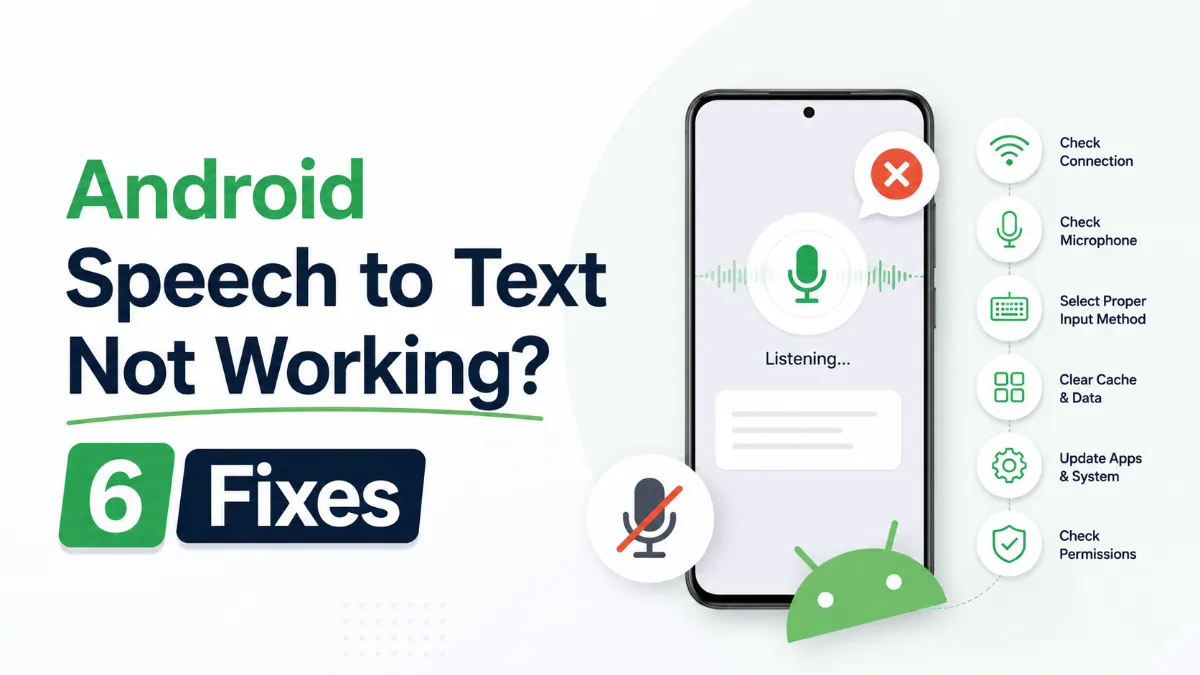
Android speech to text stops working for a narrow set of reasons — but those reasons overlap in ways that make the problem feel unpredictable. Voice input was fine yesterday, then after an update or a reboot it refuses to start, produces no output, or throws a microphone error. Before assuming the feature is broken, there are six targeted fixes that cover nearly every common failure case. Most take under two minutes.
Android STT failures typically trace back to one of four root causes:
Permissions reset: An app update revoked microphone access without prompting you
Cache corruption: Accumulated data in the Google app or GBoard caused a recognition failure
Language mismatch: Voice input is configured for a different language than what you're speaking
Internet dependency: Google's STT engine requires an active connection — airplane mode or a weak signal silently breaks it
Knowing which category applies lets you skip to the right fix. If you're not sure, start with Fix 1 and work down.
This is the most common cause of speech to text not working on Android after an update. Apps can lose microphone access silently.
Go to Settings → Apps
Find the app where STT stopped working (Google, GBoard, or a third-party app)
Tap Permissions → Microphone
Toggle it off, then back on
Reopen the app and test voice input
Do this for both the Google app and GBoard if both are affected — they use microphone access independently.
Cache buildup in the Google app or GBoard can corrupt the STT pipeline without producing an obvious error message.
Go to Settings → Apps → Google (or GBoard)
Tap Storage → Clear Cache
Repeat for the other app if needed
Restart your device, then test voice input
This is different from Clear Data — clearing cache removes temporary files but keeps your settings. Start with cache; only clear data if the cache fix doesn't work.
Voice input is language-specific. If your phone's language setting or voice input language doesn't match what you're speaking, STT will fail silently or produce garbled text.
Open GBoard → Settings → Voice Typing
Check the Languages setting — it should match what you intend to speak
In your phone's Settings → General Management → Language and Input, confirm the system language is set correctly
This is often the issue after switching phones or restoring from backup, since language settings sometimes revert to device defaults.
Google's speech recognition engine processes audio in the cloud. If you're on a weak connection, in a dead zone, or have mistakenly enabled airplane mode, STT will stop responding or return an error.
Test on Wi-Fi and mobile data separately to isolate the issue
If STT works on Wi-Fi but not mobile data, check that the Google app has mobile data access: Settings → Apps → Google → Mobile Data
For offline use, GBoard supports downloadable offline models for some languages: GBoard Settings → Voice Typing → Offline Speech Recognition
A buggy app update is a common trigger for STT breaking across a device. The fix depends on timing:
If the issue started right after an update: open the Play Store, find the Google app or GBoard, tap the three-dot menu, and select Uninstall Updates to temporarily roll back
If the app is outdated: go to the Play Store and update to the latest version — older builds sometimes have STT compatibility issues with newer Android versions
Samsung users should also check for updates to Samsung Voice Input in the Galaxy Store, which is a separate STT engine used in Samsung-specific apps.
If a specific engine is broken and the above fixes haven't resolved it, switching to a different STT engine is a reliable workaround while the underlying issue gets sorted out.
Go to Settings → General Management → Language and Input
Tap Default Keyboard or Manage Keyboards
Enable an alternative keyboard (Samsung Keyboard, Microsoft SwiftKey)
Set it as default temporarily
Samsung devices have Samsung Voice Input as a fallback, which uses on-device processing and works without internet. For broader alternatives, Google's Live Transcribe app is a standalone transcription tool that often continues working when inline STT fails.
If all six fixes fail, the issue is likely at the OS or hardware level:
Check for Android OS updates: Settings → Software Update. Known STT bugs are often patched in point releases.
Test a different microphone-enabled app (voice recorder, another keyboard) to determine if the hardware mic itself is functioning.
Factory reset as a last resort — only if confirmed the mic hardware works and no software fix applies.
For users who find Android STT consistently unreliable for longer listening sessions, switching direction — using text to speech instead — is worth considering. AI Listen is one option for iPhone users in the same ecosystem who need reliable audio playback of text-based content when voice input isn't cooperating.
Fix | Best For | Time Required |
|---|---|---|
1. Reset mic permissions | Post-update failures | ~1 min |
2. Clear app cache | Random or silent STT failures | ~2 min |
3. Fix language settings | Garbled output or no recognition | ~2 min |
4. Check internet | STT fails only in some locations | ~1 min |
5. Update/roll back app | Failure started after a specific update | ~3 min |
6. Switch STT engine | Engine-specific bugs or persistent failure | ~3 min |
Most cases of Android speech to text not working resolve with one of the first three fixes. Permissions reset, cache clear, and language settings together cover the vast majority of STT failures without requiring any advanced troubleshooting. Work through the list in order — and if you hit an edge case, the engine switch or OS update path will get you unstuck.