

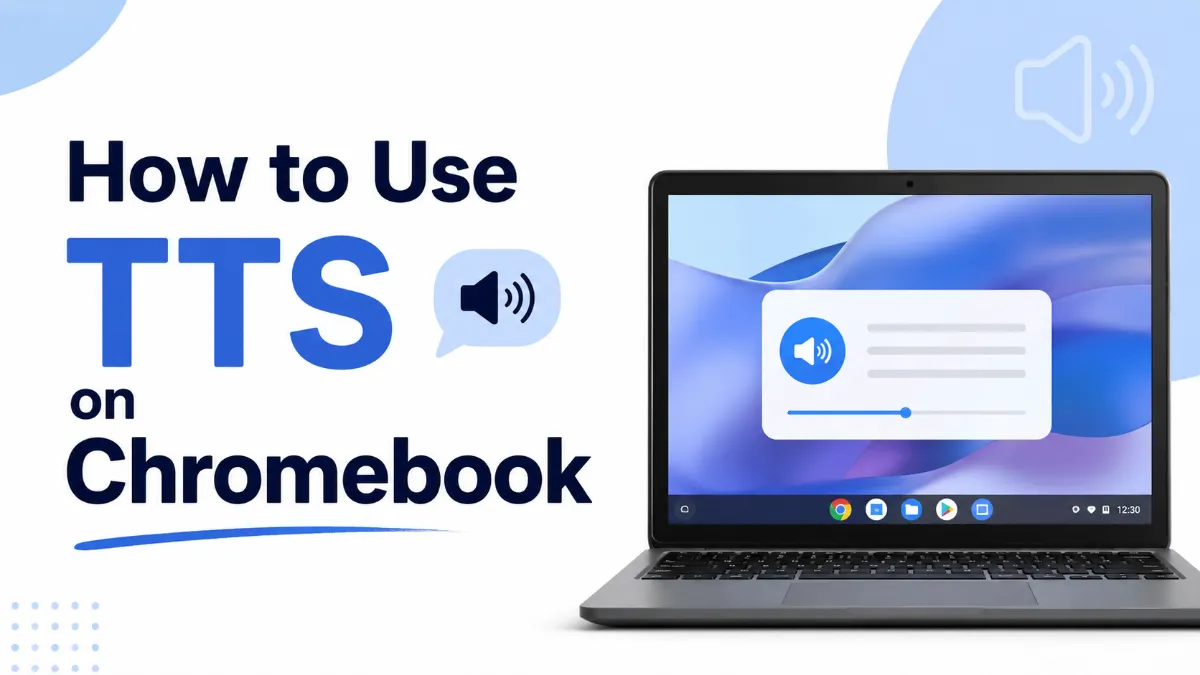
Chromebook has text to speech built into ChromeOS — but it comes in three different forms, and most users only know about one of them. ChromeVox is the full screen reader. Select-to-Speak reads whatever you click or highlight. Chrome extensions add a third layer with more voice options and document support. Which one you need depends on whether you want occasional on-demand listening, a full narration system, or more control over how text to speech works across your browser and files.
Tool | What It Does | Best For |
|---|---|---|
Narrates the entire screen — all UI, text, buttons | Full accessibility / visually impaired users | |
Select-to-Speak | Reads highlighted or clicked text on demand | Sighted users who want specific content read aloud |
Chrome Extensions | Adds TTS to browser with voice and speed controls | Regular listening, PDFs, long articles |
ChromeVox is Chromebook's built-in screen reader — a system-level TTS tool that reads everything on screen, including the Chrome browser UI, settings menus, and web content. It was designed for users with visual impairments but can be used by anyone who wants continuous audio narration.
Go to Settings → Accessibility
Under "Text-to-Speech," toggle on ChromeVox
Or use the keyboard shortcut: Search+Alt+Z
Once active, ChromeVox reads every element you focus on. Navigation uses specific keyboard shortcuts — press Ctrl+Alt+/ to open the ChromeVox keyboard shortcut list. The learning curve is real: ChromeVox is powerful but takes adjustment if you're using it for the first time.
When to use ChromeVox: full accessibility use, continuous audio navigation, or when you need everything narrated — not just selected text.
Select-to-Speak is the more practical tool for most Chromebook users who want occasional text to speech without enabling a full screen reader. It reads only what you select or click — everything else on screen stays silent.
Go to Settings → Accessibility → Text-to-Speech
Toggle on Select-to-Speak
The icon appears in your system tray (bottom-right corner)
Hold Search and click: reads the paragraph where you clicked
Hold Search and drag: reads the highlighted selection
Keyboard shortcut: Search+S toggles Select-to-Speak on and off
Press Ctrl+Alt+S to read the current selection
In Settings → Accessibility → Text-to-Speech → Text-to-Speech settings, you can change the TTS engine, voice, and speech rate. ChromeOS includes Google's text to speech engine by default, with additional voices available to download.
When to use Select-to-Speak: reading articles, web pages, or documents on demand, without a full screen reader running in the background.
Chrome extensions add a third tier of TTS functionality — more voice options, better document support, and reading queues that the built-in tools don't offer. They install from the Chrome Web Store and work across all websites the browser can access.
Read Aloud: Free, straightforward, works on most web pages and some PDFs. Good starting point if the built-in voices aren't sufficient.
NaturalReader: Free tier with basic voices; paid tier adds AI-enhanced voices. Works on web pages, Google Docs, and imported text files.
Speak It: Lightweight extension for reading selected text aloud with one click. Minimal setup, no account required.
Speechify: More polished interface, higher-quality AI voices, reading queue. Free tier is limited; paid tier is the most capable extension option for regular use.
Use a Chrome extension if:
You want a more natural AI voice than ChromeOS's default
You need continuous reading of long articles with pause/resume controls
You regularly read PDFs or Google Docs and want better document-level TTS
You want a reading speed above what Select-to-Speak's UI offers
Here's the decision path:
Occasional on-demand reading: Select-to-Speak — fastest, no extra installation, shortcut-accessible
Full screen narration / accessibility: ChromeVox — designed for it, fully integrated with ChromeOS
Regular article or document listening: Chrome extension (Read Aloud or Speechify) — better voice quality and reading controls
Reading a PDF on Chromebook: Select-to-Speak for quick use; extension for full document playback
If you also use an iPhone alongside your Chromebook, TTS continuity across devices is worth thinking about. AI Listen handles text to speech on iPhone with a clean interface for articles and imported documents — a useful pair if your reading workflow spans both ChromeOS and iOS.

Chromebook's text to speech tools cover the full range from quick on-demand listening to full accessibility screen reading. Select-to-Speak is the right default for most users — enable it once with the keyboard shortcut and it's there whenever you need it. Add a Chrome extension when you want better voices or more document control, and turn to ChromeVox only when you need continuous full-screen narration. The right setup is the one that matches how you actually read.

![GoAnimate (Vyond) Text to Speech: Complete Guide + Best Alternatives [2026]](https://v.aivoicelab.com/b1265344voduse1318177724/4c48016b5001834806033798579/qJrAff3z3FIA.webp)
