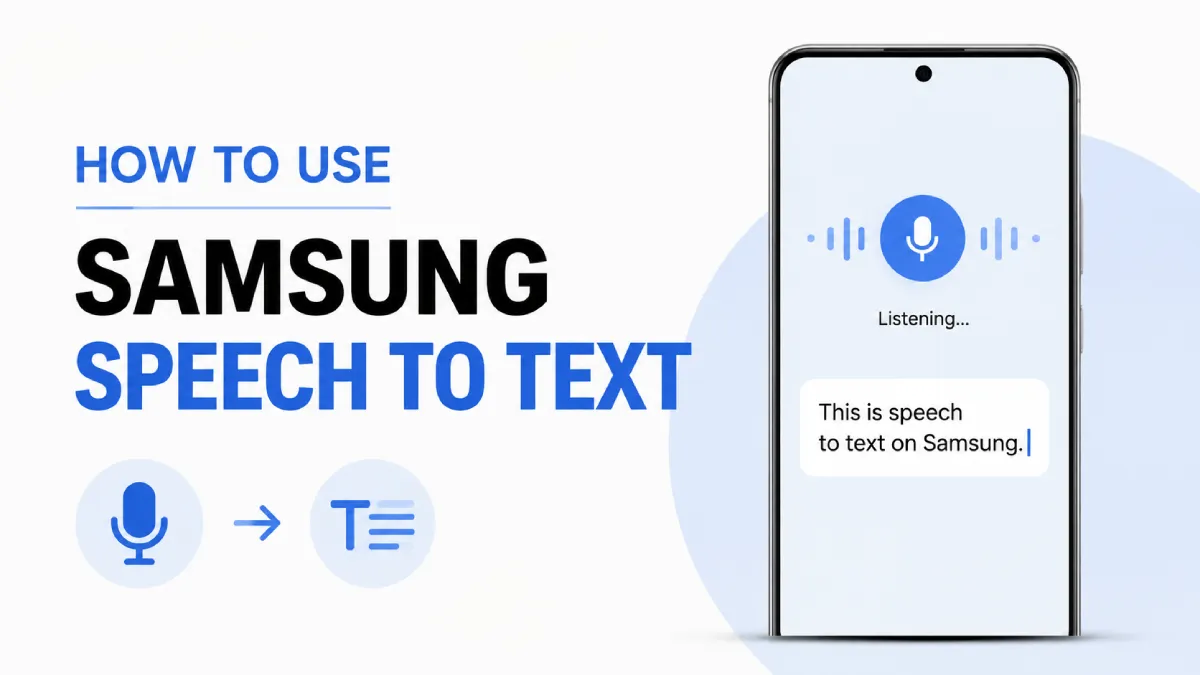
Samsung's documentation doesn't always make this clear: speech to text (STT) and text to speech (TTS) are opposite functions. STT converts your spoken words into written text — that's voice typing. TTS reads text aloud — that's what Galaxy's accessibility "Select to Speak" does. Many Samsung support articles group both under "Voice features," which confuses users looking for one or the other. This article focuses entirely on STT: how to enable it, which engine to use, and how to get the best results on Galaxy hardware.
Samsung's native voice typing lives inside the Samsung Keyboard and is separate from Google's implementation. Here's how to enable and use it:
Open Settings
Tap General Management
Go to Smart Typing
Toggle Voice Input to On
On some One UI versions (particularly One UI 6.1), the path is Settings > General Management > Language and Input > On-screen Keyboard > Samsung Keyboard > Smart Typing.
Once enabled, open any text field — a message, a notes app, a search bar — and tap the microphone icon on the keyboard toolbar. Speak clearly. Samsung Keyboard will transcribe in real time.
From the same Smart Typing menu, tap Voice Input Languages to add additional languages. Samsung Voice Input supports over 20 languages, though accuracy varies significantly outside of Korean and English.
Device Line | One UI Version | Voice Input Available | Offline Pack Support |
|---|---|---|---|
Galaxy S24 series | One UI 6.1 | Yes | Yes |
Galaxy S23 series | One UI 6.0 | Yes | Yes |
Galaxy A55 / A35 | One UI 6.1 | Yes | Yes (select languages) |
Galaxy A25 / A15 | One UI 6.0 | Yes | Streaming only |
Galaxy S22 series | One UI 5.x | Yes | Yes |
Galaxy Tab S9 series | One UI 6.1 | Yes | Yes |
Older mid-range (A03, A13) | One UI 4.x | Yes | No |
Mid-range and budget models process voice input through Samsung's cloud servers. Flagship S-series devices running One UI 6 or later can perform on-device recognition for English and Korean without an internet connection.
These three systems exist on most Galaxy phones and are frequently confused. They serve different purposes.
Where it works: Inside the Samsung Keyboard, anywhere you type
Best for: Quick dictation in messages, notes, search
Engine: Samsung's own cloud-based STT (on-device for S23+ with One UI 6)
Weakness: Limited language accuracy outside Korean/English; no long-form transcription
Where it works: Any app using Android Speech Recognition API, including Gboard
Best for: Broad language support, consistent accuracy, third-party app integration
Engine: Google's cloud-based recognition with optional offline model download
Weakness: Requires Google services; offline model takes storage space (~500 MB per language)
Where it works: Device-wide assistant commands, not just text input fields
Best for: System-level commands ("Open Camera," "Call Mom," "Turn on Do Not Disturb")
Engine: Samsung's assistant platform, separate from keyboard STT
Weakness: Not designed for dictation; poor at freeform text transcription
Decision framework:
Your need | Use this |
|---|---|
Typing short text | Samsung Voice Input or Google STT |
Dictation in multiple languages | Google STT |
Controlling phone hands-free | Bixby |
Transcribing longer audio | Dedicated transcription app |
Offline voice typing on a budget phone | Google STT offline model |
If you're enabling voice input for accessibility reasons — motor difficulties, low vision, or hands-free use — Samsung provides additional entry points beyond the keyboard.
Go to Settings > Accessibility > Installed Services
Enable Voice Access (may require downloading from Google Play)
Once active, navigate the entire phone interface using voice commands
Voice Access uses Google's STT engine and works system-wide — not just in text fields.
The Text-to-Speech output settings (Settings > Accessibility > Text-to-Speech) control how the phone reads to you — not how it listens. Do not confuse this section with voice typing configuration.
Samsung's native Voice Recorder app includes a Speech to Text mode that transcribes while you record. Open the app and switch from Standard to Speech to Text mode. Useful for meeting notes or interviews, though it doesn't support speaker separation.
Yes — but with important limitations.
Samsung built its own STT engine, most visible within Samsung Keyboard's Voice Input and through Bixby's backend. However:
It is not publicly licensable the way Google's Speech API is
Language coverage is narrower — Korean and English receive the most investment
On-device capability was introduced for flagships starting with Galaxy S23 running One UI 6
Third-party apps on Galaxy almost universally use Google's Android Speech Recognition API
In practice, when you use a third-party app that does voice input on your Galaxy phone, it's using Google STT — not Samsung's. Samsung's engine is mostly active when you're directly using Samsung Keyboard or Bixby.
Privacy note: If you're concerned about audio being sent to Google's servers, download an offline language pack under Voice Input > Manage Languages. A cloud icon next to your language means it's streaming.
Most accuracy problems have a fixable cause. Work through this checklist:
Environment
Reduce background noise — Samsung Voice Input is not optimized for noisy environments
Speak at a moderate pace — rapid speech increases word-error rate on mid-range models
Hold the phone 15–30 cm from your mouth; don't cover the microphone with your hand
Settings
Update Samsung Keyboard via Galaxy Store — recognition models receive silent updates
Enable Auto Punctuation under Samsung Keyboard Settings > Smart Typing
Add your primary typing language under Voice Input Languages
Hardware check
Test microphone quality with Voice Recorder — if recordings sound muffled, the issue is hardware
Restart the keyboard: Settings > Apps > Samsung Keyboard > Force Stop, then reopen a text field
Language accuracy by engine:
Language | Samsung Voice Input | Google STT |
|---|---|---|
English (US) | Good | Excellent |
Korean | Excellent | Very Good |
Spanish | Fair | Excellent |
Japanese | Fair | Very Good |
Hindi | Poor | Good |
Arabic | Poor | Good |
If your language shows "Fair" or "Poor" above, switching to Google STT via Gboard will produce meaningfully better results.
When built-in STT isn't enough
Samsung's keyboard voice typing is optimized for short phrases — messages, searches, quick notes. For transcribing recorded audio, long meetings, or content with specialized vocabulary, you need a purpose-built tool. AI Listen handles extended audio content that Samsung's real-time STT cannot — useful when you need a proper transcript rather than live keyboard dictation.
Samsung Galaxy phones give you more speech-to-text options than most users realize, but each serves a different purpose. The Samsung Keyboard mic handles everyday typing. Google Voice Typing offers better multilingual accuracy. Bixby handles device commands. Voice Access opens up hands-free navigation for accessibility use cases.
The most impactful single upgrade: download the offline language pack for your primary language. That one change removes latency, improves accuracy, and removes the dependency on a live connection.
For tasks that go beyond keyboard dictation — transcribing long audio, processing recordings, or working with extended spoken content — Samsung's native tools reach their limits quickly. That's where dedicated transcription apps fill the gap.