
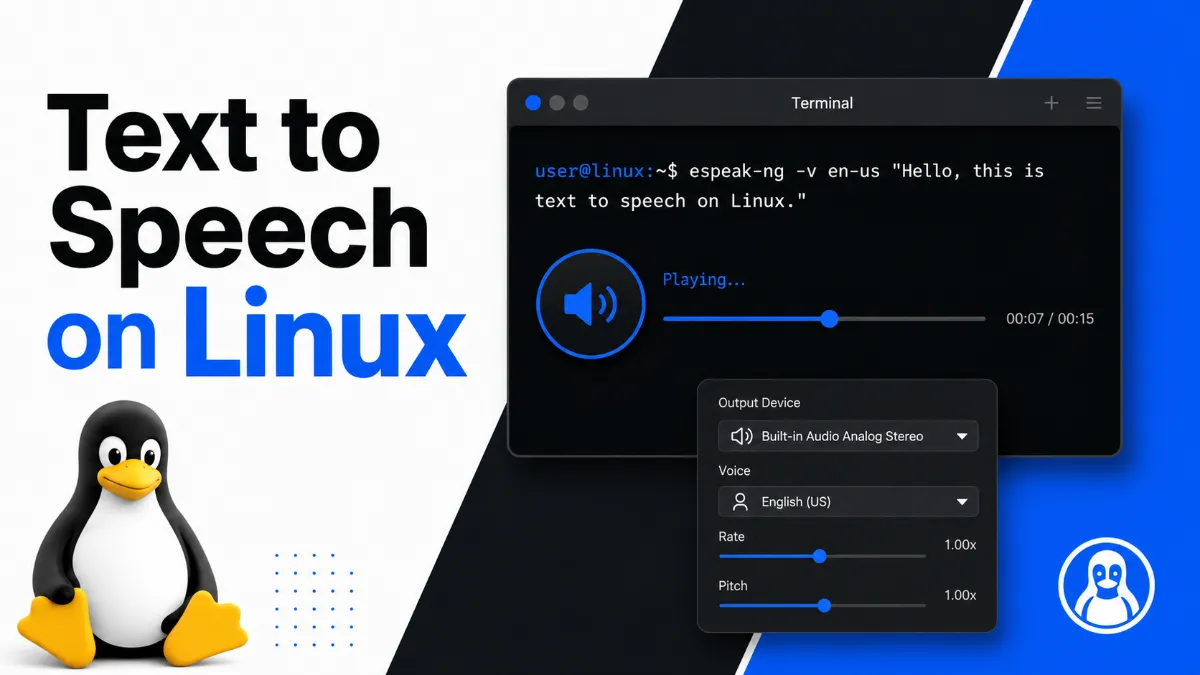
Text to speech on Linux is a mixed landscape. The good news: several solid tools exist, most are free, and the best ones are actively maintained. The less obvious part is that the experience varies a lot depending on what you need — a developer scripting audio output has very different requirements from a desktop user who just wants to listen to a long article.
Before diving into tools, it helps to understand the three categories you will encounter:
CLI tools — run entirely in the terminal, ideal for automation and scripting
GUI apps — graphical interface, better for everyday desktop use
Online / cloud tools — require no installation, accessible from any browser
This guide covers each category with concrete install commands (Ubuntu/Debian) and honest "best for" guidance.
eSpeak (and its successor eSpeak NG) is the most widely used TTS engine on Linux. It is lightweight, fast, and installs with a single command.
Install on Ubuntu/Debian:
sudo apt-get install espeakBasic usage:
espeak "Hello, this is a test"
espeak -f document.txt
Save to audio file:
espeak "Hello world" -w output.waveSpeak uses a formant synthesis approach, which means the voice sounds robotic compared to modern neural TTS. That said, it is perfect for automation scripts, accessibility tools, or any situation where you just need reliable spoken output and don't care about voice quality.
Best for: Developers who need TTS in scripts, accessibility tools, server-side automation, users who want the fastest possible setup.
Festival is one of the oldest and most feature-complete TTS systems available on Linux. It supports multiple languages, has an extensible architecture, and includes a full scripting interface.
Install on Ubuntu/Debian:
sudo apt-get install festivalBasic usage:
echo "Hello from Festival" | festival --tts
festival --tts < document.txt
Festival's default English voices are noticeably dated — they were state-of-the-art in the 1990s but sound rough by today's standards. However, you can install better voice packages (like the HTS voices) to significantly improve quality.
Best for: Users who need a full-featured TTS framework, those building more complex audio pipelines, anyone who wants to go deeper into voice customization.
Piper is a fast, local neural text to speech engine developed by the team behind Home Assistant. It produces genuinely natural-sounding speech that rivals cloud services — and it runs entirely offline.
Install on Ubuntu/Debian:
Piper is not in the standard apt repositories. Install it by downloading the binary from the GitHub releases page:
# Download the latest release (replace with current version)
wget https://github.com/rhasspy/piper/releases/download/v1.2.0/piper_linux_x86_64.tar.gz
tar -xzf piper_linux_x86_64.tar.gz
You also need to download a voice model (.onnx file) from the Piper voices repository. For example, to use the en_US-lessac-medium voice:
# Download voice model and config
wget https://huggingface.co/rhasspy/piper-voices/resolve/main/en/en_US/lessac/medium/en_US-lessac-medium.onnx
wget https://huggingface.co/rhasspy/piper-voices/resolve/main/en/en_US/lessac/medium/en_US-lessac-medium.onnx.json
Basic usage:
echo "This is Piper speaking" | ./piper --model en_US-lessac-medium.onnx --output_file output.wav
aplay output.wav
The extra setup steps are worth it if voice quality matters. Piper's output is dramatically more natural than eSpeak or Festival's default voices.
Best for: Developers building voice-enabled applications, podcast creators, anyone who wants high-quality offline TTS without cloud fees.
For users new to Linux TTS, here is a complete walkthrough for getting eSpeak working on Ubuntu:
Open a terminal (Ctrl + Alt + T)
Update your package list:
sudo apt-get updateInstall eSpeak:
sudo apt-get install espeakTest it:
espeak "eSpeak is working correctly"You should hear speech through your speakers or headphones immediately. No configuration files, no environment setup.
To install the newer espeak-ng instead (recommended for new projects):
sudo apt-get install espeak-ng
espeak-ng "This is espeak-ng"The full Piper workflow involves three steps: download the binary, download a voice model, and run inference.
Step 1: Download and extract the binary
cd ~
wget https://github.com/rhasspy/piper/releases/latest/download/piper_linux_x86_64.tar.gz
tar -xzf piper_linux_x86_64.tar.gz
cd piper
Step 2: Download a voice
Browse voices at https://rhasspy.github.io/piper-samples/ and pick one. The medium quality models are a good balance of size and quality. Download both the .onnx model file and the .onnx.json config file.
Step 3: Generate speech
echo "Hello from Piper" | ./piper \
  --model ~/voices/en_US-lessac-medium.onnx \
  --output_file ~/output.wav
aplay ~/output.wav
Piper also supports piping directly to a player:
echo "Playing directly" | ./piper \
  --model en_US-lessac-medium.onnx \
--output-raw | aplay -r 22050 -f S16_LE -t raw -Not everyone wants to use the command line. If you are a desktop Linux user looking for a graphical text to speech application, your main option is Speech Note.
Speech Note is a GTK4 application that provides a clean interface for speech recognition and text to speech. It uses espeak-ng as its TTS backend by default, but can also be configured to use Piper for higher-quality output.
Install via Flatpak (recommended):
flatpak install flathub net.mkiol.SpeechNoteThe interface lets you type or paste text, select a language and voice, and play back the result — no terminal required. It also supports reading clipboard contents, which is useful for listening to web articles or documents.
Best for: Desktop Linux users who want TTS without the command line, users who also want speech recognition capabilities in the same app.
Tool | Type | Voice Quality | Ease of Setup | Best For |
|---|---|---|---|---|
eSpeak / espeak-ng | CLI | Low (robotic) | Very easy (apt-get) | Scripts, automation, accessibility |
Festival | CLI | Low-Medium | Easy (apt-get) | Feature-rich pipelines, customization |
Piper | CLI | High (neural) | Medium (manual download) | High-quality offline TTS, apps |
Speech Note | GUI | Medium-High | Easy (Flatpak) | Desktop users, non-CLI users |
AI Listen | Online/iOS | High (AI) | None required | Cross-platform, no setup needed |

If you are not a developer and you ended up on this page because you just want to have articles or documents read aloud — Linux CLI tools may be more friction than they are worth.
For casual use, an online tool or mobile app gets you there without any terminal commands. AI Listen is a cross-platform option that converts text to natural-sounding speech instantly, supports multiple languages, and works on any device. You paste text, hit play, and you're done.
It is especially useful if you regularly switch between a Linux machine and a phone or tablet — there is no configuration to replicate across devices.
Here is the short version:
You write scripts or automate things → eSpeak or espeak-ng. Install it in ten seconds, it works, and it stays out of your way.
You want the best possible voice quality locally → Piper. Spend 15 minutes on setup and you get neural TTS that sounds genuinely good.
You prefer a GUI on the desktop → Speech Note via Flatpak. No terminal required.
You want a mature, full-featured TTS framework → Festival, especially if you plan to customize voices or build complex audio pipelines.
You just want to listen to something right now, cross-platform → AI Listen. No Linux knowledge needed, works on any device.
The Linux TTS ecosystem is strong, especially with Piper raising the quality bar significantly. Pick the tool that matches your actual use case rather than the one with the most features.