Tutorials
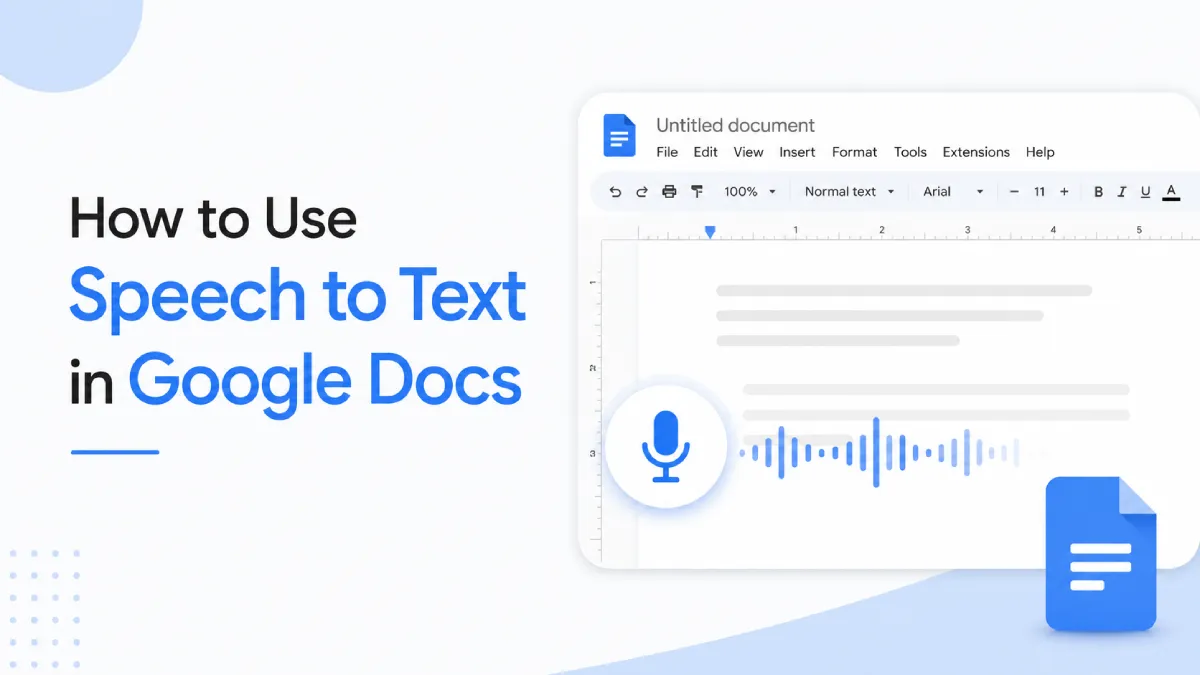
How to Use Speech to Text in Google Docs (2026 Guide)
Google Docs includes a free voice typing feature that converts speech to text in real time — no plugin required. This guide covers how to set it up on desktop and mobile, the commands you need, and how to fix it when it stops working.
Chloe Whittaker
Chloe Whittaker
AI Voice Specialist
June 1, 2026
7 min read
speech-to-text-google-docs
In This Article
How to Use Speech to Text in Google Docs on Desktop
How to Use Speech to Text in Google Docs on Mobile
Voice Typing Commands in Google Docs
Why Isn't Speech to Text Working in Google Docs?
Going Further: Listening Back to What You've Written

Google Docs includes a built-in voice typing feature that converts speech to text in real time — no third-party plugin or paid subscription required. Whether you're drafting content hands-free, dealing with repetitive strain, or simply faster at speaking than typing, it's one of the most underused productivity tools in Google's suite. This guide covers setup on desktop and mobile, the commands that actually work, and how to fix the most common problems.

How to Use Speech to Text in Google Docs on Desktop

Voice typing on desktop requires Google Chrome and a working microphone.

To enable voice typing:

  1. Open your document in Google Chrome — not Firefox, Safari, Edge, or any other browser.

  2. Go to ToolsVoice typing.

  3. A microphone icon appears on the left side of your document. Click it to begin.

  4. Speak clearly — your words appear in the document as you talk.

  5. Click the microphone icon again to stop. It turns red while active.

Keyboard shortcut: Press Ctrl + Shift + S (Windows / Chrome OS) or Cmd + Shift + S (Mac) to open the Voice Typing panel without going through the menu.

Quick Tip: Voice typing in Google Docs is only available in the Google Chrome browser on desktop — it will not appear in Firefox, Safari, Edge, or any other browser. If the Voice typing option is grayed out or missing from the Tools menu, check that you are using Chrome. On Mac, Chrome also needs microphone access at the OS level: System Settings → Privacy & Security → Microphone → make sure Chrome is listed and enabled.

How to Use Speech to Text in Google Docs on Mobile

On mobile, voice input in Google Docs works through your device keyboard rather than a dedicated app feature.

On iPhone:

  1. Open your Google Docs document and tap inside it to bring up the keyboard.

  2. Tap the microphone icon on the iOS keyboard (location varies by iOS version — look bottom-left or in the toolbar above the keyboard).

  3. Speak — text appears in the document in real time.

  4. Tap the microphone icon again to stop.

On Android:

  1. Open your Google Docs document and tap inside it.

  2. Tap the microphone icon on the Gboard keyboard.

  3. Speak your text, then tap the microphone icon to stop.

Mobile voice input supports most major languages and works the same way whether you're using the Google Docs app or the mobile browser. Punctuation and formatting commands behave the same as on desktop.

Voice Typing Commands in Google Docs

Google Docs voice typing does not add punctuation automatically. You need to say punctuation out loud while dictating. It also supports basic formatting and editing commands.

Say this

Result

"period"

.

"comma"

,

"question mark"

?

"exclamation point"

!

"new line"

Line break

"new paragraph"

Paragraph break

"bold"

Bolds the next spoken text

"italics"

Italicizes the next spoken text

"undo"

Undoes last action

"delete last word"

Deletes the previous word

"select all"

Selects all text in the document

To see the full command list, say "voice commands help" while voice typing is active — Google Docs will open a reference panel in the sidebar.

Why Isn't Speech to Text Working in Google Docs?

Most voice typing issues fall into a handful of categories:

Voice typing is grayed out or missing from the Tools menu: You are not using Google Chrome. This is the single most common cause. Switch to Chrome and the option will reappear.

Microphone not detected: Check that your microphone is connected and your operating system recognizes it. On Mac: System Settings → Sound → Input. On Windows: Settings → System → Sound → Input. In Chrome: Settings → Privacy and Security → Site Settings → Microphone — make sure Google Docs is not blocked.

Voice typing stops after a few seconds: The browser tab likely lost focus, or the microphone signal dropped. Keep the Google Docs tab active and in the foreground while speaking.

Wrong language being recognized: Click the language dropdown at the top of the Voice Typing panel and select the correct language before starting. This setting is not saved between sessions by default.

Works on desktop but the microphone icon is missing on mobile: On mobile, voice input comes from the device keyboard — not from Google Docs itself. Check your keyboard settings to confirm the microphone is enabled for your keyboard.

Going Further: Listening Back to What You've Written

Voice typing handles one direction — turning your speech into text. For the reverse, Google Docs includes a basic Read Aloud option under Tools → Accessibility → Speak, but the voice is robotic and stops when you switch tabs.

If you write long documents, draft articles, or produce any content you later want to review without reading, listening back is a faster way to catch tone and flow issues than rereading. AI Listen converts any document or article to natural-sounding audio you can listen to on the go — useful for proofreading drafts, reviewing research notes, or following up on long reads without sitting at a screen.

The two tools cover opposite ends of the same workflow: voice typing gets ideas into Google Docs fast; AI Listen gets finished content back out as audio.


ai-listen-app
Ready to Transform Your Study Sessions?
Join 50,000+ students using AI Listen to study smarter. Free forever plan available.

Frequently Asked Questions
Does speech to text in Google Docs work on mobile?
Yes — on mobile, voice input goes through your device keyboard's microphone rather than a dedicated Google Docs feature. On iPhone, tap the microphone icon on the iOS keyboard while editing your document. On Android, tap the microphone on Gboard. Text appears in the document as you speak.
Why is voice typing grayed out in the Tools menu?
Voice typing is only available in the Google Chrome browser on desktop. It will not appear in Firefox, Safari, Edge, or any other browser. Open your document in Chrome to enable it.
Does Google Docs speech to text add punctuation automatically?
No — you need to say punctuation out loud while dictating. Say period, comma, question mark, or new paragraph to insert the corresponding punctuation or formatting. Google Docs does not detect sentence boundaries on its own.
What languages does Google Docs voice typing support?
Google Docs voice typing supports over 100 languages. Before starting, click the language selector at the top of the Voice Typing panel and choose your language. Gboard on Android supports over 70 languages for mobile voice input.
Can Google Docs read my document aloud?
Google Docs has a basic Read Aloud option under Tools → Accessibility → Speak, but the voice quality is limited. For higher-quality playback, AI Listen converts documents and articles to natural-sounding audio you can listen to on the go.
Can I transcribe an existing audio file using Google Docs voice typing?
No — Google Docs voice typing is for live speech only and cannot process pre-recorded audio. For audio or video transcription, you need a dedicated transcription tool such as Otter.ai or Google's own Live Transcribe on Android.

Tutorials
Share this article:
copy

Popular Articles

Continue exploring text to speech and productivity tips
AI Audio for Publishing and News: How Publishers Can Turn Written Content Into a Real Listening Product
TTS
AI Audio for Publishing and News: How Publishers Can Turn Written Content Into a Real Listening Product
AI audio is becoming a serious layer in publishing and news. This guide explains the real use cases, tradeoffs, and decision criteria behind adoption.
AI Story Generator: What It Is, How It Works, and Why It Matters
TTS
AI Story Generator: What It Is, How It Works, and Why It Matters
AI story generators turn prompts into structured drafts for fiction, marketing, and education. In this guide, we cover how AI story generators work, their core features, benefits, limitations, and how to choose the right AI Story Generator.
Assistive Technology for Dyslexia: What Helps Most
Assistive technology for dyslexia is more than a list of apps. This guide explains which tools matter most, who they help, and how to choose support that improves reading and learning in practice.
5 Benefits of Bimodal Learning for Better Retention
AI Listen
5 Benefits of Bimodal Learning for Better Retention
Bimodal learning is more than a theory about seeing and hearing information together. This guide explains five practical benefits, where they matter most, and how to apply them in real study workflows.
Best Free Speech-to-Text Apps for Hearing Impaired Users
AI Tools
Best Free Speech-to-Text Apps for Hearing Impaired Users
If you need a free speech-to-text app for hearing impaired users, the right choice depends on whether you need live captions, daily conversation support, meeting transcripts, or a lightweight browser-based tool.
Best Historical Fiction Books to Add to Your Reading List
Tutorials
Best Historical Fiction Books to Add to Your Reading List
The best historical fiction books do more than recreate the past. They combine strong storytelling, emotional depth, and historical texture to make another era feel immediate and alive.