Speech to text is one of the most useful features built into modern devices — but it's also one of the most buried. On iPhone, it's nested in General > Keyboard. On Windows, there's a keyboard shortcut most people have never seen. On Mac, it's in System Settings but not where you'd expect. On Android, it depends entirely on which keyboard app you're using.
This guide gives you the exact steps for each platform, plus the most common reasons it won't turn on and how to fix them.
Platform | How to Enable | Keyboard Shortcut |
|---|---|---|
Windows | Settings > Accessibility > Speech, or press Win+H anywhere | Win+H |
iPhone | Settings > General > Keyboard > Enable Dictation | Microphone icon on keyboard |
Android (Gboard) | Gboard Settings > Voice Typing | Microphone icon on keyboard |
Mac | System Settings > Keyboard > Dictation | Fn key (double press) |
Windows has the simplest activation method of any platform: a keyboard shortcut that works system-wide.
Press Win+H anywhere in Windows to open the Voice Typing panel.
If it's your first time, you'll be prompted to set up your microphone.
Start speaking — Voice Typing transcribes in real time into whatever text field is active.
To keep the panel open and auto-start when you press the shortcut, go to Settings > Accessibility > Speech and turn on Voice Typing launch shortcut.
Voice Typing (Win+H) is for dictating text — it converts your speech into words in a text box. Narrator (Win+Ctrl+Enter) is the opposite: it reads what's on the screen. These are frequently confused, but they serve opposite purposes.
If you wanted Windows to read something aloud to you, that's Narrator or Read Aloud in Edge/Word — not Voice Typing.
iPhone's dictation feature is part of the keyboard but requires explicit activation in Settings first.
Go to Settings > General > Keyboard.
Scroll down and toggle on Enable Dictation.
Tap the microphone icon on the keyboard in any app to start speaking.
Tap the microphone icon again (or tap Done) to stop.
These two features have similar names but do opposite things:
Dictation = you speak, the phone types (speech-to-text)
Speak Selection = the phone reads text aloud to you (text-to-speech)
If you want your iPhone to read text aloud, go to Settings > Accessibility > Spoken Content instead. Enable Speak Selection, then select text in any app to hear it read. For longer documents or articles, AI Listen is a dedicated iOS audio reader that handles extended reading sessions more smoothly than the system Speak Selection feature.

If the microphone icon doesn't appear on your keyboard, check:
Enable Dictation is on (Settings > General > Keyboard)
Siri is enabled (Settings > Siri & Search) — Dictation depends on Siri being active
Screen Time isn't blocking it (Settings > Screen Time > Content & Privacy Restrictions > Allowed Apps > Siri & Dictation)
Android's speech to text is handled by the keyboard app. Most Android phones use Gboard by default, which has Voice Typing built in.
Open any app with a text field.
Tap the text field to bring up the Gboard keyboard.
Tap the microphone icon in the top row of the keyboard.
If the microphone isn't visible, tap the expand arrow (⊞) to show more icons.
Open Gboard settings (long-press the comma key, then tap the gear icon).
Go to Voice Typing.
Make sure Use Voice Typing is toggled on.
If you're not using Gboard, look for a similar Voice Input option in your keyboard's settings.
On many Android devices, holding the Home button (or swiping up for newer phones) triggers Google Assistant. Say "type [message]" to dictate directly into a message or note. This method works independently of which keyboard you're using.
Mac's Dictation is part of the Keyboard settings, not Accessibility — which makes it hard to find if you're looking in the wrong place.
Open System Settings (the gear icon in the Dock or Apple menu).
Go to Keyboard.
Find Dictation and toggle it on.
Choose your preferred shortcut (default is pressing Fn twice) or select "Customize" to assign a different key.
Tap or click any text field, press your shortcut, and start speaking.
Mac has two voice-related features that are easy to confuse:
Dictation = simple speech-to-text for typing
Voice Control = full hands-free control of the entire Mac, including navigating menus, clicking buttons, and scrolling
If you only need to dictate text into apps, use Dictation. Voice Control is more powerful but requires more setup and works better for users who need full hands-free operation.
On M-series Macs (M1, M2, M3, M4), enhanced Dictation works completely offline. On older Intel Macs, standard Dictation sends audio to Apple's servers. To check, look in System Settings > Keyboard > Dictation for an "Enhanced Dictation" or offline option.
If you've followed the steps above and it still isn't working, these are the most common causes:
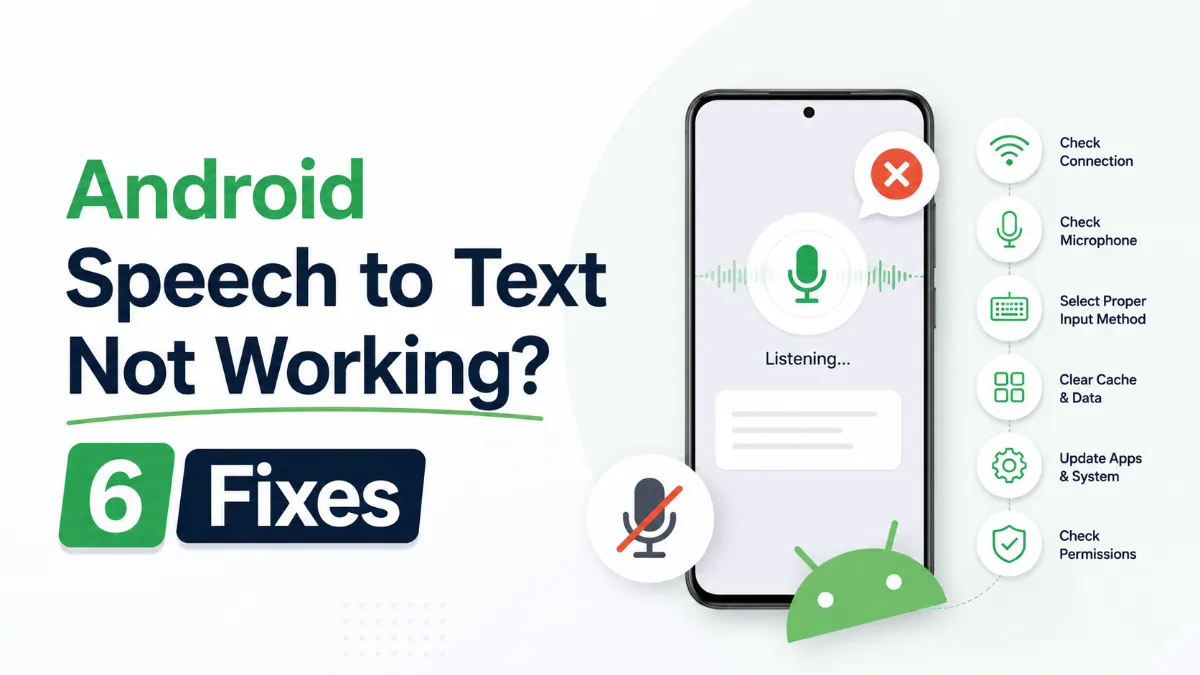
Microphone permission not granted. Go to your device's Privacy or Permissions settings and confirm the app or system feature has microphone access.
Internet connection required (first use). Some platforms require an initial internet connection to download language models or voice data. After the first setup, many work offline.
Screen Time or restrictions blocking it (iPhone). Go to Settings > Screen Time > Content & Privacy Restrictions > Allowed Apps and make sure Siri & Dictation is enabled.
Wrong keyboard active (Android). Voice Typing is tied to your keyboard app. If you've switched keyboards (e.g., to Samsung Keyboard), check that keyboard's voice settings, not Gboard's.
Microphone hardware issue. Test your microphone in another app (like a voice recorder) to rule out hardware problems before troubleshooting software settings.
Speech to text accuracy varies by platform and environment. A few things improve results immediately:
Speak at a natural pace — not too fast, not too slow
Minimize background noise; accuracy drops significantly in noisy environments
Use punctuation commands like "period," "comma," or "new paragraph" to format text while speaking
On iPhone, the system learns your voice and vocabulary over time, especially if Siri is regularly used
Once you've got it working on your primary device, turning it on for the others takes less than two minutes per platform. Most people find they use it far more than expected once it's just a keyboard tap away.