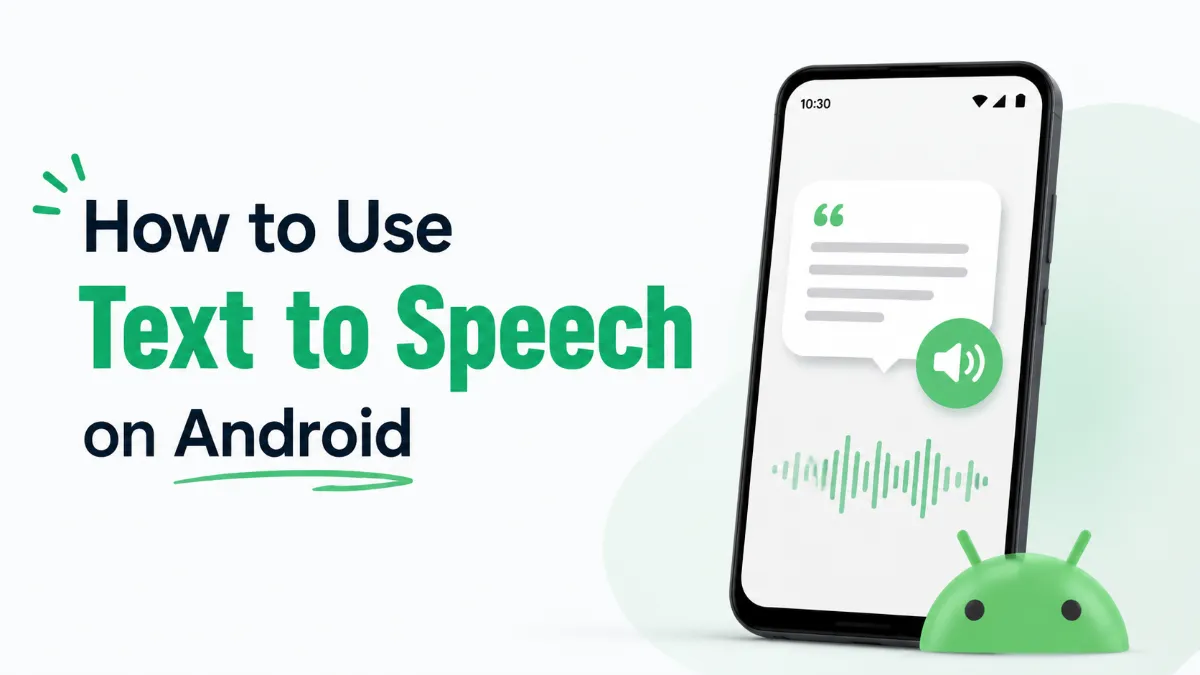
Android comes with text to speech built in — but finding it, setting it up, and choosing the right option for your specific needs is less obvious than it should be. Whether you want web articles read aloud on your commute, hands-free document listening at work, or a dedicated text to speech application for Android that handles long-form content, this guide covers the full picture: how Android's native TTS works, how to turn it on, and which text to speech apps for Android are worth using in 2026.
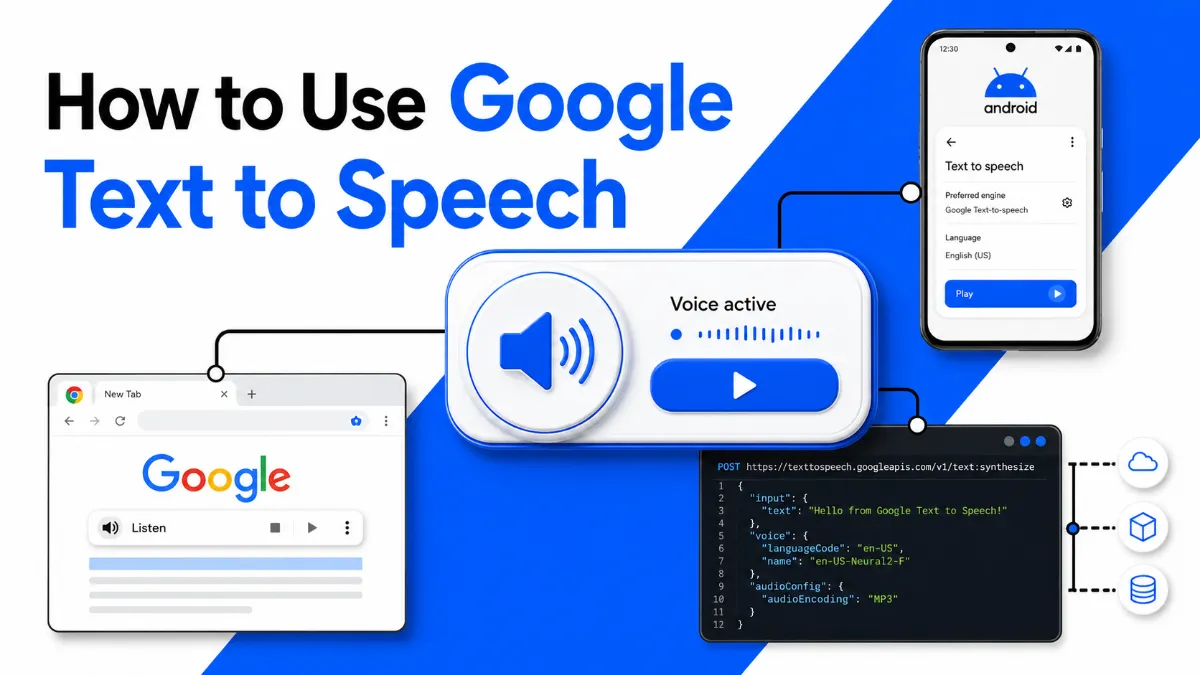
Android uses a system-level TTS engine — Google Text-to-Speech by default — that runs underneath most apps and accessibility features. On its own, it doesn't read text aloud. Instead, it acts as a shared voice layer that other apps draw from: Google Chrome, Google Assistant, Play Books, and any third-party text to speech app for Android that integrates with the Android TTS API.
This matters because "how to use text to speech on Android" means something different depending on context:
System TTS (Select to Speak / TalkBack): reads whatever is on your screen
App-level TTS (Chrome, Play Books, Google Docs): reads within a specific app
Standalone TTS apps: give you fine-grained control over documents, articles, and imported files
Most users only know one of these. Understanding all three helps you pick the right tool for each situation.
Before any app can use TTS reliably, the engine should be configured first.
Open Settings
Tap Accessibility
Select Text-to-Speech Output (on Samsung: Accessibility → Vision → Text-to-Speech)
Choose Google Text-to-Speech as your preferred engine
Tap the gear icon to adjust speech rate and pitch
Google TTS comes pre-installed on most Android devices. If it's missing, install it from the Play Store.
Select to Speak is the most practical built-in TTS tool for most users — it reads any text you tap on screen without switching apps.
Go to Settings → Accessibility → Select to Speak
Toggle it on
The icon appears in your accessibility shortcut or navigation bar
Once active, tap the icon, then tap or drag to highlight any on-screen text. Android reads it aloud using your chosen engine.
TalkBack narrates everything on screen — menus, notifications, buttons, and body text. It's primarily designed for users with visual impairments and uses a gesture-based navigation system that takes adjustment.
Enable via Settings → Accessibility → TalkBack
Navigate with gestures: single tap selects, double tap activates
Best for continuous audio navigation; Select to Speak is better for on-demand reading
Several Android apps include TTS natively, without any third-party installation:
App | How to Use TTS |
|---|---|
Google Chrome | Overflow menu (⋮) → Read Aloud, or long-press highlighted text. Works on most web articles. |
Google Play Books | Tap screen → More options → Read aloud. Supports speed control and chapter navigation. |
Google Docs | Use Select to Speak on document text. More reliable on larger screens; desktop Chrome reads more smoothly. |
Google Assistant | Say "read this page" or "read aloud" to trigger TTS on the current screen content. |
Built-in tools cover casual use. For anyone who regularly reads long articles, PDFs, or imported documents, a dedicated text to speech application for Android gives you better control over voice quality, speed, and content management.
App | Best For | Voice Quality | Offline | Free Tier |
|---|---|---|---|---|
Google Read Along | Short reading practice | Standard | Yes | Yes |
Documents, PDFs, ebooks | AI-enhanced | Limited | Yes (limited) | |
Power users, many formats | Premium AI | Yes | Paid only | |
Web articles, productivity | High (AI voices) | Yes | Yes (limited) | |
ReadAloud | Simple, lightweight use | Standard | Yes | Yes |
Who each option fits:
Google Read Along — zero setup, no voice customization needed
NaturalReader — importing PDFs and Word docs without an upfront cost
Voice Dream Reader — daily TTS users who need consistent quality and broad format support
Speechify — web article listeners who want near-human AI voice quality
ReadAloud — lightweight use cases where the built-in TTS engine feels too buried
Most people don't need a paid app. Here's a direct decision path:
Use Select to Speak if you occasionally want on-demand reading of articles, messages, or any on-screen text without switching apps.
Use Chrome's Read Aloud if most of your listening is web-based and you already have Chrome open.
Use a dedicated text to speech app if you regularly listen to long documents, need to import files, want a reading queue, or find the built-in voices too robotic for extended sessions.
Use Play Books if your main content is ebooks or imported EPUBs.
The gap between free built-in tools and paid text to speech software for Android is mostly about voice naturalness and format flexibility. If you find yourself working around Android's defaults to get a specific document read, a dedicated app is the cleaner solution.
If you work across Android and iPhone, keeping your reading queue in sync across devices is a common friction point. Most major TTS apps have iOS versions. On the iPhone side, AI Listen is a clean option for listening to articles, web pages, and imported documents — useful if your workflow spans both platforms and you want consistent TTS behavior across devices.
Android's text to speech tools are more capable than most users realize. Select to Speak covers on-demand reading, app-level TTS handles specific content types, and dedicated text to speech apps for Android fill the gap for regular listeners who need more control. Start with the built-in options to gauge what you actually need — then move to a standalone text to speech application when the workflow demands it.