Speech to Text on Chromebook: Built-in Tools, Extensions, and How to Choose
Chromebook has multiple speech and voice tools built in, but they serve very different purposes. This guide explains which feature to use for typing by voice, which to use for having text read aloud, and when a Chrome extension gives you more than the built-in options.
Julian Sterling
AI Content Strategist
June 22, 2026
7 min read
In This Article
How to Use Speech to Text on Chromebook (Built-In)
ChromeVox vs Select-to-Speak: What's the Difference
Using Select-to-Speak on Chromebook
Best Chrome Extensions for Voice Typing
Voice Typing Directly in Google Docs
Which Option Is Right for You
Chromebook has speech-related features scattered across three different places in Settings, and they do very different things. "Dictation" lets you type by speaking. "Select-to-Speak" reads text aloud to you. "ChromeVox" is a screen reader for navigating the entire OS. If you've enabled the wrong one, you'll get unexpected behavior — or no speech input at all.
This guide clarifies what each tool does, how to enable the one you actually need, and when a Chrome extension like Voice In is the better choice.
How to Use Speech to Text on Chromebook (Built-In)
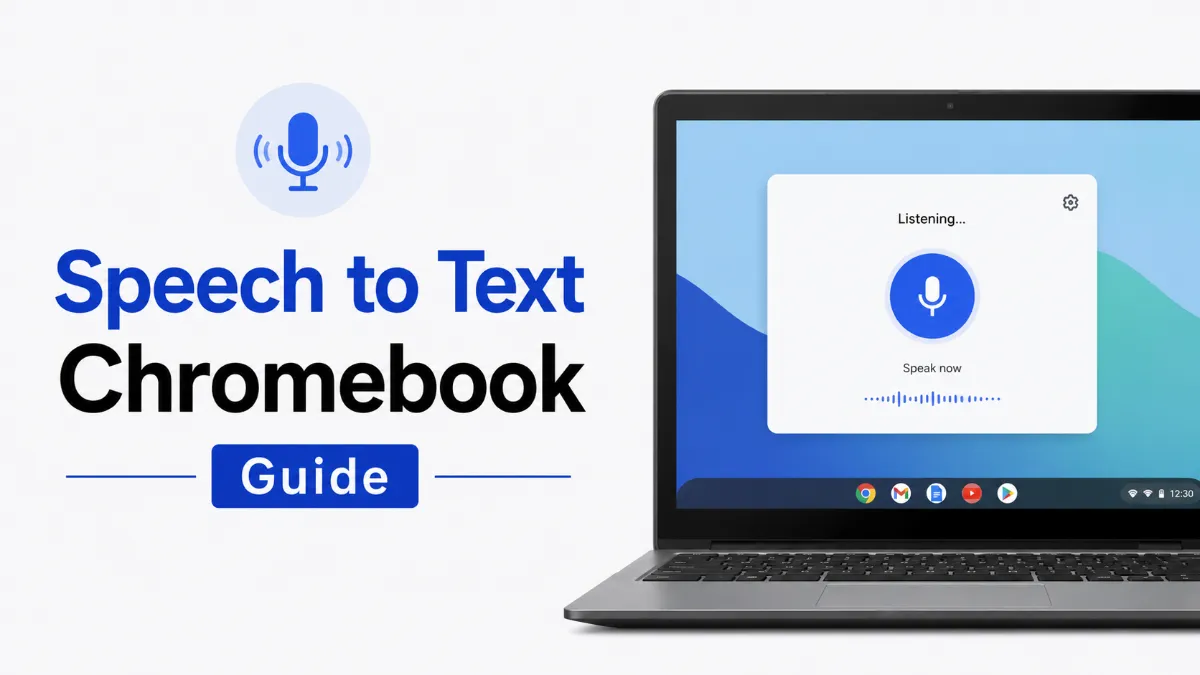
The primary built-in voice typing feature on Chromebook is calledDictation. It converts spoken audio into text in any text field.
Enabling Chromebook Dictation
OpenSettings(click the clock in the bottom right, then the gear icon).
Go toAccessibility.
ClickManage Accessibility Features.
Scroll toKeyboard & Text Input.
Turn onDictation (speak to type).
Amicrophone iconappears in the system tray (bottom right corner).
Click the microphone icon to activate Dictation, then start speaking.
Quick Tip: If you're using speech to text on a Chromebook for school or work, Voice In (the Chrome extension) gives you voice input in Google Docs, web forms, and other browser-based tools without needing to toggle a system setting every time. Once installed, you activate it with a click directly inside any text field — significantly faster than going through Settings each time.
When Dictation is active, a small microphone indicator shows at the bottom of the screen. Speak naturally — Chromebook transcribes in real time and inserts text wherever your cursor is positioned.
Voice Commands for Dictation
Like other voice typing tools, Chromebook Dictation supports punctuation commands:
ChromeVox vs Select-to-Speak: What's the Difference
This is the most common point of confusion for Chromebook users. Both are in Accessibility settings and both involve audio, but they work in completely opposite directions.
ChromeVoxis a full-featured screen reader. It reads everything visible on the screen — text, buttons, menus, icons — and provides keyboard-based navigation for the entire Chrome OS interface. It's designed for users who need hands-free or vision-independent access to their device.
Select-to-Speakreads selected text aloud. Highlight any text on the screen and pressSearch+S(or the keyboard shortcut you configure), and Select-to-Speak will read the selected content in a natural voice.
Feature
What It Does
Who It's For
Dictation
Converts speech to typed text
Anyone who wants to type by speaking
Select-to-Speak
Reads selected text aloud
Anyone who wants to hear text read to them
ChromeVox
Reads entire screen, enables full voice navigation
Users needing screen reader accessibility
Which one should you use?
Want to type by voice →Dictation
Want to hear text read back →Select-to-Speak
Need full hands-free OS navigation →ChromeVox
Using Select-to-Speak on Chromebook
If your goal is to have text read aloud (not to dictate text), Select-to-Speak is the right tool.
To use it: select any text on the screen, then pressSearch+S.
Alternatively, hold theSearchkey and click on any text — it will be read immediately.
A playback bar appears, letting you pause, adjust speed, and skip forward.
Select-to-Speak works across webpages, Google Docs, Google Slides, and most other text-based content in Chrome OS.
Best Chrome Extensions for Voice Typing
Chromebook's built-in Dictation works well for system-wide voice input, but Chrome extensions offer a more integrated experience for browser-based work — especially in Google Docs and other web apps.
Voice In
Voice Inis the most widely recommended voice typing extension for Chrome. It integrates directly into text input fields across the web, including Google Docs, Gmail, and web forms.
Install: Search "Voice In" in the Chrome Web Store, or visit the extension page and click Add to Chrome.
Use it: Click the microphone icon that appears inside any text box to activate.
The extension recognizes voice input without triggering system-level settings.
The free version supports basic English voice typing. Paid tiers add more languages and extended session times.
Voicy
Voicyis another voice typing extension with similar functionality. It's simpler to configure than Voice In and works well for basic dictation in Google Docs and web forms. Voice In generally has better accuracy and community support, but Voicy is a solid alternative.
Voice Typing Directly in Google Docs
If you primarily need speech to text in Google Docs rather than across all apps, the simplest option is Google Docs' built-in voice input — no extensions or accessibility settings needed:
Open a Google Docs document.
Go toTools > Voice Typing(or pressCtrl+Shift+S).
Click the microphone icon that appears.
Speak — your words appear in the document in real time.
Click the microphone again to stop.
Google Docs' Voice Typing is reliable for English and supports punctuation commands. For students using Chromebooks in school, this is often the most convenient option since it requires no additional setup.
Which Option Is Right for You
What you want to do
Best option
Type by speaking across all apps
Chromebook Dictation (Accessibility settings)
Type by speaking in Google Docs only
Google Docs > Tools > Voice Typing
Type by speaking in any browser text field
Voice In Chrome extension
Have text read back to you
Select-to-Speak (Search+S)
Full screen reading and navigation
ChromeVox
Read webpage content aloud
Select-to-Speak + highlight
The right tool depends on whether you're using voice for input or output, and how broadly you need it to work across Chrome OS.
For students and everyday users, Chromebook Dictation and Google Docs' built-in Voice Typing cover most use cases without any extensions. If you frequently dictate across different websites and apps, Voice In is worth the one-time setup. For listening rather than typing, Select-to-Speak is built in and ready to use the moment you turn it on. When you need a more capable audio reading experience on your phone — for documents, articles, or longer text —AI Listenis a dedicated iOS audio reader that complements a Chromebook-based writing or note-taking workflow.
Go to Settings > Accessibility > Manage Accessibility Features, scroll to Keyboard & Text Input, and turn on Dictation. A microphone icon will appear in the system tray. Click it to start voice input in any text field.
What is the difference between Dictation, ChromeVox, and Select-to-Speak on Chromebook?
Dictation converts your speech into typed text. Select-to-Speak reads selected text aloud to you — it's for listening, not typing. ChromeVox is a full screen reader that reads everything on screen and provides keyboard-based navigation. They serve three distinct purposes.
What is the best Chrome extension for speech to text?
Voice In is the most recommended Chrome extension for voice typing in browsers. It integrates directly into text fields on any webpage — Google Docs, Gmail, web forms — and activates with a single click. It's free to use for basic functionality.
Does Chromebook speech to text work offline?
Chromebook's built-in Dictation requires an internet connection because audio processing happens in Google's cloud. For offline voice input, you'd need a third-party app or extension with on-device processing — most common options still require connectivity. For the reverse — having text read aloud to you on your phone — AI Listen is an iOS audio reader that works independently of your Chromebook session.
Can I use speech to text in Google Docs on Chromebook?
Yes. The easiest method is Tools > Voice Typing in Google Docs, which activates directly within the document. You can also use Chromebook's system Dictation or the Voice In extension for the same result.
TTS
AI Listen
Share this article:
Table of Contents
How to Use Speech to Text on Chromebook (Built-In)
ChromeVox vs Select-to-Speak: What's the Difference
Using Select-to-Speak on Chromebook
Best Chrome Extensions for Voice Typing
Voice Typing Directly in Google Docs
Which Option Is Right for You
Ready to Transform Your Study Sessions?
Join 50,000+ students using AI Listen to study smarter. Free forever plan available.
AI story generators turn prompts into structured drafts for fiction, marketing, and education. In this guide, we cover how AI story generators work, their core features, benefits, limitations, and how to choose the right AI Story Generator.
Android speech to text failures usually trace back to a small set of causes: permissions, cache buildup, language mismatches, or internet dependency. Here are six fixes that cover the most common cases, in order of effort.
The Android text to speech engine is the system-level layer that converts text to audio for all apps on your phone. Most users never change it — but knowing how to switch engines, download better voices, and configure it correctly can significantly improve TTS quality.
Android’s text to speech tools range from a built-in accessibility engine to dedicated apps designed for longer listening sessions. This guide covers how to use each, and which option fits your workflow.
Assistive technology for dyslexia is more than a list of apps. This guide explains which tools matter most, who they help, and how to choose support that improves reading and learning in practice.