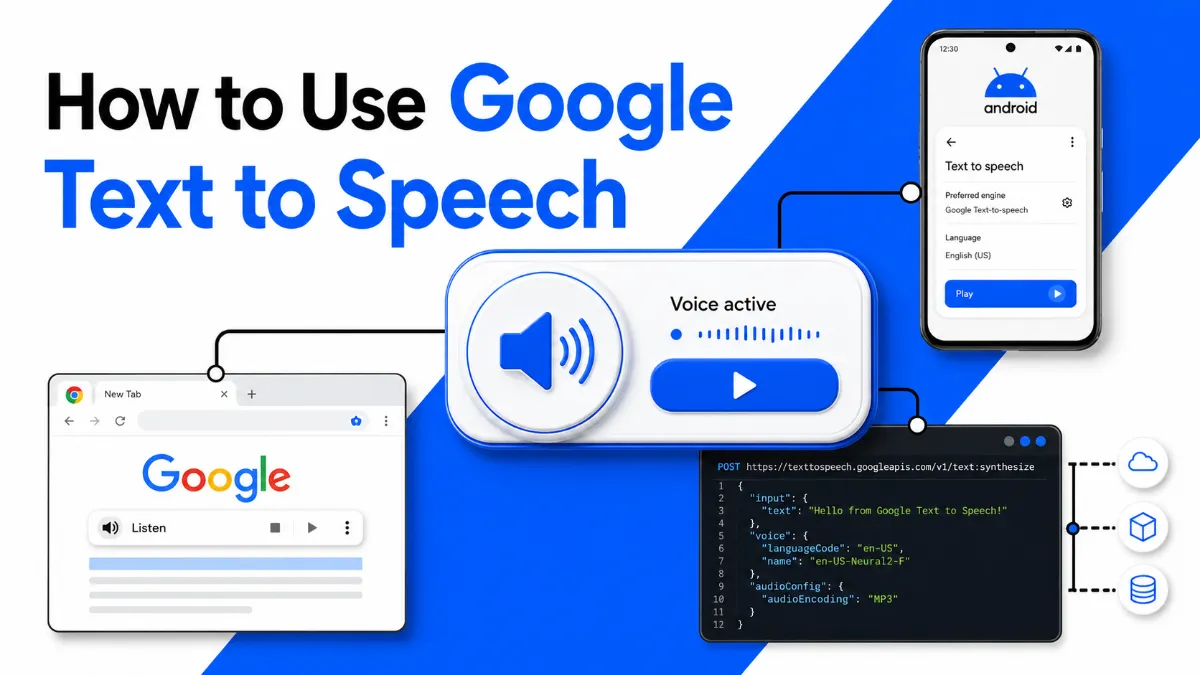
Google Text to Speech is not a single tool — it is a platform feature available in at least four different places, each suited to a different type of user. Whether you are on Android and want your phone to read notifications aloud, on Chrome and want to listen to a webpage, building an app that needs spoken output, or just experimenting for free, there is a Google TTS path that fits. This guide covers all four, explains how to enable each one step by step, and helps you decide which route makes the most sense for your situation.
Google Text to Speech (often abbreviated Google TTS) is a speech synthesis engine developed by Google. At the system level, it is the engine behind Android's accessibility features, screen readers, and third-party apps that need voice output on mobile devices. At the cloud level, it is a paid API that offers high-quality neural voices in dozens of languages. More recently, Google has also made its TTS capabilities available through AI Studio as a free experimentation environment.
The voices range from basic standard voices to near-human WaveNet and Neural2 models, and the engine supports Speech Synthesis Markup Language (SSML), which lets you fine-tune pronunciation, pacing, and emphasis.
Understanding which version you are working with matters because each entry point has different setup steps, quality levels, and cost implications.
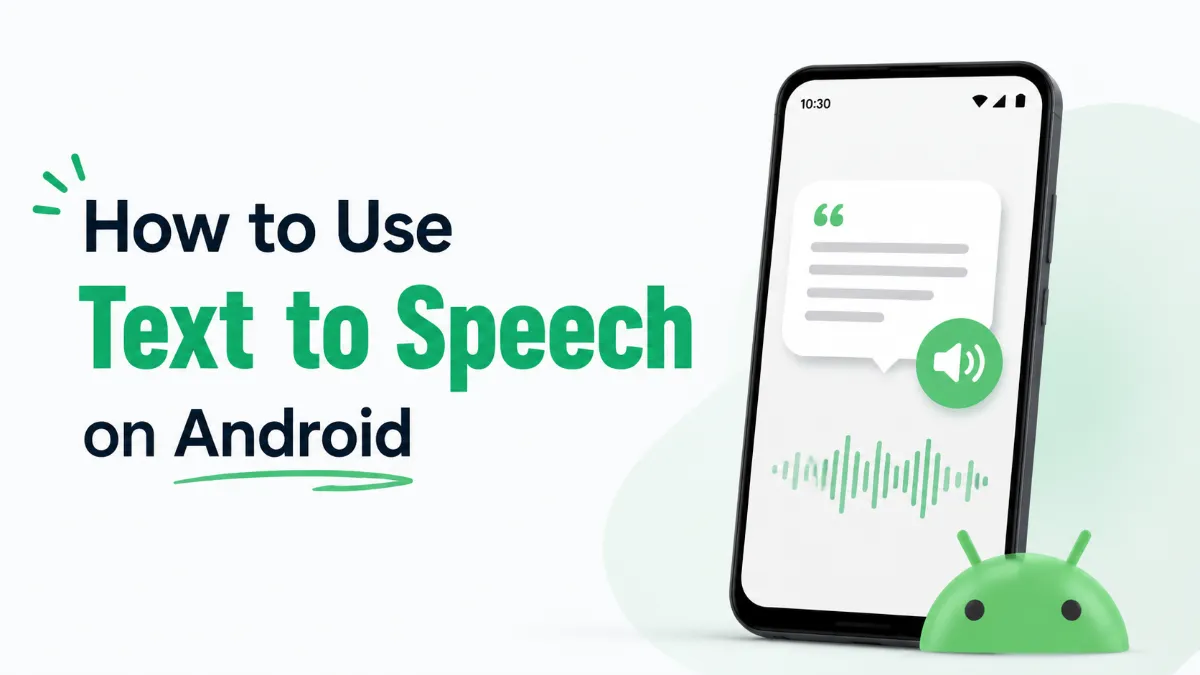
Android is the most searched context for Google TTS because the engine is pre-installed on every Android device. Here is how to enable and configure it.
Open the Settings app on your Android phone.
Scroll down and tap Accessibility.
Tap Text-to-Speech Output (exact label may vary slightly by manufacturer — some devices show it under Vision or Screen Reader).
Under the "Preferred Engine" section, tap the dropdown and select Google Text-to-Speech Engine. If it is not installed, you can download it from the Play Store by searching "Google Text-to-Speech."
Tap the gear icon next to Google Text-to-Speech Engine.
Choose Language (for example, English (United States)).
Tap Install Voice Data if you want offline voice packs.
Back in the main TTS settings, adjust Speech Rate (how fast the voice reads) and Pitch to your preference.
Tap the Play button to preview the voice.
Once enabled, Google TTS powers any app that requests spoken output, including:
Select to Speak: highlight text anywhere on the screen, tap the accessibility shortcut, and Android reads it aloud using the configured TTS engine.
TalkBack: the full screen reader that reads all UI elements.
Third-party apps like e-readers, navigation apps, and podcast-style article readers.
If you want to go beyond the basic Android TTS experience — richer voices, playlist-style article queuing, PDF reading — AI Listen is a mobile app designed specifically for that use case.

Chrome does not have a built-in "read this page aloud" button, but Google TTS voices are accessible on desktop through a few methods.
On a webpage, highlight any text, right-click, and select Read Aloud (available in some Chromebook environments and Chromebooks running ChromeOS). On standard Windows/Mac Chrome, this option is not natively available.
The most practical option for most desktop users is a browser extension. The Read Aloud extension (available in the Chrome Web Store) uses the system's TTS engine, which on Chrome OS and some Windows setups defaults to a Google voice.
Go to the Chrome Web Store and search "Read Aloud."
Click Add to Chrome and confirm.
Open any webpage and click the Read Aloud icon in the browser toolbar.
Use the play/pause controls and the settings panel to pick a voice and adjust speed.
If you are on a Chromebook:
Go to Settings > Accessibility > Text-to-Speech.
Enable Select-to-Speak.
Highlight text on any page and press Search + S to hear it read aloud.
The Cloud TTS API is for developers who need to integrate speech synthesis into an application, automate audio generation, or access higher-quality voices.
A Google Cloud account (free tier available)
A project with the Cloud Text-to-Speech API enabled
An API key or service account credentials
Go to the Google Cloud Console.
Create a new project or select an existing one.
Navigate to APIs & Services > Library and search for "Cloud Text-to-Speech API."
Click Enable.
Go to APIs & Services > Credentials and create an API key.
curl -X POST \
  -H "Authorization: Bearer $(gcloud auth print-access-token)" \
  -H "Content-Type: application/json" \
  -d '{
    "input": {"text": "Hello, this is Google Text to Speech via the Cloud API."},
    "voice": {"languageCode": "en-US", "name": "en-US-Neural2-C"},
    "audioConfig": {"audioEncoding": "MP3"}
  }' \
  "https://texttospeech.googleapis.com/v1/text:synthesize"
The API returns a base64-encoded MP3. Decode and save it:
echo "" | base64 --decode > output.mp3 Voice Type | Quality | Free Tier |
|---|---|---|
Standard | Basic synthesis | 4M chars/month |
WaveNet | High quality, natural | 1M chars/month |
Neural2 | Most natural, near-human | 1M chars/month |
Studio | Studio-grade (preview) | Limited |
Google AI Studio (aistudio.google.com) is a free web interface for experimenting with Google's AI models, including Gemini models that support audio output. It is not a dedicated TTS tool, but it can generate spoken audio from text without any API setup or billing configuration.
Go to aistudio.google.com and sign in with a Google account.
Create a new prompt and select a model that supports audio output (look for models labeled with audio capabilities).
Type or paste your text and run the prompt.
Download the generated audio file.
This path is best for one-off audio generation, prototyping, or testing voice quality before committing to the Cloud API.
Method | Best For | Cost | Voice Quality | Setup Difficulty |
|---|---|---|---|---|
Android Built-in | Mobile accessibility, reading apps | Free | Good (standard) | Very easy |
Chrome Extension | Listening to webpages on desktop | Free | Varies by system | Easy |
Cloud TTS API | App development, automation | Free tier + paid | Excellent (Neural2) | Moderate |
Google AI Studio | Prototyping, quick one-off audio | Free | Excellent | Very easy |
Google's native TTS is solid but has real limitations: the Android engine uses basic voices by default, the Chrome experience depends on extensions, and the API requires technical setup. For users who want to listen to articles, newsletters, PDFs, or web content regularly on mobile — not just accessibility use cases — a dedicated reading app fills the gap better.
AI Listen is designed for this. It connects to your content sources, queues items for playback, and offers higher-quality voice options without requiring any API configuration. If your primary goal is listening to long-form content on the go, it is worth trying alongside or instead of the built-in Android TTS.
Google Text to Speech is more versatile than most users realize. The Android built-in engine covers everyday accessibility and app integrations. Chrome extensions bring listening to the desktop. The Cloud API unlocks production-grade audio generation. And AI Studio offers a no-cost way to experiment with Google's best voices. Start with the path that matches your device and use case, and upgrade to a more capable option when your needs grow.