How to Highlight Text to Speech on PC: Best Tools for Chrome, Edge & Windows
Discover the best ways to highlight text to speech on PC — from Chrome extensions and Edge's built-in Read Aloud to Windows Select-to-Speak and third-party apps. Find the right tool for your workflow.
Julian Sterling
AI Content Strategist
June 28, 2026
9 min read
In This Article
Why Use Highlight-to-Speech on PC?
How to Highlight Text to Speech in Chrome
How to Use Read Aloud in Microsoft Edge
How to Enable Select-to-Speak on Windows
Best Third-Party Highlight TTS Apps for PC
Comparison: Highlight TTS Methods on PC
Highlight TTS for Dyslexia and Accessibility
Which Highlight TTS Tool Should You Choose?
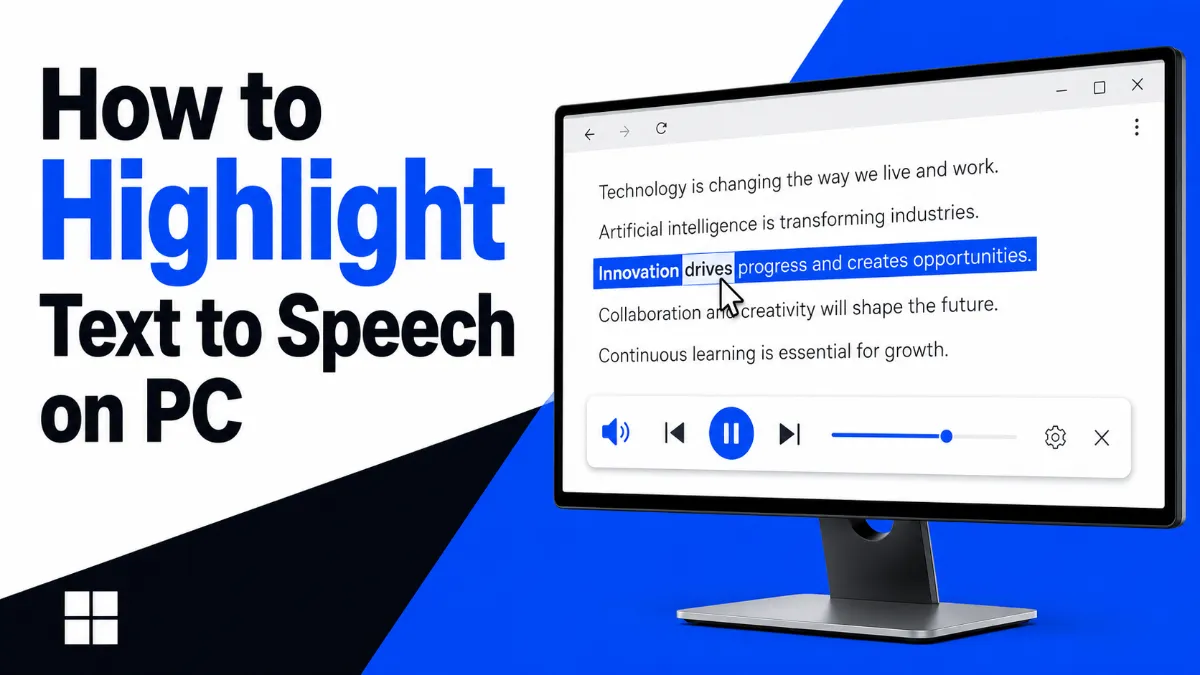
If you highlight a paragraph and want your PC to read it back instantly — while tracking every word in real time — you have more options than ever. The challenge is choosing the right one. Chrome extensions, Microsoft Edge's built-in reader, Windows accessibility tools, and third-party apps all offer highlight-to-speech, but they differ in voice quality, platform support, and whether they actually show synchronized word highlighting. This guide maps every method so you can pick the best fit for your workflow.
Why Use Highlight-to-Speech on PC?
Highlight-to-speech (also called select-to-speak or read-aloud) lets you select any block of text and have it spoken aloud immediately — no copy-pasting into a separate app, no manual navigation. Common use cases:
Proofreading and editing:Hearing your own writing exposes awkward phrasing that eyes skip over.
Multitasking:Listen to an article or document while doing something else on screen.
Language learning:Hear correct pronunciation of words in context.
Reducing eye strain:Extended screen reading contributes to visual fatigue; audio takes the load off your eyes.
Accessibility:For users with dyslexia, ADHD, or low vision, synchronized highlighting bridges the gap between visual and auditory processing.
Most tools in this guide are free, browser-native, or already installed on your PC — no subscription required to get started.
How to Highlight Text to Speech in Chrome
Chrome does not include native read-aloud, but two extensions dominate this use case.
Read Aloud: A Text to Speech Voice Reader
Read Aloudis the most popular highlight-to-speech extension for Chrome, with millions of installs. It supports 40+ languages, adjustable speed, and real-time word highlighting that follows the audio cursor.
Pin the extension icon to your Chrome toolbar (puzzle piece → pin icon).
Navigate to any webpage or open a Google Doc.
Select the textyou want to hear.
Click the Read Aloud icon in the toolbar — playback starts immediately on your selection.
Alternatively: right-click your selection →Read Aloud.
During playback, each word is highlighted in the page as it is spoken. Use the floating playback bar to pause, skip forward, or adjust speed and voice without opening settings.
Settings worth adjusting:
Voice: choose from system voices or install premium neural voices via the extension options.
Speed: 1.0x is natural; 1.5–2.0x is useful for scanning familiar content.
Text highlight color: customize in Options → Highlight.
Highlighted Text-to-Speech Extension
The "Highlighted Text-to-Speech" extension takes a more minimal approach: it watches for text selections and reads them on a keyboard shortcut or toolbar click, without a persistent playback bar. Useful if you want something that stays out of the way and just reads what you select.
Install and use:
SearchHighlighted Text-to-Speechin the Chrome Web Store and install.
Select any text on a page.
Press the configured keyboard shortcut (default: Alt+P) or click the extension icon.
Playback begins on your highlighted selection. Press the shortcut again to stop.
Quick Tip: For the fastest Chrome experience, pin the Read Aloud extension to your toolbar — then selecting any text and clicking the icon takes under two seconds. Pair it with AI Listen on your phone to keep listening when you step away from your desk.
How to Use Read Aloud in Microsoft Edge
Microsoft Edge ships with Read Aloud built in — no extensions needed. It supports selected text, entire pages, and PDFs opened in the browser.
Method 1: Keyboard shortcut
Open any webpage or PDF in Edge.
Select the textyou want to hear.
PressCtrl+Shift+U— Read Aloud starts on your selection.
A floating control bar appears. Use it to pause, skip sentences, or change voice and speed.
Method 2: Right-click context menu
Select text on any page.
Right-click →Read Aloud Selection.
Playback starts immediately.
Method 3: Toolbar button
Click theRead Aloudicon in the Edge toolbar (speaker icon).
Without a selection, Edge reads the entire page from the top.
With a selection, it reads only the selected passage.
Edge Read Aloud features:
Real-time word and sentence highlighting as audio plays.
Voice options: Microsoft neural voices (Aria, Guy, Jenny, and more) are available under Voice Options in the playback bar.
Works on PDFs natively — great for reading research papers or contracts without installing anything.
Immersive Readermode:PressF9on supported articles to strip ads and distractions, then trigger Read Aloud for a clean listening experience.
Edge's built-in Read Aloud is arguably the best free highlight-to-speech solution on PC if you are already a Windows user — the neural voices are natural-sounding, and setup is zero.
How to Enable Select-to-Speak on Windows
Windows 10 and 11 include two built-in accessibility tools that provide text-to-speech:Select-to-Speak(click to read specific text) andNarrator(full screen reader).
Select-to-Speak
Select-to-Speak lets you click any text on screen and have Windows read it aloud using your configured voice — it works across all apps, not just browsers.
Enable via Settings:
OpenSettings→Accessibility(Windows 11) orEase of Access(Windows 10).
ClickNarratorin the left sidebar.
For Select-to-Speak specifically, use the shortcut below.
Shortcut:PressWindows + Ctrl + Enterto toggle Select-to-Speak on and off.
How to use after enabling:
PressWindows + Ctrl + Enterto activate.
Click a word, sentence, or paragraph on screen — Windows reads it aloud.
Click and drag to select a block of text, then release — it reads the selection.
PressWindows + Ctrl + Enteragain to deactivate.
Windows Narrator
Narrator is a full screen reader — it announces everything on screen and is designed for users with visual impairment. For highlight-to-speech workflows, Narrator is more than most users need, but it is worth knowing:
Start Narrator:PressWindows + Ctrl + Enter(or search "Narrator" in Start).
Read selected text:With Narrator running, select text in any app and pressNarrator + Fto read the current focus item, orNarrator + Rto read from the cursor.
Narrator can be configured to use different voices and speeds underSettings → Accessibility → Narrator.
For most PC users wanting to highlight-and-listen without enabling a full screen reader, Edge's built-in Read Aloud or a Chrome extension is simpler than Narrator.
Best Third-Party Highlight TTS Apps for PC
Beyond browsers and Windows tools, several dedicated applications offer more advanced highlight-to-speech features.
NaturalReader
NaturalReaderis a desktop and web app with one of the most polished real-time highlighting experiences available. It supports Word documents, PDFs, ePub files, and web pages.
Free tier:20 minutes of listening per day with standard voices.
Best for:Reading long documents or books where you want both visual and audio tracking.
TTSReader
TTSReaderis a free web app — no install required. Paste any text, load a webpage URL, or upload a file, and it reads with real-time highlighting.
Free:Unlimited use with browser-based voices.
Works in Chrome, Edge, Firefox.
Best for:Quick read-aloud sessions on any PC without installing software.
Speechify
Speechifyoffers a browser extension plus a standalone Windows app. Its speed-reading mode (up to 4.5x speed with word-by-word highlighting) is aimed at power users who want to consume content quickly.
Best for:Users who want maximum reading speed with real-time word tracking.
Comparison: Highlight TTS Methods on PC
Method
Platform
Free
Real-time Highlight
Voice Quality
Read Aloud (Chrome extension)
Chrome
Yes
Yes (word-level)
Good (neural voices optional)
Highlighted TTS (Chrome extension)
Chrome
Yes
Limited
System voices
Edge Read Aloud (built-in)
Edge
Yes
Yes (word + sentence)
Excellent (Microsoft neural)
Windows Select-to-Speak
All apps
Yes
No
Standard system voice
Windows Narrator
All apps
Yes
No
Standard system voice
NaturalReader
Web / Desktop
Freemium
Yes (word-level)
Excellent
TTSReader
Web (any browser)
Yes
Yes
Good
Speechify
Chrome / Desktop
Freemium
Yes (word-level)
Excellent (AI voices)
Key insight:If real-time word highlighting matters to you, Edge Read Aloud, NaturalReader, and Read Aloud (Chrome) are the strongest free options. Windows Select-to-Speak is the most universal (works in every app) but lacks synchronized highlighting.
Highlight TTS for Dyslexia and Accessibility
Highlight-to-speech is one of the most evidence-backed accommodations for users with dyslexia, ADHD, and other reading differences. The combination of simultaneous audio and visual word tracking reduces cognitive load and helps maintain focus on the line being read.
Why synchronized highlighting matters:
Dual coding:Text and speech together activate more memory pathways than either alone.
Tracking support:Visual highlighting keeps the eye on the right word, reducing the re-reading loops common in dyslexia.
Processing speed:Adjustable speed lets users slow down for dense academic text or speed up for familiar material.
Accessibility standards context:WCAG 2.1 Success Criterion 1.4.8 (Visual Presentation) and the broader WCAG 3.0 guidance on cognitive accessibility both support providing text in auditory form as an accommodation. Highlight-to-speech tools like those covered here implement this in practice.
Recommended tools for accessibility use:
Edge Read Aloud— free, zero setup, neural voices, works on any website.
NaturalReader— purpose-built for accessibility, supports dyslexia-friendly fonts.
Select-to-Speak (Windows)— works system-wide, including in classroom software and PDFs.
For users who want to continue listening after stepping away from the PC — during a commute or errand —AI Listenprovides a mobile TTS reader that picks up where desktop tools leave off, with clean article and document import directly on your phone.
Already using Chrome?Install Read Aloud — it is the fastest path to highlight-and-play with real-time word tracking, and it is free.
Already using Edge?Use built-in Read Aloud (Ctrl+Shift+U on selection) — zero install, best-in-class neural voices.
Need it to work in every app (not just browsers)?Enable Windows Select-to-Speak with Windows+Ctrl+Enter.
Reading long documents or PDFs daily?NaturalReader's word-level highlighting and document import make it worth the free signup.
Accessibility or dyslexia workflow?Edge Read Aloud or NaturalReader, both of which offer adjustable speed, voice, and highlight color.
The right tool is the one that fits your existing habits. Start with what you already have — Edge or Chrome — and add a dedicated app only if you need features like document import or advanced speed control.
Want to keep listening when you step away from your desk?AI Listenlets you continue on your iPhone — import articles directly and pick up where your PC left off.
What is the easiest way to use highlight text to speech on PC?
The easiest method is the Read Aloud Chrome extension — install it, select any text on a webpage, right-click, and choose Read Aloud to start instant playback with word-by-word highlighting.
Does Windows 10 have a built-in highlight text to speech feature?
Yes. Windows 10 and 11 include Select-to-Speak in Ease of Access settings. Press Windows+Ctrl+Enter to activate it, then click or drag over any text on screen to hear it read aloud.
How do I use Read Aloud in Microsoft Edge?
Open any webpage in Edge, press Ctrl+Shift+U or click the Read Aloud button in the toolbar. To read only selected text, highlight the passage first, then right-click and choose Read Aloud Selection.
Can I highlight text to speech in Google Docs or PDFs?
Yes. Install the Read Aloud or Highlighted Text-to-Speech Chrome extension; both work inside Google Docs and most browser-based PDF viewers. Microsoft Edge's built-in Read Aloud also supports PDFs opened in the browser.
Is there a free highlight text to speech tool for PC?
Yes — Read Aloud (Chrome/Edge extension), Microsoft Edge Read Aloud, Windows Narrator, and Select-to-Speak are all free. NaturalReader and TTSReader also offer generous free tiers with real-time word highlighting. If you also want to listen on mobile without being tied to your PC, AI Listen is a free iPhone app that imports articles and documents for on-the-go listening.
Is highlight text to speech useful for dyslexia?
Absolutely. Simultaneous visual highlighting and audio playback reduces cognitive load and improves reading comprehension for users with dyslexia or ADHD. Most tools covered in this guide support adjustable speed and voice, which further helps accessibility.
TTS
Tutorials
Tips & Tricks
Share this article:
Table of Contents
Why Use Highlight-to-Speech on PC?
How to Highlight Text to Speech in Chrome
How to Use Read Aloud in Microsoft Edge
How to Enable Select-to-Speak on Windows
Best Third-Party Highlight TTS Apps for PC
Comparison: Highlight TTS Methods on PC
Highlight TTS for Dyslexia and Accessibility
Which Highlight TTS Tool Should You Choose?
Ready to Transform Your Study Sessions?
Join 50,000+ students using AI Listen to study smarter. Free forever plan available.
AI story generators turn prompts into structured drafts for fiction, marketing, and education. In this guide, we cover how AI story generators work, their core features, benefits, limitations, and how to choose the right AI Story Generator.
Android speech to text failures usually trace back to a small set of causes: permissions, cache buildup, language mismatches, or internet dependency. Here are six fixes that cover the most common cases, in order of effort.
The Android text to speech engine is the system-level layer that converts text to audio for all apps on your phone. Most users never change it — but knowing how to switch engines, download better voices, and configure it correctly can significantly improve TTS quality.
Android’s text to speech tools range from a built-in accessibility engine to dedicated apps designed for longer listening sessions. This guide covers how to use each, and which option fits your workflow.
Assistive technology for dyslexia is more than a list of apps. This guide explains which tools matter most, who they help, and how to choose support that improves reading and learning in practice.