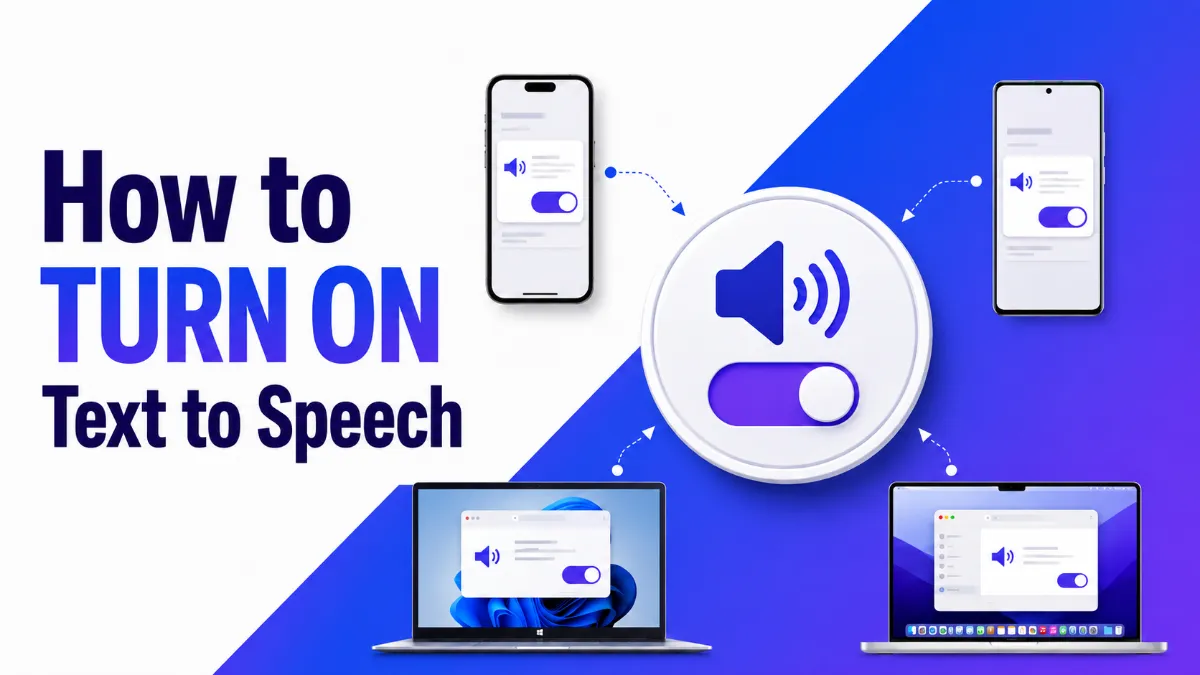
How to Turn On Text to Speech on iPhone, Android, Windows, and Mac
Need to turn on text to speech but not sure where to find it? This guide covers the exact steps for iPhone, Android, Windows, and Mac — including the hidden accessibility settings most users overlook.
Julian Sterling
AI Content Strategist
July 6, 2026
8 min read
In This Article
On iPhone
On Android
On Windows
On Mac
Platform Comparison
Troubleshooting TTS Not Working
When Built-in TTS Is Not Enough
Text to speech (TTS) is built into every major operating system, but activating it is rarely obvious. The setting is usually buried inside Accessibility menus, and the exact path differs on every platform. This guide gives you the exact steps for iPhone, Android, Windows, and Mac — plus a quick troubleshooting section if the feature is not responding.
On iPhone
iPhone has two separate TTS features, both found underSettings > Accessibility > Spoken Content.
Speak Screen
Speak Screenreads everything visible on the screen when you swipe down from the top with two fingers.
OpenSettings
TapAccessibility
TapSpoken Content
ToggleSpeak Screento on (green)
From any screen, swipe down from the top edge with two fingers — a playback bar will appear
Speak Selection
Speak Selection adds a "Speak" option to the text selection menu so you can hear only the text you highlight.
OpenSettings
TapAccessibility
TapSpoken Content
ToggleSpeak Selectionto on
Select any text in any app → tapSpeakin the popup menu
You can also adjust the speaking rate and choose different voice packs underVoicesin the same Spoken Content menu.
Quick Tip: On iPhone, you can trigger Speak Screen at any time by swiping down from the top of the screen with two fingers — no need to open Settings again once the feature is enabled.
On Android
Android's TTS setting is located in the Accessibility menu, though the exact label and path vary slightly by manufacturer (Samsung, Google Pixel, OnePlus, etc.).
Choose yourPreferred engine(Google Text-to-Speech is the default)
TapListen to an exampleto confirm TTS is working
To activate TTS while reading, select text and look for a "Read Aloud" or "Speak" option in the text selection menu — availability depends on the app.
Samsung Galaxy (One UI)
Samsung devices have an additional feature calledVoice Assistant(Screen Reader), which is different from general TTS output. For document or web-page reading, follow the same path:
OpenSettings
TapAccessibility
TapHearing enhancementsorText-to-Speech(varies by One UI version)
TapText-to-speech output
SetPreferred engineand adjust speech rate and pitch as needed
On Windows
Windows offers two TTS tools:Narrator(full screen reader) andSelect-to-Speak/Read Aloudin Microsoft Edge.
Windows 11 includes a "Read aloud" feature in Edge and a system-wideSelect-to-Speakoption:
OpenSettings > Accessibility > Narrator
EnableNarratorand configure as needed
For a lighter option: in Microsoft Edge, open any article or PDF, right-click, and selectRead aloud
Quick keyboard shortcut
PressWindows + Ctrl + Enterto toggle Narrator at any time without opening Settings.
On Mac
Mac's TTS feature is calledSpoken Contentand lives in System Settings.
Enable Speak Selection
OpenSystem Settings(macOS Ventura and later) orSystem Preferences
Go toAccessibility
ClickSpoken Content
ToggleSpeak selectionto on
The default keyboard shortcut isOption + Esc— press it while text is selected to hear it read aloud
Enable Speak Screen
In the sameSpoken Contentpanel, toggleSpeak screento on
Use the shortcutOption + Esc(or the custom shortcut you set) to read the entire screen
To change the voice: clickSystem Voiceand choose from the available options. You can download premium voices by clickingCustomize.
Platform Comparison
Platform
Feature Name
Where to Find It
Quick Shortcut
iPhone
Speak Screen / Speak Selection
Settings > Accessibility > Spoken Content
2-finger swipe down
Android
Text-to-Speech Output
Settings > Accessibility > TTS Output
Varies by app
Windows
Narrator
Settings > Accessibility > Narrator
Win + Ctrl + Enter
Mac
Spoken Content
System Settings > Accessibility > Spoken Content
Option + Esc
Samsung
TTS Output
Settings > Accessibility > Hearing Enhancements
Varies by One UI
Troubleshooting TTS Not Working
If text to speech is enabled but nothing plays, work through these checks:
On all platforms:
Make sure your device volume is turned up and not set to silent
Check that the TTS voice pack is downloaded — many devices require an internet connection to install voices the first time
Restart the app you are reading in
On iPhone:
Go to Settings > Accessibility > Spoken Content and confirm the toggle is green
Try selecting a short word, then tap Speak in the popup
On Android:
Go to Settings > Accessibility > Text-to-Speech Output and tap "Listen to an example"
If nothing plays, switch the preferred engine to Google Text-to-Speech and try again
On Windows:
Open Narrator Settings (Settings > Accessibility > Narrator) and confirm it is toggled on
Check that the selected voice is installed — click "Add voices" if the list is empty
On Mac:
Go to System Settings > Accessibility > Spoken Content
Click the System Voice dropdown and confirm a voice is selected
Press Option + Esc while text is highlighted to test
When Built-in TTS Is Not Enough
System TTS works well for short passages, but it has real limits: robotic voices, no document import, no speed syncing, and no cross-device history. If you regularly listen to long articles, PDFs, newsletters, or web content,AI Listenis worth exploring.
AI Listenis an iOS app designed specifically for long-form audio reading. It supports natural-sounding AI voices, lets you import documents and URLs directly, and remembers your listening position across sessions. It is a practical upgrade over the built-in Spoken Content feature on iPhone — especially if you listen for more than a few minutes at a time.
Built-in TTS is the right starting point. For anything more demanding, AI Listen fills the gaps system tools leave behind.
Yes. System TTS on iPhone, Android, Windows, and Mac all work offline once the voice pack is downloaded. Third-party apps like AI Listen may require an internet connection for AI-enhanced voices.
Is text to speech free on iPhone?
Yes. Speak Screen and Speak Selection are built-in accessibility features on iPhone and are completely free to use in iOS.
Can I change the voice used for text to speech?
Yes. On iPhone, go to Settings > Accessibility > Spoken Content > Voices. On Android, go to Settings > Accessibility > Text-to-Speech Output > Preferred engine settings. Windows and Mac also let you select different voices in their respective TTS settings.
Why is text to speech not working on my phone?
Common reasons include: the feature is disabled in Accessibility settings, no compatible voice pack is installed, or the app you are using does not support system TTS. See the troubleshooting section of this guide for a full checklist.
What is the difference between Speak Screen and Speak Selection on iPhone?
Speak Screen reads the entire visible screen when you swipe down with two fingers. Speak Selection reads only the text you have manually highlighted. Both are found under Settings > Accessibility > Spoken Content.
Can text to speech read PDFs and web pages?
Yes. On iPhone and Mac, system TTS can read most PDFs and web pages. For more complex documents — formatted articles, ebooks, or long PDFs — AI Listen offers a dedicated reading experience with higher-quality voices.
TTS
Tutorials
AI Listen
Share this article:
Table of Contents
On iPhone
On Android
On Windows
On Mac
Platform Comparison
Troubleshooting TTS Not Working
When Built-in TTS Is Not Enough
Ready to Transform Your Study Sessions?
Join 50,000+ students using AI Listen to study smarter. Free forever plan available.
AI story generators turn prompts into structured drafts for fiction, marketing, and education. In this guide, we cover how AI story generators work, their core features, benefits, limitations, and how to choose the right AI Story Generator.
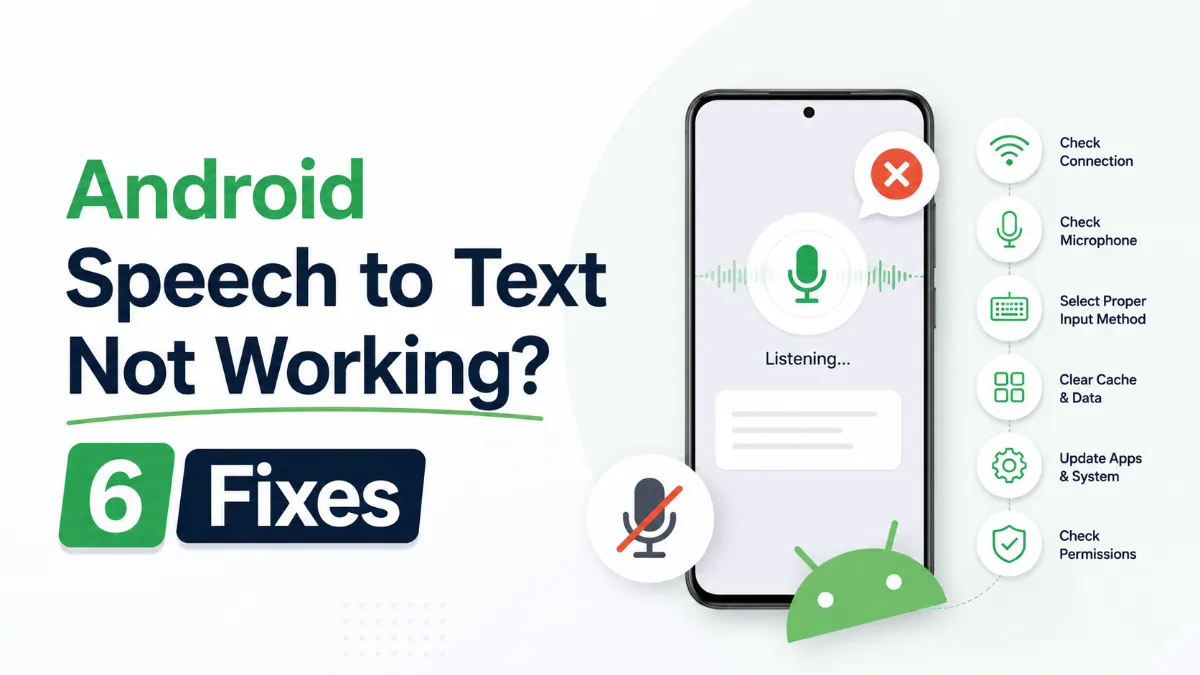
Android speech to text failures usually trace back to a small set of causes: permissions, cache buildup, language mismatches, or internet dependency. Here are six fixes that cover the most common cases, in order of effort.
The Android text to speech engine is the system-level layer that converts text to audio for all apps on your phone. Most users never change it — but knowing how to switch engines, download better voices, and configure it correctly can significantly improve TTS quality.
Android’s text to speech tools range from a built-in accessibility engine to dedicated apps designed for longer listening sessions. This guide covers how to use each, and which option fits your workflow.
Assistive technology for dyslexia is more than a list of apps. This guide explains which tools matter most, who they help, and how to choose support that improves reading and learning in practice.