Best Speech to Text Software for Linux (Free and Offline Options)
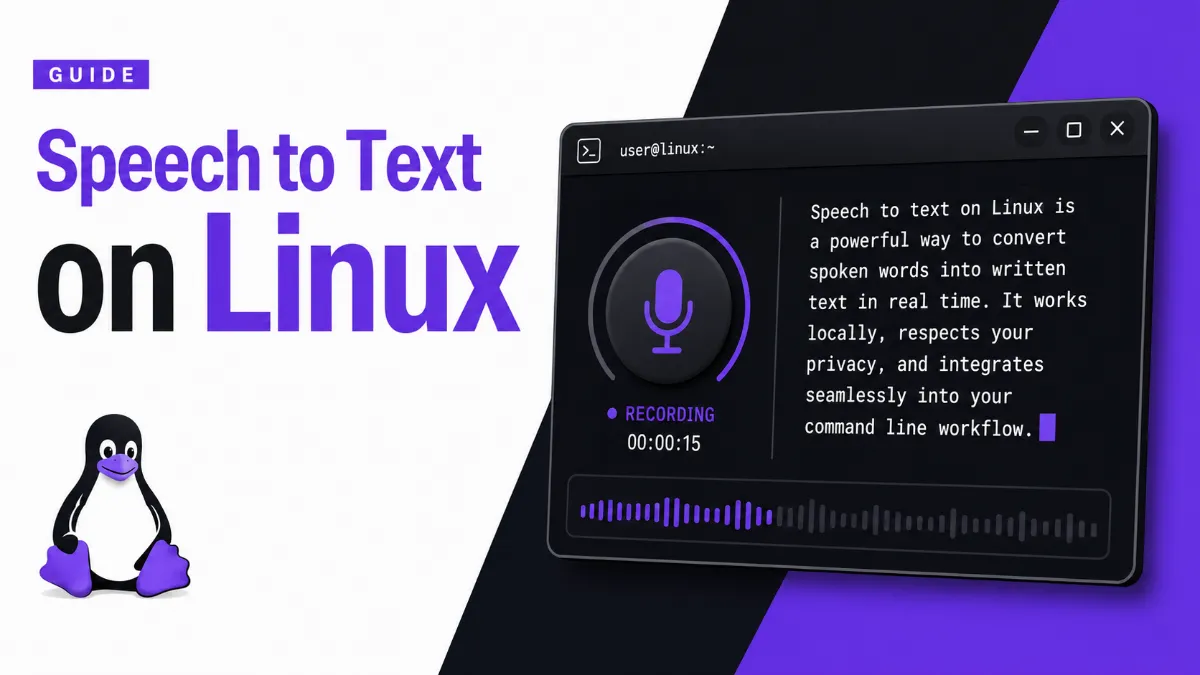
Speech to text on Linux is more fragmented than on Windows or Mac — but powerful options exist. This guide covers the best free and offline tools, from Vosk to OpenAI Whisper, with setup examples and honest advice on what actually works.
Julian Sterling
AI Content Strategist
July 3, 2026
9 min read
In This Article
Why Linux Speech to Text Is More Challenging Than Windows or Mac
Best Free Offline Tools for Linux
Tool Comparison
Setting Up Vosk on Ubuntu (Step by Step)
X11 vs Wayland: What Breaks Real-Time Dictation
Commercial and Cloud Options
Browser-Based Alternatives That Work on Linux
Developer vs Desktop User: Clear Recommendations
Final Recommendation
Why Linux Speech to Text Is More Challenging Than Windows or Mac
Speech recognition on Linux is genuinely harder than on other platforms — not because the underlying technology is weaker, but because the ecosystem is fragmented and the infrastructure assumptions differ.
On Windows, Cortana and Windows Speech Recognition are deeply integrated into the OS, with a shared audio pipeline and system-wide text injection. On macOS, Apple's dictation engine hooks into every text field via accessibility APIs. Linux has neither of these unified layers.
The specific pain points:
Driver and audio subsystem complexity.PulseAudio, PipeWire, and ALSA all handle microphone input differently. Getting a clean, low-latency audio stream to a recognition engine — especially with noise suppression — requires manual configuration that most desktop users won't expect.
X11 vs Wayland split.Most dictation tools inject recognized text using X11's XTest extension (xdotool type). Under Wayland (now the default on GNOME and many distributions), XTest does not work. You needydotool(which requires a uinput kernel module) or application-specific plugins. This is a real barrier for desktop dictation in 2026.
No GPU acceleration out of the box.The highest-accuracy models (Whisper large) benefit enormously from CUDA or ROCm. Setting up GPU inference on Linux requires driver configuration that is non-trivial, especially on AMD hardware.
Conclusion:For developers building transcription pipelines, Linux is fully capable. For desktop users who want Windows Cortana-style always-on dictation, expect friction.
Quick Tip: If you only need to transcribe a short recording, pasting the text into a TTS app afterward is a quick way to proofread by ear — AI Listen can read it back to you on any device.
Best Free Offline Tools for Linux
Vosk — Best for Real-Time, Low-Resource Machines
Voskis an offline speech recognition toolkit built on Kaldi. It is designed for streaming — you feed audio chunks in and get partial transcripts back in real time. Models are small (40–200 MB) and run comfortably on a Raspberry Pi.
Install:
pip install vosk
Download a model from the Vosk model repository, then point the API at it. Vosk supports Python, Java, C#, Go, and a REST server mode, making it easy to embed in applications.
Best for:Real-time dictation apps, embedded devices, projects where latency matters more than accuracy.
OpenAI Whisper — Best Accuracy, Offline, GPU Optional
Whisperis OpenAI's general-purpose speech recognition model, released as open source. It is trained on 680,000 hours of multilingual audio and handles accents, background noise, and technical vocabulary better than any other free tool on Linux.
Install:
pip install openai-whisper
Transcribe a file:
whisper audio.mp3 --model medium
Models available:tiny,base,small,medium,large,large-v3. Themediummodel is a reasonable default for most use cases — good accuracy, runs in a few minutes on CPU.
Best for:Batch transcription, subtitle generation, podcast processing, high-accuracy requirements.
Mozilla DeepSpeech — Legacy, Still Used
Mozilla'sDeepSpeechwas an early pioneer in open-source speech recognition. Mozilla officially archived the project in 2022 in favor ofCoqui STT(a community fork), but both remain in active use in enterprise workflows and existing integrations.
Install (Coqui STT fork):
pip install stt
DeepSpeech/Coqui is worth knowing because many existing Linux integrations and home automation setups still depend on it. If you are maintaining an existing project, it still works. For new projects, Vosk or Whisper are the better starting points.
Best for:Legacy projects, existing Home Assistant and Node-RED integrations, Python environments where Whisper's dependencies are too heavy.
Tool Comparison
Tool
Accuracy
Real-Time
Offline
GPU Needed
Ease of Setup
Vosk
Good
Yes
Yes
No
Easy
Whisper (medium)
Excellent
No*
Yes
Optional
Moderate
Whisper (large)
Best
No
Yes
Recommended
Moderate
DeepSpeech / Coqui
Fair
Yes
Yes
No
Moderate
Google Speech API
Excellent
Yes
No
No
Easy (API key)
Azure Speech
Excellent
Yes
No
No
Easy (API key)
*Whisper has a streaming variant (whisper-streamingon GitHub) but it is a community tool, not the official package.
import vosk
import sounddevice as sd
import json

model = vosk.Model("vosk-model-en-us-0.22")
recognizer = vosk.KaldiRecognizer(model, 16000)

with sd.RawInputStream(samplerate=16000, blocksize=8000, dtype='int16',
                        channels=1) as stream:
    print("Listening... Press Ctrl+C to stop.")
    while True:
        data, _ = stream.read(8000)
        if recognizer.AcceptWaveform(bytes(data)):
            result = json.loads(recognizer.Result())
            print(result.get("text", ""))
This gives you a basic working dictation loop in about 20 lines.
X11 vs Wayland: What Breaks Real-Time Dictation
If you have moved to a Wayland session (likely the default on Ubuntu 22.04+, Fedora, and most modern GNOME desktops), standard dictation tools will transcribe audio correctly but fail to type text into your active window.
The root cause:xdotool typerelies on X11's XTest extension, which is not available in Wayland compositors. Tools like Nerd Dictation, Kaldi-based pipelines, and many dictation scripts use xdotool internally.
Workarounds:
ydotool: A uinput-based alternative that works on Wayland. Requires loading theuinputkernel module and running as root or with appropriate udev rules.
sudo apt install ydotool
sudo modprobe uinput
XWayland: Run your dictation tool in an XWayland session. Most GTK and Qt apps support this, but it doesn't give you universal system-wide injection.
GNOME Shell extension: Some extensions expose a DBus interface for text input. Works reliably for GNOME-native apps.
Application plugins: VS Code, Emacs, and some IDEs have their own speech input plugins that bypass the X11/Wayland issue entirely.
Practical advice:If desktop-wide dictation is your goal and you are on Wayland, expect to spend time setting up ydotool. If you only need transcription (not live injection), X11 vs Wayland does not matter at all — just write the output to a file or clipboard.
Commercial and Cloud Options
If offline processing is not a requirement, cloud APIs are the easiest path on Linux:
Google Cloud Speech-to-Text: High accuracy, pay-per-use, excellent Python SDK.
All of these work on Linux through standard HTTP/REST or their Python SDKs — there is no OS-specific limitation.
Browser-Based Alternatives That Work on Linux
If you just need occasional dictation without installing anything, the Web Speech API works in Chromium-based browsers on Linux (including Chrome and Edge). Go to any website using the API — Google Docs voice typing is the most accessible example — and dictation works through the browser, bypassing all the X11/Wayland injection problems entirely.
This is the most practical path for users who want a "just works" solution for occasional note-taking or form filling.
Developer vs Desktop User: Clear Recommendations
If you are a developerbuilding a transcription pipeline, processing audio files, or adding voice input to an application:
Start withWhisperfor batch/file work (best accuracy)
UseVoskfor real-time streaming or low-latency requirements
Use cloud APIs if you need speaker diarization, punctuation recovery, or multilingual handling at scale
If you are a desktop userwanting dictation to replace typing:
TryChrome/Chromium + Google Docs voice typingfirst — zero setup, works on Wayland
If you want offline system-wide dictation: installNerd Dictation(uses Vosk), then configure ydotool if you're on Wayland
Expect to spend 30–60 minutes on initial setup
If you also work with text-to-speech — converting written content back to audio for review, accessibility, or publishing —AI Listencovers the reverse direction and works across all platforms without any Linux-specific configuration.
Final Recommendation
For most users arriving at this page, the practical answer is:
Voskif you need real-time, offline, on modest hardware
Whisperif accuracy matters and you are processing recorded audio
Browser dictationif you just need it to work now without setup
Linux speech to text in 2026 is capable but still requires more manual effort than Windows or macOS. The tools are there — the polish is not. For developers, that is fine. For desktop users, the honest advice is: start with the browser, graduate to Vosk when you need more control.
Is there a native speech-to-text tool built into Linux?
Most Linux distributions do not ship a built-in dictation tool. GNOME has experimented with a speech input feature, but it requires a network connection and is not widely available across distros. Third-party tools like Nerd Dictation or KDE's voice input are the closest to a native experience.
Which Linux speech to text tool is most accurate?
OpenAI Whisper consistently delivers the highest accuracy among free offline tools, especially its medium and large models. The tradeoff is speed and hardware: larger models are slow on CPU-only machines and benefit significantly from a GPU.
Can I use speech to text in real time on Linux?
Real-time dictation on Linux is possible but requires extra work. Vosk has a streaming API and tools like Nerd Dictation can pipe audio to it continuously. Wayland desktops make system-wide dictation harder because most injection tools rely on X11's XTest extension.
Does OpenAI Whisper work offline on Linux?
Yes. Whisper runs entirely locally once the model files are downloaded. No internet connection is needed at inference time. Models range from 39 MB (tiny) to 1.5 GB (large) and can be cached on disk.
What is the difference between Vosk and Whisper for Linux?
Vosk is optimized for real-time, low-latency transcription and works well on modest hardware. Whisper prioritizes accuracy and handles multiple languages and accents better, but is slower without a GPU. For live dictation, Vosk; for batch transcription, Whisper.
Will Linux speech to text work on Wayland?
Vosk, Whisper, and DeepSpeech can all transcribe audio on Wayland — the limitation is text injection, not transcription. Tools that type recognized text into the active window (like Nerd Dictation using xdotool) require X11. On Wayland, you need ydotool or application-level integration as a workaround.
AI Tools
Tutorials
Tips & Tricks
Share this article:
Table of Contents
Why Linux Speech to Text Is More Challenging Than Windows or Mac
Best Free Offline Tools for Linux
Tool Comparison
Setting Up Vosk on Ubuntu (Step by Step)
X11 vs Wayland: What Breaks Real-Time Dictation
Commercial and Cloud Options
Browser-Based Alternatives That Work on Linux
Developer vs Desktop User: Clear Recommendations
Final Recommendation
Ready to Transform Your Study Sessions?
Join 50,000+ students using AI Listen to study smarter. Free forever plan available.
AI story generators turn prompts into structured drafts for fiction, marketing, and education. In this guide, we cover how AI story generators work, their core features, benefits, limitations, and how to choose the right AI Story Generator.
Android speech to text failures usually trace back to a small set of causes: permissions, cache buildup, language mismatches, or internet dependency. Here are six fixes that cover the most common cases, in order of effort.
The Android text to speech engine is the system-level layer that converts text to audio for all apps on your phone. Most users never change it — but knowing how to switch engines, download better voices, and configure it correctly can significantly improve TTS quality.
Android’s text to speech tools range from a built-in accessibility engine to dedicated apps designed for longer listening sessions. This guide covers how to use each, and which option fits your workflow.
Assistive technology for dyslexia is more than a list of apps. This guide explains which tools matter most, who they help, and how to choose support that improves reading and learning in practice.