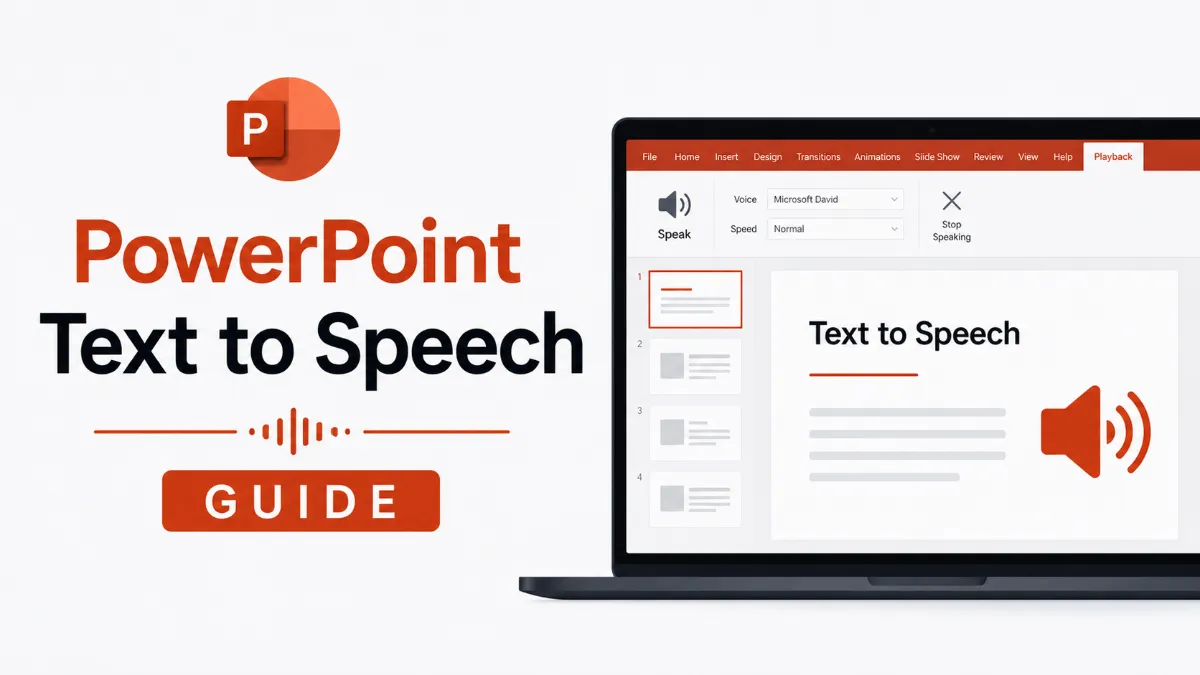
PowerPoint Text to Speech: How to Read Slides Aloud and Add AI Voice Narration
PowerPoint text to speech means two different things depending on what you need: hearing your slides read back to you while you work, or adding recorded AI voice narration to a presentation. This guide covers both.
How to Add the Speak Button to Your Quick Access Toolbar
How to Add AI Voice Narration to PowerPoint Slides
Best AI Tools for PowerPoint Voice Narration
Choosing Between Live Read-Back and Embedded Narration
PowerPoint TTS for Accessibility
"PowerPoint text to speech" — or text to speech for PowerPoint, or text to speech on PowerPoint — means something different depending on who's searching for it. Some people want to hear their slides read back to them while they're editing — a review tool. Others want to embed voice narration audio directly into the presentation so it plays for the audience. These are two distinct use cases, and PowerPoint handles them in completely different ways.
Both are genuinely useful. Knowing which one you need — and where to find it — saves a lot of time spent digging through menus.
Two Ways PowerPoint Uses Text to Speech
Before getting into the steps, it's worth being precise about the distinction:
Use case 1: Live read-back for review
You select text or a slide, press a button, and PowerPoint reads it aloud through your speakers. This is for proofreading, checking flow, and catching errors you'd miss by reading silently. The audio is not saved — it only plays in real time while you're working.
Use case 2: Embedded voice narration
You add an audio file to a slide — either recorded from your mic or generated with an AI TTS tool — that plays when the presentation is opened or presented. This audio is saved with the file and heard by your audience.
Most articles cover only one of these. Here's how to do both.
How to Use PowerPoint's Built-In Read Aloud
PowerPoint's Read Aloud feature lets you hear any text on a slide read back immediately. It's in theReviewtab in Microsoft 365 and newer standalone versions.
To use Read Aloud:
Open your presentation and click into a slide
Go to theReviewtab in the ribbon
ClickRead Aloudin the Speech group
PowerPoint will start reading from the beginning of the slide text, moving forward as it goes
Use the playback controls that appear to pause, skip forward, or adjust speed
If Read Aloud isn't visible in your Review tab, your version of PowerPoint may not include it. In that case, use the Speak button instead.
Quick Tip: If you want to hear how your slides sound before publishing, PowerPoint's built-in Read Aloud tool (Review tab) is the fastest option — no additional software needed.
How to Add the Speak Button to Your Quick Access Toolbar
The Speak button is an older PowerPoint feature that reads selected text aloud. It's not visible by default but can be added to any toolbar in a few steps:
Click thedropdown arrowat the far right of the Quick Access Toolbar (the small toolbar above the ribbon)
SelectMore Commands
In the dropdown, chooseAll Commands
Scroll down to findSpeakand clickAdd
ClickOK
Once added, select any text in your presentation and click the Speak button to hear it read aloud. Unlike Read Aloud, Speak only reads whatever text you've highlighted — useful for checking specific lines rather than entire slides.
How to Add AI Voice Narration to PowerPoint Slides
If your goal is narration that audiences hear — not just review playback for yourself — you need to embed audio into the slides.
Option 1: Record directly in PowerPoint
Go to the slide where you want narration to start
ClickInsert > Audio > Record Audio
Name the recording, press record, speak your narration, then stop
The audio clip is embedded in the slide and plays when activated
This works well for personal recordings. If you'd rather not use your own voice, AI TTS tools offer a better alternative.
Option 2: Generate AI narration and insert the audio file
ElevenLabsproduces the most natural-sounding AI voices and gives you control over speaking style and pacing — important for narration that needs to match the tone of your content.
Murf.aiis designed specifically for narration workflows, with slide-sync and project management features for teams producing e-learning or training content.
Speaktoris optimized for converting document and presentation text to audio quickly, though it has less voice customization than ElevenLabs.
AI Listenis a personal TTS reader rather than a production tool — it's designed for listening to documents and articles in a natural AI voice on iOS. It won't export audio for embedding into slides, but if you want to hear your presentation content spoken aloud before finalizing the narration, it handles that well.
Choosing Between Live Read-Back and Embedded Narration
Need
Use This
Proofreading and reviewing slide content
Read Aloud or Speak (built-in)
Checking flow and pacing before presenting
Read Aloud or Speak (built-in)
Adding narration for a recorded or shared presentation
Insert > Audio with AI-generated file
Creating accessible or self-running slides
Insert > Audio with AI-generated file
Video export with voiceover
Insert > Audio + export as video
The built-in tools are zero-setup and instant. The narration workflow takes more steps but produces a polished, shareable result.
PowerPoint TTS for Accessibility
Embedded voice narration is one of the most effective ways to make PowerPoint presentations accessible. A self-running presentation with AI narration can be shared as a standalone file or exported as a video — both formats are accessible to viewers who can't attend a live session.
For formal accessibility compliance (WCAG, Section 508), narration is often required for e-learning and government presentations. AI TTS tools like Murf.ai and ElevenLabs produce audio that meets narration quality standards without requiring professional recording setups.
For adding natural AI voice narration to PowerPoint slides without recording studio equipment,AI Listenis the most direct option.
The combination of clear slide design and well-paced AI narration is usually more consistent than live recording, especially for lengthy presentations where speaker energy can drop.
Whether you need PowerPoint to read your slides back to you while you work, or you're building a narrated presentation for an audience, the tools are all accessible within the standard interface — it's mostly a matter of knowing which menu to look in.
Does PowerPoint have a built-in text to speech feature?
Yes. PowerPoint includes a built-in Read Aloud feature accessible from the Review tab in newer versions, and a Speak button you can add to the Quick Access Toolbar in older versions. Both read selected text or the full slide content aloud using your system's TTS voice.
How do I add voice narration to a PowerPoint presentation?
For recorded narration that stays embedded in the file, go to Insert > Audio > Record Audio to record your voice directly, or use an AI TTS tool like ElevenLabs or Murf.ai to generate an audio file, then insert it via Insert > Audio > Audio on My PC. This narration plays when the presentation is opened or presented.
What's the difference between Read Aloud and adding narration in PowerPoint?
Read Aloud is a live playback tool for reviewing your content while you work — the audio is not saved with the file. Adding narration (via Insert > Audio) embeds an audio track that plays for anyone viewing the presentation. They serve completely different purposes.
Can I use AI voices for PowerPoint narration instead of recording myself?
Yes. Tools like ElevenLabs, Murf.ai, and Speaktor can convert your slide text into an audio file with an AI voice. You then insert that file into PowerPoint. This is useful for creating accessible presentations, e-learning content, or polished video exports without recording your own voice. AI Listen is another direct option — paste any text for in-browser TTS playback without an export step.
Is there a way to make PowerPoint read slides automatically during a presentation?
PowerPoint's built-in TTS is designed for manual review, not automatic playback during a live presentation. For automatic narration during a slideshow, the recommended approach is to embed pre-recorded or AI-generated audio clips synced to slide transitions — a workflow supported via Insert > Audio.
TTS
Tutorials
AI Tools
Share this article:
Table of Contents
Two Ways PowerPoint Uses Text to Speech
How to Use PowerPoint's Built-In Read Aloud
How to Add the Speak Button to Your Quick Access Toolbar
How to Add AI Voice Narration to PowerPoint Slides
Best AI Tools for PowerPoint Voice Narration
Choosing Between Live Read-Back and Embedded Narration
PowerPoint TTS for Accessibility
Ready to Transform Your Study Sessions?
Join 50,000+ students using AI Listen to study smarter. Free forever plan available.
AI story generators turn prompts into structured drafts for fiction, marketing, and education. In this guide, we cover how AI story generators work, their core features, benefits, limitations, and how to choose the right AI Story Generator.
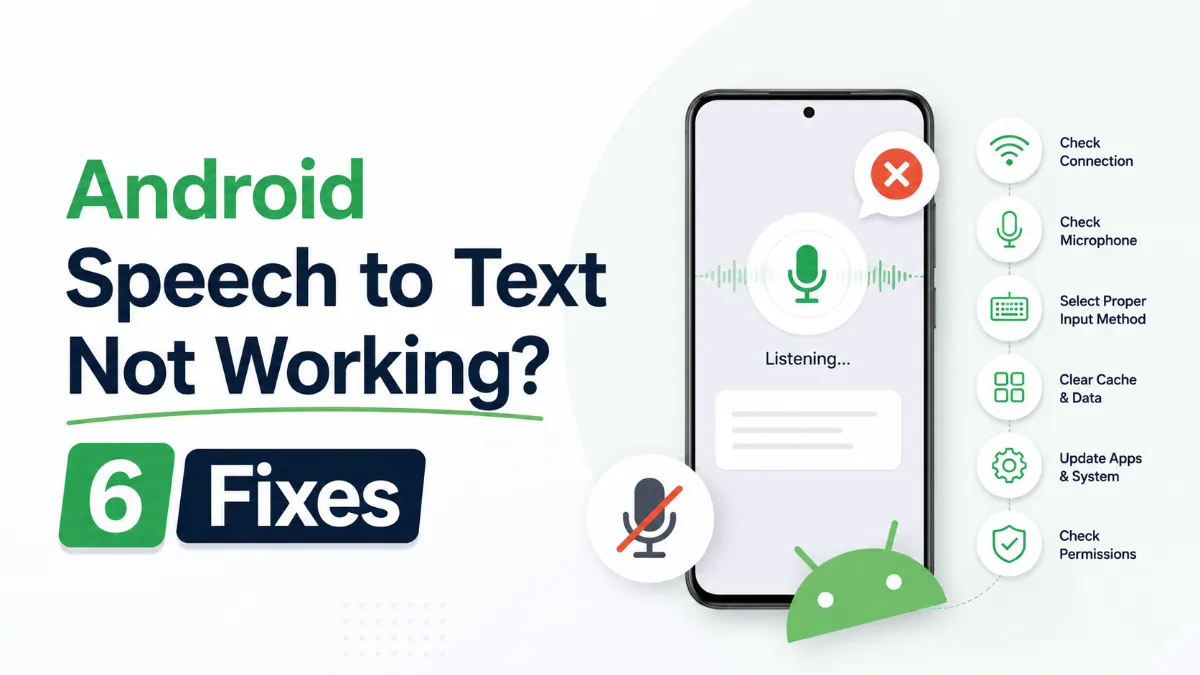
Android speech to text failures usually trace back to a small set of causes: permissions, cache buildup, language mismatches, or internet dependency. Here are six fixes that cover the most common cases, in order of effort.
The Android text to speech engine is the system-level layer that converts text to audio for all apps on your phone. Most users never change it — but knowing how to switch engines, download better voices, and configure it correctly can significantly improve TTS quality.
Android’s text to speech tools range from a built-in accessibility engine to dedicated apps designed for longer listening sessions. This guide covers how to use each, and which option fits your workflow.
Assistive technology for dyslexia is more than a list of apps. This guide explains which tools matter most, who they help, and how to choose support that improves reading and learning in practice.