How to Use Samsung Text to Speech: Enable, Customize & Fix Issues (Android 15)
A complete guide to Samsung Text to Speech — how to turn it on, customize voices, choose between Samsung and Google TTS engines, and resolve the Android 15 bug that breaks TTS in third-party apps.
Julian Sterling
AI Content Strategist
July 2, 2026
7 min read
In This Article
What Is Samsung Text to Speech?
How to Enable Samsung TTS on Galaxy
Samsung TTS vs Google TTS: Which Engine Should You Use?
How to Download New Voice Data
How to Fix Samsung TTS Not Working (Android 15 Issue)
Samsung TTS Accessibility Features (TalkBack)
Final Thoughts
Samsung Galaxy devices come with a built-in Text to Speech engine that powers everything from accessibility readouts to in-app narration. But between engine choices, voice packs, and a disruptive Android 15 update, getting TTS working the way you want takes more than flipping a toggle. This guide walks you through every step — from first-time setup to troubleshooting.
What Is Samsung Text to Speech?
Samsung Text to Speech (Samsung TTS) is a speech synthesis engine pre-installed on Galaxy devices. It converts written text into spoken audio and acts as the voice provider for system accessibility features, navigation apps, e-readers, and any third-party application that calls the Android TTS API.
Samsung TTS is separate from TalkBack.TalkBackis a full-screen reader that announces everything on the display and lets you navigate your phone by touch gestures.TTSis the underlying audio engine — TalkBack uses it, but so do Google Maps, audiobook apps, and language-learning tools. You can have Samsung TTS active without TalkBack running.
How to Enable Samsung TTS on Galaxy
Samsung TTS is typically pre-installed but not always set as the default engine. Follow these steps on most Galaxy devices running One UI 5 or later:
OpenSettings.
Scroll down and tapGeneral Management.
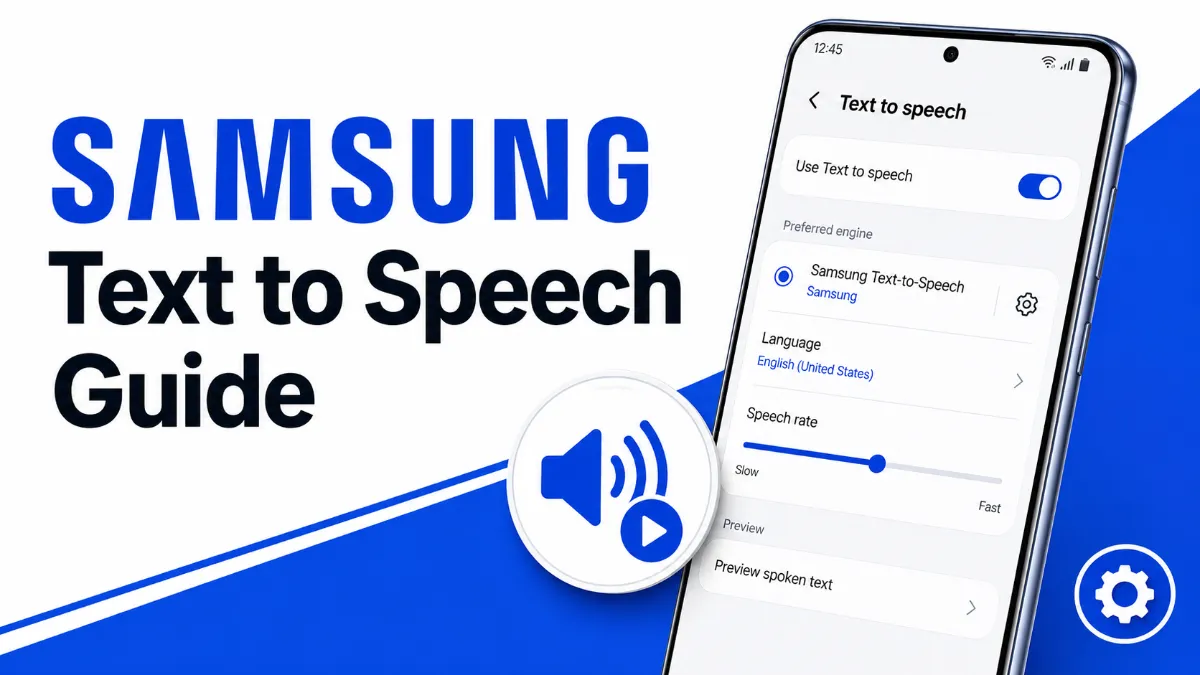
TapText-to-Speech Output(labeled "Text-to-speech" on older One UI builds).
UnderPreferred engine, tap the gear icon next toSamsung Text-to-Speech.
TapPlayto hear a sample. AdjustSpeech rateandPitchsliders to taste.
Return to the previous screen and confirmSamsung Text-to-Speechis selected as the preferred engine.
If you do not see Samsung TTS in the list, check the Galaxy Store — it may need to be downloaded or updated separately.
One UI 6 path variation:Settings → Accessibility → Text-to-Speech Output (Samsung moved TTS under Accessibility on certain One UI 6 builds).
Quick Tip: If you want Samsung TTS to read aloud in third-party apps after an Android 15 update, switch your preferred TTS engine to Google Text-to-Speech in Settings — it maintains broader third-party app compatibility while Samsung works on a fix.
Samsung TTS vs Google TTS: Which Engine Should You Use?
Both engines ship on most Galaxy devices. Here is how they compare:
Feature
Samsung TTS
Google TTS
Voice quality
Good; sounds natural on Galaxy hardware
Excellent; Neural2 voices available
Language support
30+ languages
60+ languages
Third-party app compatibility
Limited after Android 15
Broad; works in nearly all apps
Offline support
Yes (requires voice pack download)
Yes (compact voice packs)
Galaxy feature integration
Deep (Bixby, One UI Reader)
Standard Android API only
Updates
Via Galaxy Store
Via Play Store (frequent)
Recommendation:Use Samsung TTS if you primarily rely on built-in Galaxy features like One UI Reader or Bixby voice feedback. Switch toGoogle Text-to-Speechif you use third-party reading apps, navigation apps, or language tools — especially after an Android 15 update.
How to Download New Voice Data
Samsung TTS ships with a default voice for your device region. Additional languages and higher-quality voices are available as downloadable packs:
Go toSettings → General Management → Text-to-Speech Output.
Tap the gear icon next toSamsung Text-to-Speech.
TapInstall Voice Data.
Select a language from the list. Tap the download icon next to the voice variant you want.
Once downloaded, return to TTS settings and select the new voice from theLanguagemenu.
Voice packs range from 20 MB to over 200 MB. Download over Wi-Fi to avoid data charges. If a voice pack fails to install, clear the Samsung TTS cache:Settings → Apps → Samsung Text-to-Speech → Storage → Clear Cache, then retry.
How to Fix Samsung TTS Not Working (Android 15 Issue)
Users on Android 15 — particularly on Galaxy S24, S23, and A-series devices updated in late 2024 and early 2025 — have reported that Samsung TTS stops producing audio in third-party apps (Speechify, Lexilize, Moon+ Reader, Google Maps, etc.) while continuing to work in Samsung's own apps.
Root cause:An Android 15 change in how TTS intents are scoped broke compatibility between Samsung TTS and apps that use the standard Android TTS API. Samsung acknowledged the issue; a patch has been rolled out incrementally, but not all devices have received it.
If you are on Android 15 and Samsung TTS is silent in third-party apps, do not spend time reinstalling voice packs or factory resetting your device. The issue is at the engine level, not your configuration.
Workaround that works right now:
Go toSettings → General Management → Text-to-Speech Output.
Tap the gear icon next to Google TTS and select your preferred language and voice.
Open the affected app and test audio playback.
This resolves the issue for the vast majority of affected users. If you want Samsung TTS back after Samsung releases the full fix, you can switch back at any time — your voice packs will still be installed.
If Google TTS also fails:Go toSettings → Apps → Google Text-to-Speech → Storage → Clear Cache, force-stop the app, then retry. On rare occasions, a reboot is also needed.
If you are looking for a dedicated document and article reading experience that is not affected by this engine-level issue,AI Listenuses its own audio rendering pipeline and works independently of Samsung or Google TTS settings — useful if you regularly read long PDFs, web articles, or ebooks on your phone.
Samsung TTS powers Galaxy's accessibility layer, but it is worth understanding which features use TTS directly and which use TalkBack:
Uses TTS engine directly (no TalkBack required):
Select to Speak (reads highlighted text on demand)
One UI Reader Mode narration
Samsung DeX verbal alerts
Third-party apps that call the Android TTS API
Uses TalkBack (separate from TTS engine settings):
Screen element announcements when you tap or swipe
Explore by touch navigation
Braille keyboard integration
To enableSelect to Speakwithout full TalkBack: Settings → Accessibility → Interaction and Dexterity → Select to Speak. This lets you tap any text on screen and hear it read aloud using your configured TTS engine — a practical middle ground for users who want occasional readouts without full screen-reader mode.
Final Thoughts
Samsung TTS is a capable engine for Galaxy-integrated features, but Google TTS is the more reliable choice if you use a range of third-party apps — especially on Android 15. Keep both engines installed, switch based on your use case, and download voice packs over Wi-Fi before you need them offline. If the Android 15 bug is affecting you today, the engine switch to Google TTS takes under a minute and resolves the issue immediately. If you want a listening experience that works completely independently of your Android TTS settings — for articles, newsletters, and documents on the go —AI Listenhandles that use case without touching your system engine configuration at all.
Samsung Text to Speech is the built-in TTS engine on Galaxy devices that converts written text into spoken audio, used by accessibility features and select apps.
How do I enable Samsung Text to Speech?
Go to Settings → General Management → Text-to-Speech Output, then select Samsung Text-to-Speech as the preferred engine and tap Play to test it.
Samsung TTS vs Google TTS — which is better?
Google TTS generally offers more natural voices and wider third-party app support. Samsung TTS is tightly integrated with Galaxy features but has compatibility issues with some apps after Android 15.
Why is Samsung Text to Speech not working in my apps after Android 15?
An Android 15 update broke Samsung TTS compatibility in many third-party apps. Switch to Google Text-to-Speech as your preferred engine in TTS settings as a workaround until Samsung releases a fix. Alternatively, if you mainly want to listen to articles and documents rather than rely on system TTS, AI Listen runs its own independent audio pipeline and is unaffected by this issue.
What is the difference between TalkBack and Text to Speech?
TalkBack is a full screen reader that reads everything on your screen aloud and helps navigate the phone. Text to Speech is an audio engine that only reads text passed to it by apps — they are separate features.
Can I download additional voices for Samsung TTS?
Yes. In the Samsung Text-to-Speech settings, tap Install Voice Data to download additional language packs and voice options for offline use.
TTS
Tutorials
Tips & Tricks
Share this article:
Table of Contents
What Is Samsung Text to Speech?
How to Enable Samsung TTS on Galaxy
Samsung TTS vs Google TTS: Which Engine Should You Use?
How to Download New Voice Data
How to Fix Samsung TTS Not Working (Android 15 Issue)
Samsung TTS Accessibility Features (TalkBack)
Final Thoughts
Ready to Transform Your Study Sessions?
Join 50,000+ students using AI Listen to study smarter. Free forever plan available.
Need to turn text in images into audio? This guide explains how photo text to speech works, where it performs well, and how to choose the right workflow for real use.
Text to speech with 2 voices can make dialogue, scripts, and narrated content easier to follow. This guide explains when it works, where it helps, and how to choose the right setup.
Tortoise TTS v2 stands out for expressive, natural-sounding speech, but it is not the right fit for every text-to-speech workflow. This guide explains where it shines, what tradeoffs matter, and how to choose a practical setup.
If you want to use Kindle text to speech, the best method depends on your device, content type, and listening goal. This guide explains the practical options, limitations, and better alternatives for everyday listening.
Discord supports text-to-speech two ways: the built-in /tts command for quick spoken messages, and dedicated TTS bots that join voice channels and read continuously. This guide covers both, explains why TTS sometimes stops working, and shows how to configure it for your server.
Android has built-in speech to text through Gboard and Voice Typing — but the setup path varies by brand. This guide covers how it works on Samsung, Pixel, and other Android devices, plus the best apps for meetings and long recordings.