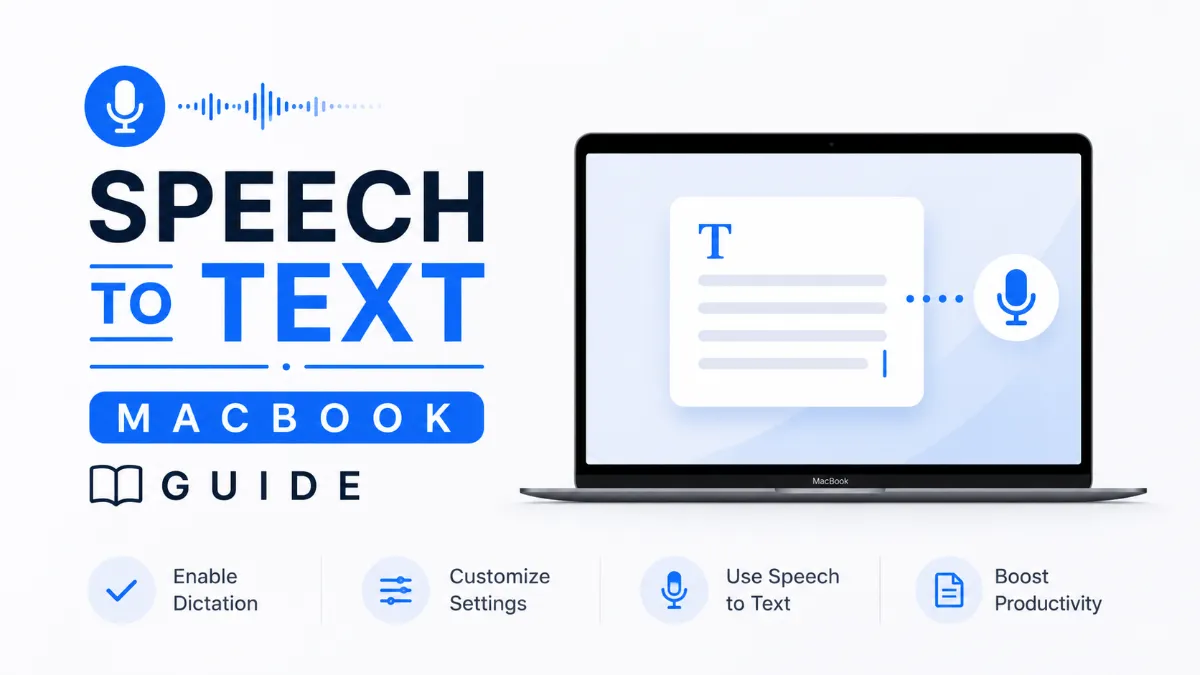
Speech to Text on MacBook: Built-in Dictation, Voice Control, and the Best Third-Party Apps
MacBook has strong built-in speech to text tools, but knowing which one to use — Dictation, Voice Control, or a third-party app — depends on what you're trying to do. This guide covers all three options and helps you choose the right one.
David K. Nguyen
AI Voice Specialist
June 26, 2026
8 min read
In This Article
How to Set Up Dictation on Mac (The Built-in Option)
Dictation vs. Voice Control: Which One Should You Use
Best Third-Party Speech to Text Apps for MacBook
When the Built-in Tool Isn't Enough
Setting Up for Success: Practical Tips
MacBook comes with solid speech to text built in — but most users don't know which setting to use, and Apple's labeling doesn't help. "Dictation" and "Voice Control" sound similar, the 60-second time limit surprises people mid-sentence, and the third-party options (SuperWhisper, Wispr Flow, MacWhisper) each do something slightly different.
This guide gives you a clear picture of what each tool does, when each one is the right choice, and how to set up the option that fits your workflow.
How to Set Up Dictation on Mac (The Built-in Option)
Mac Dictation is the simplest and fastest way to get speech to text working on a MacBook. It's built into the OS, requires no installation, and works in any app.
OpenSystem Settings(click the Apple menu, then System Settings).
Go toKeyboard.
Find theDictationsection and toggle it on.
Choose your shortcut. The default is pressingFntwice. You can change this to any key combination that doesn't conflict with other shortcuts.
Click any text field in any app, press your shortcut, and start speaking.
A small microphone indicator appears near your cursor when Dictation is active. Speak naturally — punctuation commands like "period," "comma," "new paragraph," and "new line" work in real time.
Quick Tip: On M-series Macs (M1, M2, M3, M4), built-in Dictation processes audio entirely on-device — no internet connection required and no audio sent to Apple's servers. If you're working with sensitive content or in a location without reliable Wi-Fi, this is a meaningful advantage over cloud-based third-party tools.
On Intel Mac vs. M-Series Mac
The experience differs depending on your chip:
Mac Type
Dictation Mode
Internet Required
Time Limit
Intel Mac
Standard (cloud)
Yes
~60 seconds
M1/M2/M3/M4 Mac
Enhanced (on-device)
No
No limit
On M-series Macs, Dictation processes audio entirely on-device using Apple Silicon's Neural Engine. This removes the time limit and improves accuracy. On Intel Macs, audio is processed in the cloud, which means a reliable connection is required and sessions are capped at roughly 60 seconds before Dictation pauses.
Dictation vs. Voice Control: Which One Should You Use
This is where most MacBook users get confused. Apple lists both in Settings > Accessibility, and they sound similar. Here's the actual difference:
Dictationconverts your speech into typed text in a text field. That's it. It doesn't let you navigate the OS, click buttons, or scroll pages.
Voice Controllets you control the entire Mac with your voice — dictating text is just one of its capabilities. You can say "click the red button," "scroll down," "open Safari," or "select all" and Voice Control will execute it.
Feature
Dictation
Voice Control
Type text by speaking
✅ Yes
✅ Yes
Navigate menus by voice
❌ No
✅ Yes
Click buttons and links
❌ No
✅ Yes
Scroll and open apps
❌ No
✅ Yes
Works offline (M-series)
✅ Yes
✅ Yes
Setup complexity
Low
Moderate
Use Dictation ifyou want to type faster by speaking and that's all. It's faster to activate and lighter on system resources.
Use Voice Control ifyou need full hands-free control of your Mac — for accessibility reasons, an injury, or a workflow where you need to navigate the OS without using keyboard and mouse.
Best Third-Party Speech to Text Apps for MacBook
If built-in Dictation isn't meeting your needs — whether because of the 60-second limit, accuracy concerns, or missing features — these third-party tools are worth considering.
SuperWhisper
SuperWhisperuses OpenAI's Whisper model running locally on your Mac. It works completely offline, has no session time limit, and lets you choose the Whisper model size (balancing speed vs. accuracy). It's particularly good for technical vocabulary and longer dictation workflows.
Best for:Users who dictate frequently, need offline processing, and want full control over accuracy tradeoffs.
Wispr Flow
Wispr Flowfocuses on natural-sounding transcription with better automatic punctuation and context-aware text formatting. It runs more seamlessly as a background app and is designed to feel less like a "dictation tool" and more like intelligent text input.
Best for:Writers, knowledge workers, and anyone who wants dictation that reads more naturally with less manual editing.
MacWhisper
MacWhisperis a simple, standalone app for transcribing audio files using the Whisper model. It's not designed for real-time live dictation — it's for transcribing recordings, interviews, or audio files.
Best for:Transcription of existing audio, not real-time speech to text while typing.
When the Built-in Tool Isn't Enough
Dictation covers most everyday use cases well. You'll want a third-party app if:
You regularly exceed 60-second sessions (and you're on an Intel Mac)
You need high accuracy for technical jargon, domain-specific vocabulary, or non-standard names
You want context-aware punctuation that doesn't require saying "period" after every sentence
You need transcription of recorded audio files (MacWhisper or Whisper Transcription)
You're dictating in a second language and want better model options
For most users on M-series Macs, built-in Dictation is sufficient — the removal of the time limit and the local processing model closed the gap significantly. For power users dictating thousands of words a day, SuperWhisper or Wispr Flow offer a meaningfully smoother experience.
Setting Up for Success: Practical Tips
Position your microphone well.MacBook's built-in microphone array is capable, but accuracy improves significantly with a headset or USB microphone placed closer to your mouth — especially in open offices or noisy environments.
Use the right shortcuts.With Dictation active, you can pause and resume without deactivating. A brief pause marks a natural sentence break. A long pause ends the session on Intel Macs.
Learn a few punctuation commands."New paragraph," "period," and "comma" become second nature quickly. They eliminate the need to manually insert punctuation after a dictation session.
Keep background apps quiet.Close video call apps or anything that actively uses the microphone before a long dictation session to avoid conflicts.
MacBook's speech to text options have genuinely matured — especially on Apple Silicon, where the combination of on-device processing, no time limits, and improved accuracy makes Dictation a viable daily driver. Start with the built-in option and upgrade to a third-party tool only when you've identified a specific gap it doesn't fill. If you also want to listen back to dictated documents or review transcriptions by ear on iPhone,AI Listenis a focused audio reader that pairs well with a Mac-first dictation workflow.
Go to System Settings > Keyboard > Dictation and toggle it on. Choose your preferred activation shortcut (the default is pressing Fn twice). Once enabled, place your cursor in any text field and press your shortcut to start dictating.
What is the difference between Dictation and Voice Control on Mac?
Dictation is a simple text input tool — you speak, it types. Voice Control is a full accessibility feature that lets you control the entire Mac by voice: navigating menus, clicking buttons, opening apps, scrolling, and more. Use Dictation for typing; use Voice Control only if you need hands-free system navigation.
Does Mac Dictation have a time limit?
Standard Dictation on older Intel Macs has an approximate 60-second limit per session. On M-series Macs (M1 and later), Enhanced Dictation runs locally without a time limit. If you're hitting the 60-second limit, switching to an M-series Mac or using a third-party app like SuperWhisper resolves it.
What is the best third-party speech to text app for Mac?
SuperWhisper and Wispr Flow are the most popular options in 2026. SuperWhisper is better for offline use and custom transcription workflows; Wispr Flow focuses on natural language input with better punctuation handling in context. Both outperform built-in Dictation for extended dictation sessions. If you also want to listen back to your transcribed content on iPhone, AI Listen is a dedicated audio reader that pairs well with a Mac dictation workflow.
Does MacBook speech to text work offline?
Yes, on M-series Macs (M1, M2, M3, M4). Enhanced Dictation on Apple Silicon processes audio locally without an internet connection. On Intel Macs, standard Dictation sends audio to Apple's servers for processing, which requires an active internet connection.
TTS
AI Listen
Tutorials
Share this article:
Table of Contents
How to Set Up Dictation on Mac (The Built-in Option)
Dictation vs. Voice Control: Which One Should You Use
Best Third-Party Speech to Text Apps for MacBook
When the Built-in Tool Isn't Enough
Setting Up for Success: Practical Tips
Ready to Transform Your Study Sessions?
Join 50,000+ students using AI Listen to study smarter. Free forever plan available.
AI story generators turn prompts into structured drafts for fiction, marketing, and education. In this guide, we cover how AI story generators work, their core features, benefits, limitations, and how to choose the right AI Story Generator.
Android speech to text failures usually trace back to a small set of causes: permissions, cache buildup, language mismatches, or internet dependency. Here are six fixes that cover the most common cases, in order of effort.
The Android text to speech engine is the system-level layer that converts text to audio for all apps on your phone. Most users never change it — but knowing how to switch engines, download better voices, and configure it correctly can significantly improve TTS quality.
Android’s text to speech tools range from a built-in accessibility engine to dedicated apps designed for longer listening sessions. This guide covers how to use each, and which option fits your workflow.
Assistive technology for dyslexia is more than a list of apps. This guide explains which tools matter most, who they help, and how to choose support that improves reading and learning in practice.