Text to Speech on iPad: Use Spoken Content and AI Voice Tools
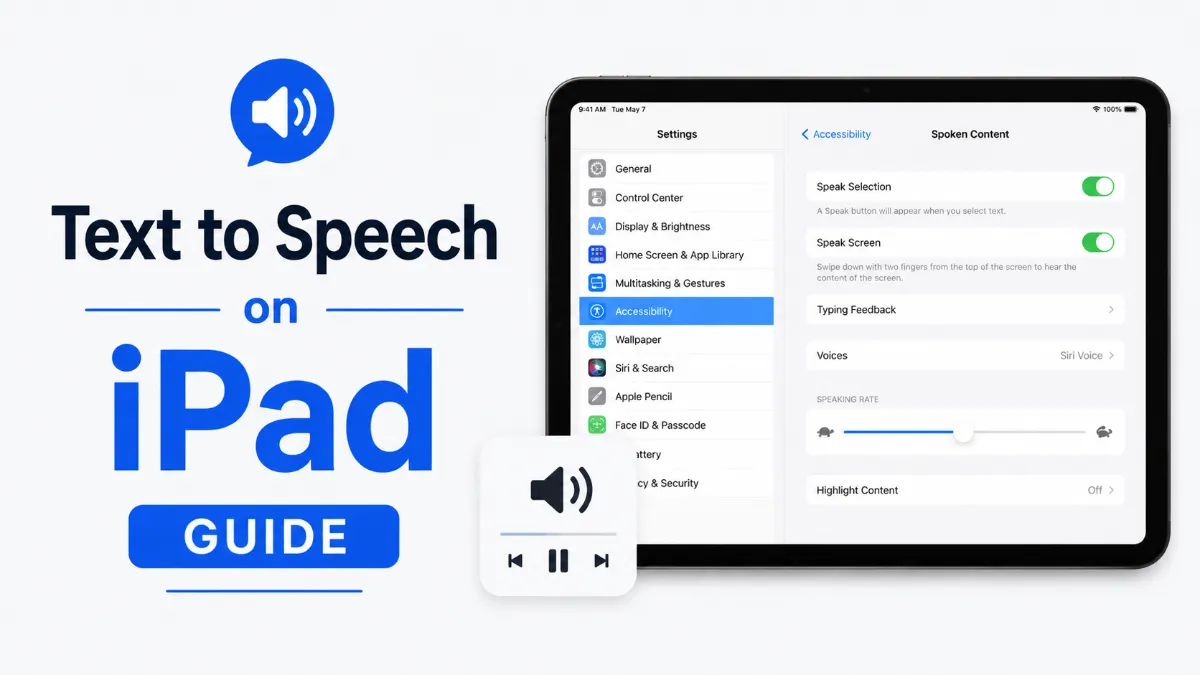
iPad text to speech is built into iOS through Spoken Content — you can have any selected text or entire screens read aloud. Here's how to enable it, use it, and get more out of it.
iPad can read any text aloud — selected words, full pages, or entire documents. The feature is built into iOS through Spoken Content, and once you know where it is, it takes under a minute to set up. Whether you use an iPad for long-form reading, accessibility needs, or just want to listen instead of read, here's exactly how to get it working.
How to Enable Text to Speech on iPad
The main controls are inSettings > Accessibility > Spoken Content. There are two primary modes:
Speak Selection: When you highlight text, a "Speak" button appears in the popup context menu. Tap it to hear the selection read aloud. Good for reading specific passages or paragraphs.
Speak Screen: Swipe down with two fingers from the top of the screen and the iPad reads everything visible on the current page from top to bottom. Good for reading full articles, documents, and web pages without interaction.
To enable both:
OpenSettings
TapAccessibility
TapSpoken Content
ToggleSpeak Selectionto On
ToggleSpeak Screento On
Both features activate immediately once enabled.
Quick Tip: For better voice quality than the default iPad TTS voices, try downloading premium Siri voices in Settings > Accessibility > Spoken Content > Voices. These are significantly more natural-sounding than the standard voices.
Using Speak Selection: Step by Step
Speak Selection is the more precise of the two modes — it reads only what you've chosen:
Open any app with text (Safari, Notes, Mail, Books)
Tap and hold on a word until the selection handles appear
Drag to select the text you want read
TapSpeakfrom the popup menu
iPad reads the selection aloud
TapPauseorStopfrom the popup, or just navigate away
In Safari, you can also select all text on a page with Edit > Select All, then tap Speak — though this often includes navigation text and ads. Safari Reader View (tap the Reader icon in the address bar) gives cleaner results with Speak Screen.
Using Speak Screen: Read Full Pages
Speak Screen reads everything visible without requiring text selection:
Navigate to the page or document you want to read
Swipe down with two fingersfrom the very top of the screen (near the status bar)
A floating controller appears with playback controls
iPad begins reading from the top of the page
The floating controller lets you:
Pause and resumethe reading
Skip forwardby sentence or paragraph (swipe left/right on the controller)
Adjust speedon the fly using the turtle/hare icons
Stopcompletely by dismissing the controller
Speak Screen continues reading even if you scroll down the page, making it useful for long articles.
Adjusting Text to Speech Settings
The Spoken Content panel has several useful options:
Speaking Rate: A slider from slow to fast. Default is moderate — most users prefer 1.1–1.3x for comfortable listening.
Highlight Content: When enabled, iPad highlights each word or sentence as it's read. Options include highlighting words, sentences, or both. This helps follow along with complex text.
Typing Feedback: Reads each character or word as you type — primarily an accessibility feature for users who need audio confirmation of input.
Voices: Where you select and download voices for each language. See the next section.
Changing the iPad TTS Voice
The default voices vary by language and device, but better options are available to download:
Go toSettings > Accessibility > Spoken Content > Voices
Select your language (e.g., English)
Browse available voices — those with a download icon need to be downloaded
Download a high-quality voice by tapping it and selecting the highest quality version
Set it as your preferred voice by tapping it once it's downloaded
Best voicesfor natural-sounding iPad TTS:
Siri Voice 1 or 2(any accent) — same quality as the Siri assistant, far more natural than older voices
AvaorEvan— high-quality neural voices available on recent iOS versions
Aaron— clear, neutral delivery for long-form reading
Siri voices require downloading (typically 300–700MB) but produce significantly more natural output.
For apps that use AI voice technology,AI Listenoffers an iOS reading experience with modern AI voices — designed specifically for listening to articles and documents with natural-sounding narration.
Best iPad Apps for Text to Speech
Beyond Spoken Content, several apps provide more specialized TTS experiences:
Apple Bookshas its own TTS feature — in the Books app, use the Speak Screen feature from Spoken Content or look for the Listen Now integration in newer iOS versions that narrates ebooks with the system voice.
Voice Dream Readeris a dedicated accessibility reading app with deep voice customization and support for a wide range of document formats including PDFs and EPUB files. Popular with dyslexia communities and visually impaired users.
Fix: iPad Text to Speech Not Working
If Speak Selection or Speak Screen stops working, these are the most common causes and fixes:
Speak Selection is off: Go to Settings > Accessibility > Spoken Content and confirm Speak Selection is toggled on. Without this enabled, no "Speak" button appears when you highlight text.
Text is not selectable: Some apps (video players, locked PDFs, certain web elements) do not allow text selection. In Safari, try enabling Reader View (tap the reader icon in the address bar) — it strips formatting and makes text selectable.
iPad muted or volume too low: Check that iPad volume is up and not muted. TTS audio routes through the media volume channel, not the ringer.
Speak Screen does not start: Make sure Speak Screen is enabled in Settings > Accessibility > Spoken Content, then swipe down with two fingers from the very top of the screen.
Voice sounds robotic or choppy: The default TTS voice quality can be limited. Go to Settings > Accessibility > Spoken Content > Voices and download a higher-quality voice — look for voices marked with a download icon for significantly better output.
iPad TTS for Accessibility
Spoken Content is one of the core accessibility features in iOS. For users with dyslexia, low vision, or reading difficulties, the combination of Speak Selection, Speak Screen, and word highlighting provides meaningful support.
Key accessibility workflows on iPad:
Guided Access + Speak Screen: Lock the iPad to a single app and have it read content continuously — useful for educational settings
Assistive Touch + Speak: Add Speak as an Assistive Touch action for quick access without navigating menus
Switch Control: For users who cannot tap directly, switch-based access can trigger TTS without touch
These features are built into iOS and don't require additional apps or subscriptions.
The iPad text to speech system covers most use cases once it's enabled. The two-step setup (Settings > Accessibility > Spoken Content) is all that's needed, and the Speak Screen two-finger swipe works in virtually every app.
For listening to articles and web content on iPad with a natural AI voice,AI Listenis the most direct option.
Go to Settings > Accessibility > Spoken Content and enable 'Speak Selection.' With text highlighted, a 'Speak' button appears in the context menu. You can also enable 'Speak Screen' to have the iPad read all visible content aloud, triggered by swiping down with two fingers from the top of the screen.
What is the iPad text to speech shortcut?
If you have a keyboard connected to your iPad, Option+Esc triggers Speak Selection for highlighted text. Without a keyboard, select text and tap 'Speak' from the popup menu. Swiping down with two fingers from the top of the screen activates Speak Screen to read the full page.
How do I make iPad read a whole page or article?
Enable 'Speak Screen' in Settings > Accessibility > Spoken Content, then swipe down with two fingers from the top of the screen. iPad will read everything visible on the page, moving through content automatically. A floating controller lets you pause, skip forward, or adjust speed mid-playback.
Can I change the iPad text to speech voice?
Yes. Go to Settings > Accessibility > Spoken Content > Voices, select your language, and choose from available voices. High-quality voices (marked with a download icon) can be downloaded and produce significantly more natural output. You can also use third-party apps like AI Listen for a different voice experience.
Does iPad text to speech work in all apps?
Speak Selection works in any app that supports text selection — Safari, Mail, Notes, Books, and most third-party apps. Speak Screen works on most apps that display readable content. Some video apps or games may not support it. System UI elements are generally readable; some custom interfaces may not be.
TTS
Tutorials
AI Tools
Share this article:
Table of Contents
How to Enable Text to Speech on iPad
Using Speak Selection: Step by Step
Using Speak Screen: Read Full Pages
Adjusting Text to Speech Settings
Changing the iPad TTS Voice
Best iPad Apps for Text to Speech
Fix: iPad Text to Speech Not Working
iPad TTS for Accessibility
Ready to Transform Your Study Sessions?
Join 50,000+ students using AI Listen to study smarter. Free forever plan available.
AI story generators turn prompts into structured drafts for fiction, marketing, and education. In this guide, we cover how AI story generators work, their core features, benefits, limitations, and how to choose the right AI Story Generator.
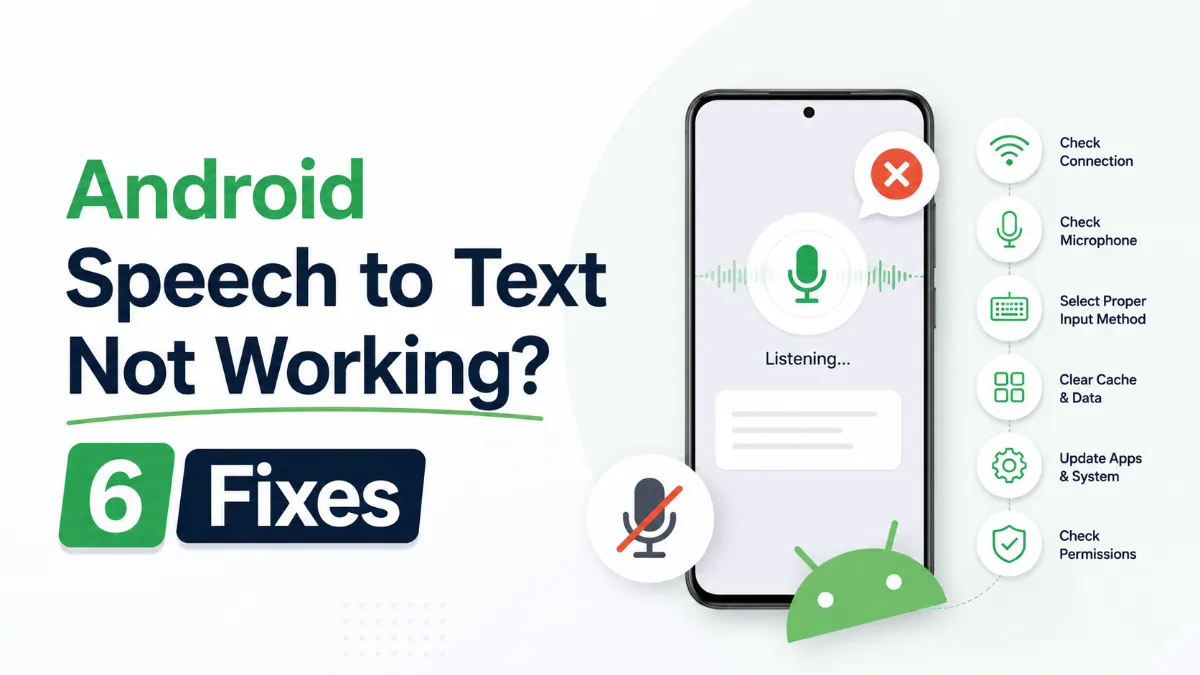
Android speech to text failures usually trace back to a small set of causes: permissions, cache buildup, language mismatches, or internet dependency. Here are six fixes that cover the most common cases, in order of effort.
The Android text to speech engine is the system-level layer that converts text to audio for all apps on your phone. Most users never change it — but knowing how to switch engines, download better voices, and configure it correctly can significantly improve TTS quality.
Android’s text to speech tools range from a built-in accessibility engine to dedicated apps designed for longer listening sessions. This guide covers how to use each, and which option fits your workflow.
Assistive technology for dyslexia is more than a list of apps. This guide explains which tools matter most, who they help, and how to choose support that improves reading and learning in practice.