How to Turn Off Text to Speech on PS5: Disable Screen Reader in 3 Steps
The PS5 Screen Reader is a useful accessibility tool — but if it turned on by accident, it can make navigation frustrating fast. Here's how to disable it in under a minute, and how to keep it off.
You're navigating your PS5 and suddenly every menu item is being read aloud. The console announces each option, every button press gets narrated, and the experience goes from smooth to disorienting in seconds. If this just happened to you, you've accidentally enabled the PS5 Screen Reader — and you're not alone.
This is one of the more common PS5 accessibility mix-ups, partly because the Screen Reader can be toggled on with a button combination that's easy to hit by mistake. The fix is fast once you know where to look.
What Is the PS5 Screen Reader?
The PS5 Screen Reader is Sony's built-in text-to-speech accessibility feature. It reads out menu text, button labels, and on-screen prompts so that players with visual impairments can navigate the console by audio alone.
It's a genuinely useful tool for the users it's designed for — but for everyone else, having the console narrate every action is disorienting and unwanted. It's not a bug, it's a feature that got activated.
How to Turn Off Text to Speech on PS5
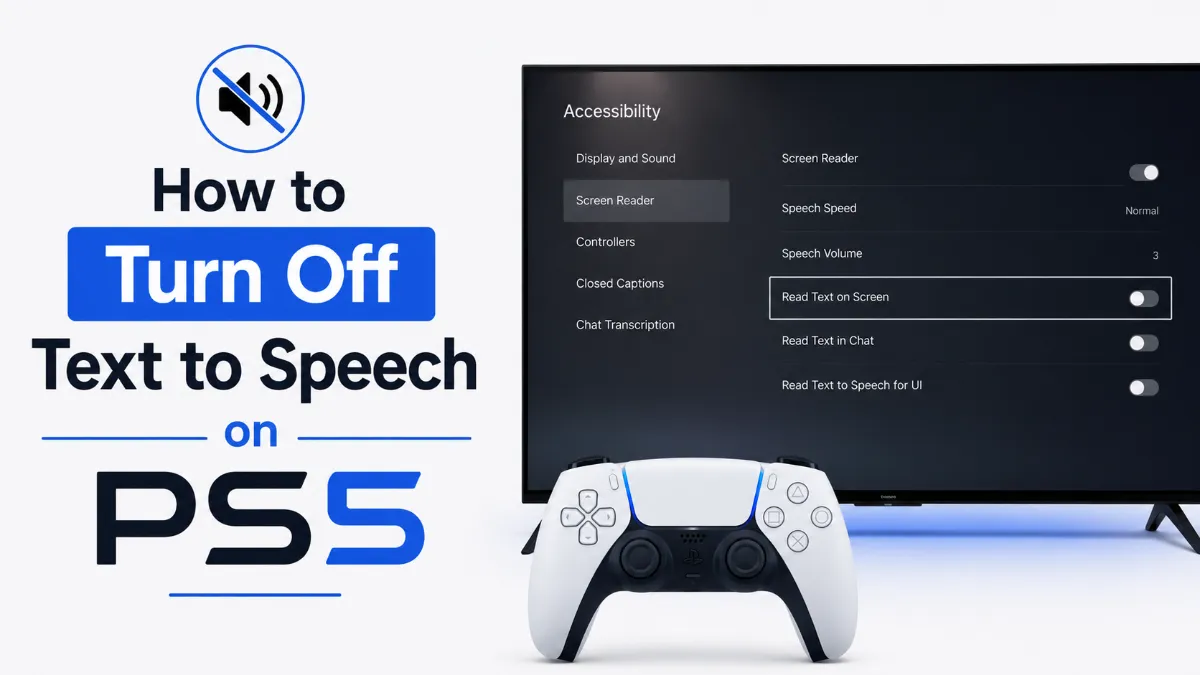
The Screen Reader is controlled through the Accessibility settings. Here are the three steps:
From the PS5 home screen, press thePS buttonto open the control center, then go toSettings(the gear icon in the top right)
SelectAccessibility
SelectScreen Reader, then toggleEnable Screen ReadertoOff
That's it. The narration stops immediately — no restart required.
Quick Tip: The PS5 Screen Reader is part of the console's accessibility suite — not a bug. If someone in your household needs it, you can enable it again through the same path at any time.
If the Screen Reader makes it hard to navigate the menus because it's reading everything aloud as you go, move slowly through the options and wait for each item to be announced before pressing. The path is always: Settings → Accessibility → Screen Reader.
How the Screen Reader Gets Accidentally Enabled
The most common cause is the quick-access shortcut: pressing thePS button + Triangletogether toggles the Screen Reader on and off. This shortcut exists to help users with visual impairments enable the feature quickly, but it's also easy to hit accidentally during normal gameplay or console navigation.
Other ways it can get turned on:
A family member or friend enabled it while using the console
A system update changed or reset an accessibility setting
You pressed the shortcut while trying to take a screenshot (the PS button is involved in both)
Once you know the shortcut exists, accidental activation becomes much easier to avoid and diagnose.
How to Prevent It from Turning On Again
If the accidental shortcut keeps being a problem, you can disable the shortcut itself while leaving the Screen Reader accessible through the menu:
Go toSettings > Accessibility > Screen Reader
Look for theShortcutoption and toggle it toOff
With the shortcut disabled, the PS button + Triangle combination no longer triggers the Screen Reader. You can still enable or disable it manually from Settings at any time — you just lose the quick-toggle access.
This is the recommended setting for households where the Screen Reader is not regularly used and accidental activation is a recurring issue.
Other PS5 Accessibility Settings Worth Knowing
While you're in the Accessibility menu, it's worth a quick look at the other options available:
Display and Sound— Adjust text size, bold text, high-contrast mode, and zoom settings
Closed Captions— Enable subtitles and customize caption styling for games and media
Controller— Remap buttons, adjust vibration intensity, and enable button assistance
Vision— Color correction filters and text-to-speech settings for people with color vision differences
These features are independent of the Screen Reader. Disabling the Screen Reader doesn't touch any of them.
How to Re-Enable Screen Reader If You Need It
If you or someone else needs the Screen Reader back on, the process is the same as disabling it:
Via shortcut(if enabled): PS button + Triangle from the home screen
The feature remembers your voice settings and speed preferences once it's been configured, so re-enabling it is instant.
When You Might Actually Want the Screen Reader
If you're gaming in a noisy environment and want audio narration of menu items, or if you're helping someone with low vision set up a PS5, the Screen Reader is a well-implemented tool. Sony has put genuine effort into its accessibility suite — the Screen Reader supports speed adjustments, voice pitch settings, and the ability to skip repeated announcements.
When you want text to speech for content listening — not console navigation —AI Listenis the most direct option.
For gaming-focused audio narration needs, the Screen Reader is the most direct PS5 tool available. If you are interested in TTS for content creation — commentary, narration, or gaming videos — tools likeElevenLabsorMurf.aioffer professional-grade voice generation, andAI Listenis a free iOS option for listening to scripts and notes in a natural AI voice before recording.
Turning off the PS5 Screen Reader takes less than a minute once you know the path. The harder part was often figuring out why it turned on in the first place.
The voice you're hearing is the PS5 Screen Reader, found under Settings > Accessibility > Screen Reader. Toggle off "Enable Screen Reader" to stop it immediately. The change takes effect right away — no restart needed.
Why did text to speech turn on by itself on PS5?
The most common cause is accidentally pressing the PS button + Triangle while navigating the home screen or a game, which is a shortcut that toggles the Screen Reader. It can also get enabled if someone else used the console or if a system update changed a setting. Once you know the shortcut exists, it's much easier to avoid.
Can I disable the PS5 Screen Reader shortcut to prevent accidental activation?
Yes. In Settings > Accessibility > Screen Reader, you'll find an option to disable the shortcut that enables it. Turning off the shortcut prevents the button combination from triggering Screen Reader in the future, while still letting you enable it manually from the menu if needed.
Does turning off the Screen Reader affect other accessibility features?
No. The Screen Reader is a standalone feature. Disabling it won't affect closed captions, controller vibration settings, display zoom, or any other accessibility options on the PS5. Each feature is controlled independently.
How do I turn PS5 text to speech back on if I need it?
Go to Settings > Accessibility > Screen Reader and toggle "Enable Screen Reader" back on. You can also use the PS button + Triangle shortcut to re-enable it quickly if the shortcut is active.
TTS
Tutorials
Share this article:
Table of Contents
What Is the PS5 Screen Reader?
How to Turn Off Text to Speech on PS5
How the Screen Reader Gets Accidentally Enabled
How to Prevent It from Turning On Again
Other PS5 Accessibility Settings Worth Knowing
How to Re-Enable Screen Reader If You Need It
When You Might Actually Want the Screen Reader
Ready to Transform Your Study Sessions?
Join 50,000+ students using AI Listen to study smarter. Free forever plan available.
AI story generators turn prompts into structured drafts for fiction, marketing, and education. In this guide, we cover how AI story generators work, their core features, benefits, limitations, and how to choose the right AI Story Generator.
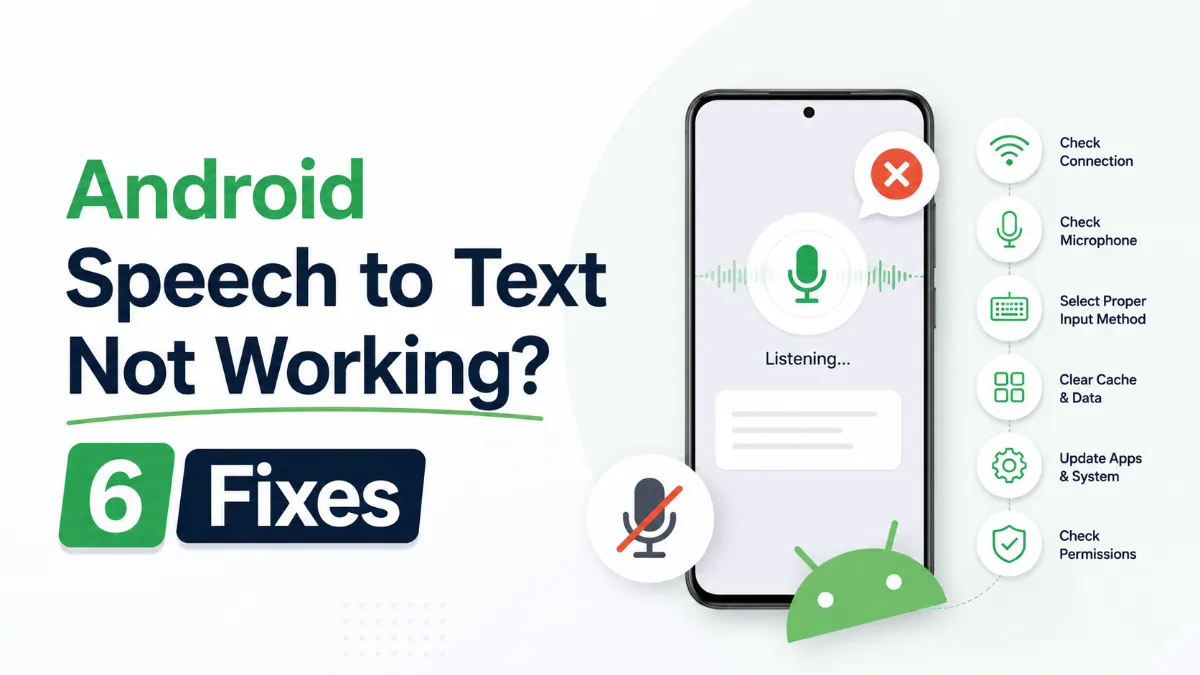
Android speech to text failures usually trace back to a small set of causes: permissions, cache buildup, language mismatches, or internet dependency. Here are six fixes that cover the most common cases, in order of effort.
The Android text to speech engine is the system-level layer that converts text to audio for all apps on your phone. Most users never change it — but knowing how to switch engines, download better voices, and configure it correctly can significantly improve TTS quality.
Android’s text to speech tools range from a built-in accessibility engine to dedicated apps designed for longer listening sessions. This guide covers how to use each, and which option fits your workflow.
Assistive technology for dyslexia is more than a list of apps. This guide explains which tools matter most, who they help, and how to choose support that improves reading and learning in practice.