Speech to text on iPhone has come a long way. What started as a basic keyboard dictation feature has evolved into a capable on-device transcription engine — and with iOS 26 introducing the SpeechAnalyzer API, it's set to improve further for app developers. But how much of that matters to you right now, and when does a third-party app do a better job? This guide walks through everything: setup, voice commands, common failures, and a clear breakdown of when to switch to a dedicated app.
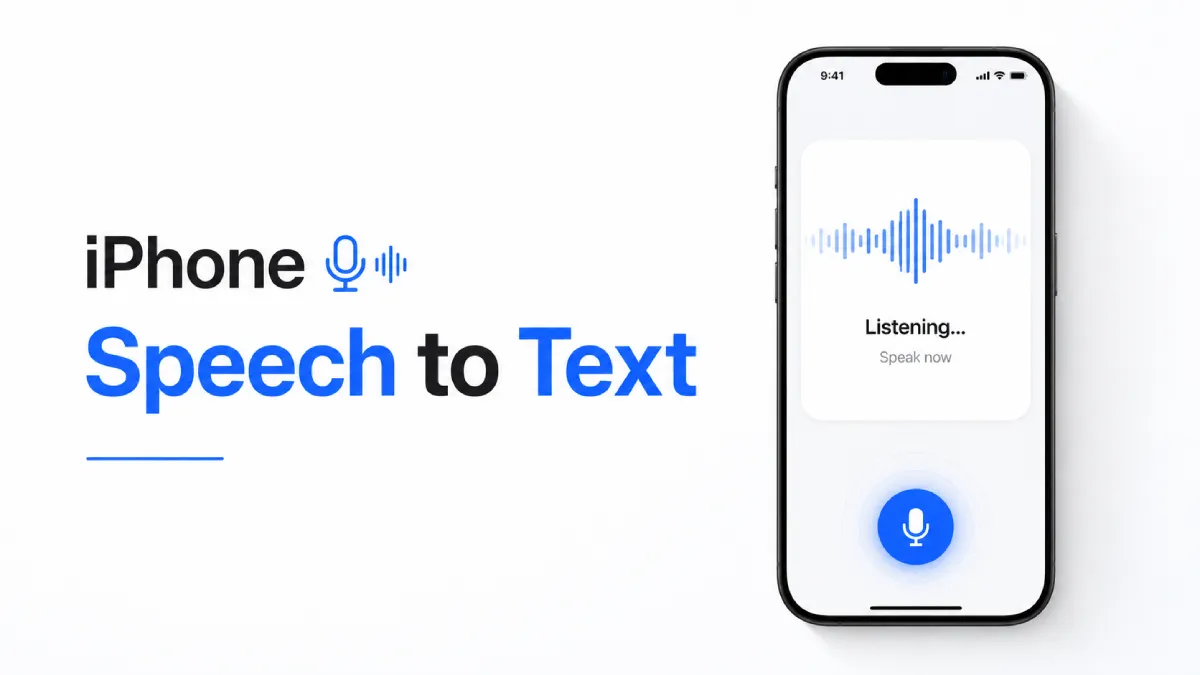
iPhone's speech to text feature is called Dictation, and it's built directly into the iOS keyboard. It converts your spoken words to text in real time wherever the keyboard appears — messages, notes, emails, search bars, or any text field.
Dictation is different from Siri. Siri executes commands and answers questions. Dictation simply transcribes what you say, word for word, into the active text field. The two can look similar but serve entirely different purposes.
Starting with iOS 16, Apple moved Dictation to on-device processing for most languages, which means it no longer sends audio to Apple's servers for transcription. That's a meaningful privacy and reliability improvement — it now works without an internet connection for supported languages.
What it does well:
Fast, low-latency transcription for short to medium inputs
Automatic punctuation in supported languages
Works seamlessly across all native and third-party apps
Free, no account required
Where it falls short:
Long continuous recordings (it pauses after silence)
Speaker identification in meetings
Generating summaries or action items
Organizing and searching past transcripts
If your needs go beyond quick text input, that's when third-party apps become relevant.
Open Settings
Tap General
Tap Keyboard
Toggle Enable Dictation to on
Tap Enable Dictation in the confirmation popup
Once enabled, a microphone icon appears on the bottom row of your keyboard — to the left of the space bar on iPhone. Tap it to start dictating. Tap it again, or tap the keyboard icon, to stop.
On iOS 17 and later, you can dictate while typing — the keyboard stays visible so you can switch between voice and manual input mid-sentence without losing your place.
iPhone Dictation handles punctuation automatically in many cases, but you can say commands explicitly when needed. Here are the most useful ones:
Say This | You Get |
|---|---|
"period" | . |
"comma" | , |
"question mark" | ? |
"exclamation point" | ! |
"new line" | line break |
"new paragraph" | paragraph break |
"open quote" / "close quote" | " " |
"dash" | — |
"hyphen" | - |
"all caps [word]" | WORD |
"no space" | removes space before next word |
Language note: Voice commands are language-specific. The list above applies to English. If you switch your dictation language, check Apple's support documentation for the commands that apply.
The microphone icon is missing
Dictation may be disabled. Go to Settings > General > Keyboard and confirm Enable Dictation is on. On managed devices (work or school), your organization may have disabled the feature.
Dictation stops after a few seconds
This is expected behavior — the system pauses after detecting silence. It's not a bug. For continuous long-form input, a third-party app is the right tool.
Transcription accuracy is poor
Check that your microphone isn't physically blocked. Move to a quieter environment if possible. For accented speech or technical vocabulary, built-in Dictation has real limits — Dragon Anywhere and Whisper-based apps handle non-standard speech more flexibly.
Dictation doesn't work in a specific app
Some apps restrict keyboard input extensions. Try a different app to confirm whether the issue is system-wide or isolated to that app.
Offline dictation fails
You may be on a language that hasn't been downloaded for on-device use. Go to Settings > General > Keyboard > Dictation Languages and download the offline package for your language.
For most casual use — quick messages, short notes, brief emails — built-in Dictation handles it fine. These are the scenarios where a dedicated app makes more sense:
You transcribe meetings or group conversations
You need searchable, organized transcript archives
You regularly work in more than one language
You dictate long-form content like reports or scripts
You need professional-grade accuracy for legal, medical, or journalistic work
App | Best For | Strengths | Limitations |
|---|---|---|---|
Meetings and team notes | Speaker ID, summaries, Zoom/Teams integration | Free tier limited to 300 min/month | |
VOMO | Long recordings, journalists | Unlimited recording length, file upload transcription | Full features require subscription |
Notta | Multilingual users | 58 languages, real-time translation | Higher price point |
Dragon Anywhere | Professional/legal/medical | Custom vocabulary, high accuracy | Most expensive option |
Rev Voice Recorder | Occasional transcription needs | Human review option available | Per-minute pricing adds up quickly |
Whisper (via third-party clients) | Privacy-focused and technical users | On-device processing, no cloud upload | Requires setup, no live dictation |
How to choose: Start with Otter.ai if you transcribe meetings — the free tier covers most light users. If accuracy on specialized vocabulary is your priority, Dragon Anywhere justifies the premium. If you routinely switch between languages in the same session, Notta is the only option that handles it well.
Built-in Dictation is not designed for meeting transcription. It pauses after silence, produces no speaker labels, and generates no summary. Using it to capture a one-hour meeting would require manually restarting it dozens of times.
For live meetings, Otter.ai and Notta are practical alternatives — both record the full session, distinguish between speakers with calibration, and produce a summary with action items.
For long audio files you've already recorded — voice memos, interviews, lectures — apps like VOMO and Rev let you upload the file and receive a full transcript, rather than re-dictating live.
A workflow worth knowing: use iPhone Dictation for quick in-the-moment notes, then move those notes into a reading app when you want to review them later. If you use AI Listen, you can convert any transcribed text — meeting notes, articles, long documents — into audio and listen back hands-free, which is useful when your eyes are occupied but you want to review what you captured.

Speed: Both platforms offer fast real-time dictation in 2026. Neither has a meaningful edge for everyday text input.
Accuracy: Both handle standard English well. Android's on-device recognition has historically handled accent variation more flexibly, but the gap has narrowed since Apple's switch to on-device processing in iOS 16.
Language support: Google Keyboard supports more languages natively across more regions. iPhone Dictation covers fewer languages but has expanded its offline set steadily since iOS 16.
Privacy: iOS on-device Dictation (iOS 16+) processes audio locally by default. Android varies — Google's server-based processing is the default for most keyboard configurations.
iOS 26 SpeechAnalyzer: Apple's new developer API, announced at WWDC25, gives third-party apps access to higher-accuracy on-device speech recognition with speaker diarization support. This won't change the built-in Dictation experience directly, but it means third-party iPhone apps in 2026 and later will improve meaningfully — which may shift the platform comparison in iOS's favor over time.
If you're already on iPhone, there's no reason to switch platforms for speech to text alone. Third-party apps close any gaps that matter.
For quick text input, iPhone's built-in Dictation is more than capable — and it requires almost no setup. Enable it once, learn the key voice commands, download the offline language pack if you need it without internet, and you have a solid hands-free typing tool already on your device.
For anything longer or more structured — meetings, interviews, long-form content — a dedicated app will save you real time. The built-in feature simply isn't designed for those workflows.
If you regularly work with long transcripts or documents, AI Listen is worth adding to your workflow. It converts any text into natural-sounding audio so you can review transcribed content hands-free — a practical complement to speech to text when you're on the move.
![GoAnimate (Vyond) Text to Speech: Complete Guide + Best Alternatives [2026]](https://v.aivoicelab.com/b1265344voduse1318177724/4c48016b5001834806033798579/qJrAff3z3FIA.webp)