Speech to Text on iPad: Use Dictation and Voice Typing
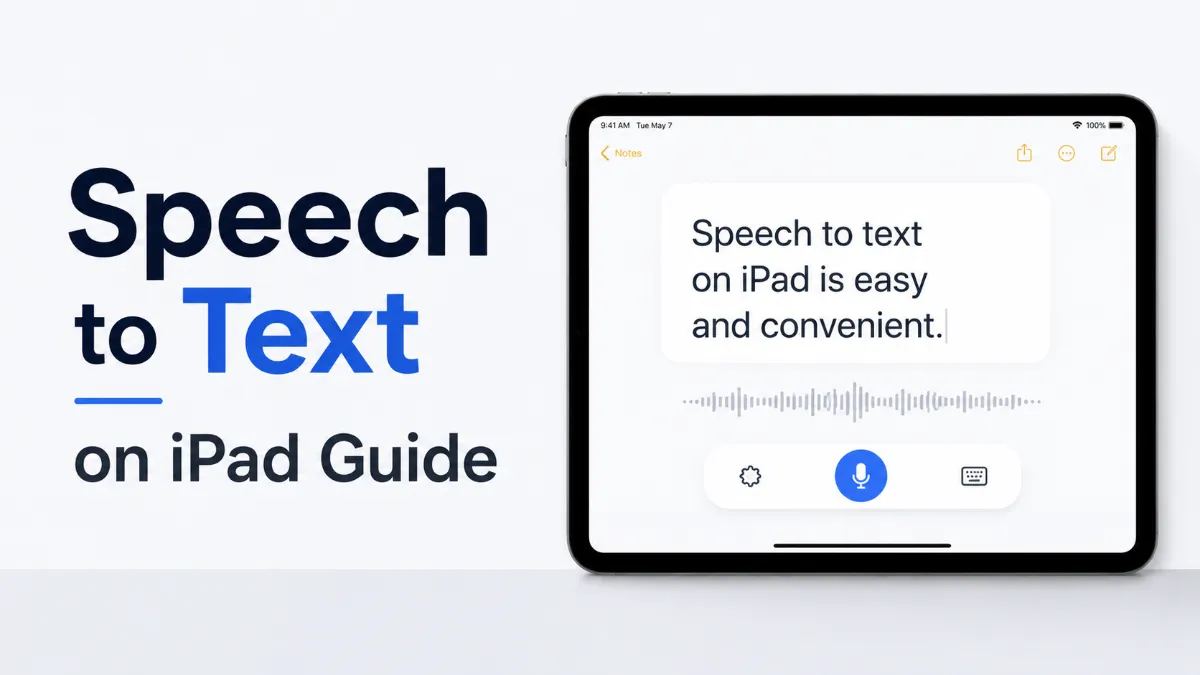
iPad speech to text is built into the keyboard as Dictation. Tap the microphone icon to start speaking — your words appear as text instantly. Here's how to enable it and use it well.
Native vs. Third-Party iPad Speech to Text: Quick Comparison
iPad speech to text works through the built-in Dictation feature — it's accessible directly from the keyboard, works in any app with a text field, and converts spoken words to text in real time. Most users don't realize it's there until they accidentally tap the microphone icon. Here's how to use it intentionally.
How iPad Speech to Text Works
iPad Dictation is integrated into the iOS keyboard. When you tap the microphone icon, the iPad captures audio from the built-in microphone and converts your speech to text, which appears directly in whatever text field is active.
The process:
Tap into any text field (a message, note, document, search bar, or email)
Tap themicrophone iconon the keyboard
Speak naturally — words appear on screen as you speak
Tap the microphone again, or tap a different key, to stop
There's no separate app to open and no account to create. Dictation is part of the system keyboard and is always accessible wherever you can type.
Quick Tip: For long-form dictation or transcribing recordings, the built-in Dictation works well for short to medium sessions. For professional or high-volume transcription, third-party apps like Otter.ai or Whisper-based tools offer better control over long audio.
How to Enable iPad Dictation
If you don't see the microphone icon on your keyboard, Dictation may be disabled:
OpenSettings
TapGeneral
TapKeyboard
Scroll to findEnable Dictationand toggle itOn
Confirm when prompted
The microphone icon will appear on the keyboard immediately. On some keyboard layouts, you may need to scroll the keyboard bar or look in the bottom row.
Getting Good Results from iPad Speech to Text
A few practices significantly improve accuracy:
Speak clearly and at a natural pace.The system handles natural speech well — don't slow down too much, but avoid rushing. Speak in full phrases rather than individual words.
Pause at sentence boundaries.iPad Dictation works best when you give it a brief pause at the end of a thought. This helps it transcribe punctuation correctly.
Use punctuation commands.Instead of tapping to add punctuation, say it: "period," "comma," "question mark," "exclamation point," "new line," "new paragraph." These commands work mid-flow.
Minimize background noise.Dictation accuracy drops significantly in noisy environments. If you're in a busy location, external microphones or headphones with a mic produce noticeably better results.
Use ipad speech to text for medium-length content.Dictation is excellent for composing emails, messages, and short documents. For very long-form content (thousands of words), third-party tools may handle longer sessions better.
Dictation in Common iPad Apps
Mail and Messages: Tap into the message body, activate Dictation, and compose. Works well for emails and texts. Say "new paragraph" to separate sections.
Notes: One of the best apps for iPad dictation. Create a note, tap into it, and dictate extended content. The app handles long sessions well.
Pages and Word: Works in the document body. Useful for drafting documents by voice. Note that complex formatting commands aren't available through Dictation — use touch for headings and lists.
Safari and Chrome address bar: You can dictate URLs and search queries. Say the domain name naturally (for example, "apple dot com") and the system handles the conversion.
Google Docs: Works in the text area via the iPad keyboard Dictation. For more advanced dictation in Docs, Google's own voice typing feature (built into the web version of Docs via Chrome) provides additional commands.
Punctuation and Editing Commands
iPad Dictation supports a useful set of verbal commands:
Say This
Result
"period"
.
"comma"
,
"question mark"
?
"exclamation point"
!
"new line"
Line break
"new paragraph"
Paragraph break
"delete"
Deletes last word
"open parenthesis" / "close parenthesis"
( )
"open quote" / "close quote"
" "
"hyphen"
-
"dash"
—
Punctuation commands work best when said as part of the natural sentence flow. Practice integrating them as you speak rather than pausing to announce them separately.
iPad Speech to Text for Different Languages
iPad Dictation supports over 30 languages and regional accents. To switch:
Open the keyboard and tap theglobe iconto switch to a different language keyboard
The Dictation language automatically matches the active keyboard
Speak in that language and iPad will transcribe accordingly
For bilingual users, you can switch keyboard languages mid-session to dictate in different languages in the same document — useful for multilingual correspondence.
Troubleshooting iPad Dictation
Microphone icon missing: Enable Dictation in Settings > General > Keyboard.
Dictation stops quickly: Tap the microphone again to restart. Some sessions end after longer pauses — shorter, more frequent dictation sessions work around this.
Wrong words appearing: If a specific word or name is consistently transcribed incorrectly, try saying it more slowly, or type it manually and let Dictation learn from context over time.
Microphone not activating: Make sure no other app (like a video call or audio recorder) is using the microphone. Switch apps or restart the problematic app.
Works but stops after a few seconds: This sometimes happens with poor network connectivity. Dictation sends audio to Apple servers — a slow or dropped connection can interrupt processing. Move to a better network connection.
When to Use Third-Party Apps Instead
iPad Dictation handles most common use cases well. Consider third-party tools when you need:
Long meeting or lecture transcription: Apps likeOtter.airecord and transcribe extended audio with speaker identification and searchable archives
Transcribing existing audio files: The built-in Dictation only works with live speech. Tools likeWhisper(via third-party apps) can transcribe pre-recorded audio
Professional medical or legal dictation: Dragon Anywhere for iOS provides specialized vocabulary and formatting designed for professional dictation workflows
Higher accuracy in noisy environments: External microphone + a dedicated recording app + Whisper-based transcription often outperforms the built-in system in challenging conditions
Native vs. Third-Party iPad Speech to Text: Quick Comparison
For typical use — composing messages, emails, notes, and documents by voice — the built-in iPad Dictation is the simplest and most integrated option available. For the other direction,AI Listenconverts text and documents into natural-sounding audio on iOS — useful if you want to listen back to what you've dictated rather than read it.
Tap the microphone icon on the iPad keyboard — it's usually in the bottom row next to the space bar. If you don't see it, go to Settings > General > Keyboard and enable Dictation. Once active, speak naturally and your words appear as text in the active text field.
Where is the speech to text button on iPad keyboard?
The Dictation button (microphone icon) is on the iPad keyboard, typically in the bottom row to the left of the space bar. On some keyboard layouts it may be in a different position. If you don't see it, Dictation may be disabled — enable it in Settings > General > Keyboard > Enable Dictation.
Does iPad speech to text work offline?
Basic iPad Dictation requires an internet connection to send audio to Apple's servers for transcription. On iPad models running iOS 16 or later, you can enable on-device dictation that works offline. Check in Settings > General > Keyboard if an offline option is available for your region and language.
How do I use punctuation with iPad speech to text?
Say punctuation aloud: "period," "comma," "question mark," "exclamation point," "new line," or "new paragraph." You can also say "delete" to remove the last word. These commands work naturally mid-sentence — you don't need to pause before saying them.
Why is iPad speech to text not accurate?
Common causes: background noise (find a quieter location), speaking too fast (slow down slightly), or using a language the Dictation engine isn't well-trained on. Also check that your microphone isn't blocked or covered. Accuracy improves when you speak in complete phrases rather than word-by-word.
Tutorials
Share this article:
Table of Contents
How iPad Speech to Text Works
How to Enable iPad Dictation
Getting Good Results from iPad Speech to Text
Dictation in Common iPad Apps
Punctuation and Editing Commands
iPad Speech to Text for Different Languages
Troubleshooting iPad Dictation
When to Use Third-Party Apps Instead
Native vs. Third-Party iPad Speech to Text: Quick Comparison
Ready to Transform Your Study Sessions?
Join 50,000+ students using AI Listen to study smarter. Free forever plan available.
AI story generators turn prompts into structured drafts for fiction, marketing, and education. In this guide, we cover how AI story generators work, their core features, benefits, limitations, and how to choose the right AI Story Generator.
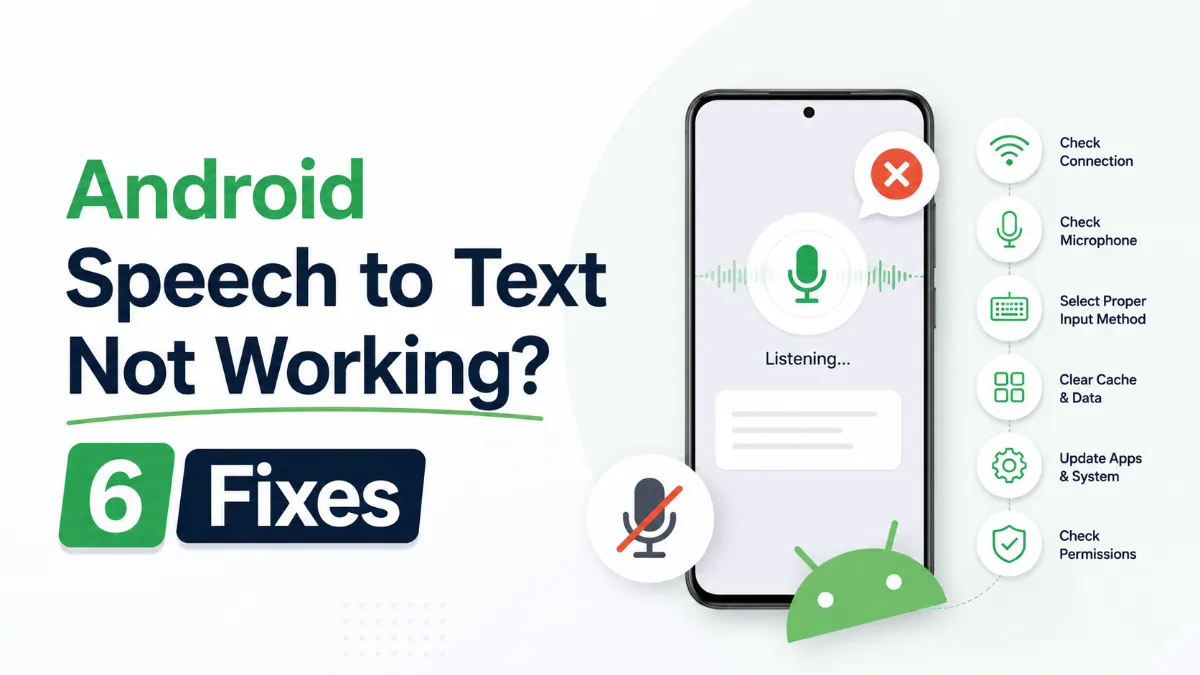
Android speech to text failures usually trace back to a small set of causes: permissions, cache buildup, language mismatches, or internet dependency. Here are six fixes that cover the most common cases, in order of effort.
The Android text to speech engine is the system-level layer that converts text to audio for all apps on your phone. Most users never change it — but knowing how to switch engines, download better voices, and configure it correctly can significantly improve TTS quality.
Android’s text to speech tools range from a built-in accessibility engine to dedicated apps designed for longer listening sessions. This guide covers how to use each, and which option fits your workflow.
Assistive technology for dyslexia is more than a list of apps. This guide explains which tools matter most, who they help, and how to choose support that improves reading and learning in practice.